uncategorized
The Best YoloLiv Setup for Podcasters and YouTubers: YoloBox Ultra vs Pro vs Mini
If you’re a podcaster or YouTuber just starting out with live streaming, the YoloLiv YoloBox lineup offers a plug-and-play, professional-grade solution that replaces complex gear with a single, touchscreen device. Whether you want to broadcast a multi-camera podcast, livestream a behind-the-scenes vlog, or conduct interviews on the go, there’s a YoloBox for your needs.
In this guide, we’ll compare the YoloBox Ultra, Pro, and Mini, and walk you through the best gear, accessories, and real-world use cases so you can stream smarter—not harder.
 Click here to learn more about Yololiv Yolobox
Why YoloBox for Creators?
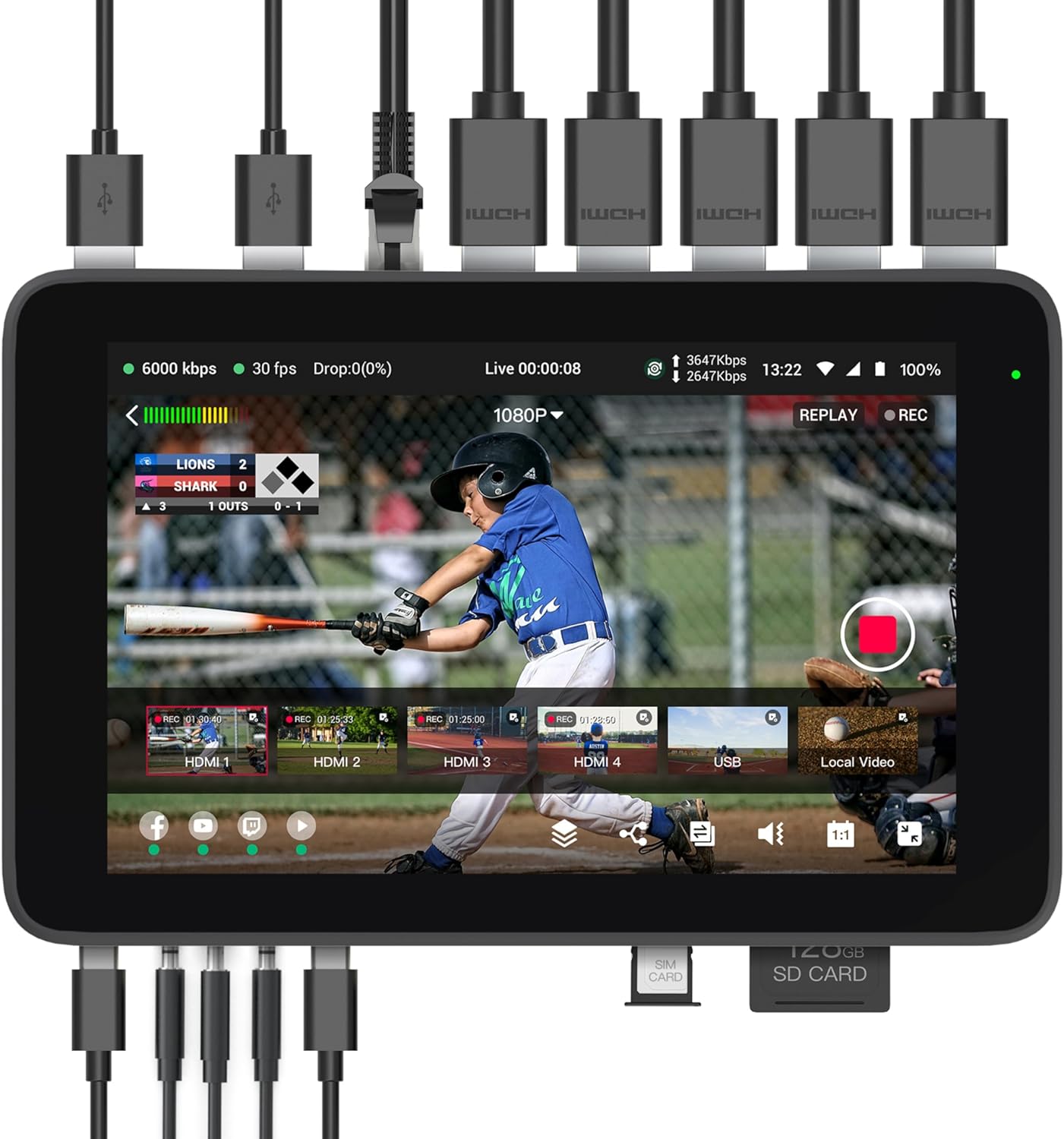
YoloBox devices combine a monitor, video switcher, encoder, recorder, and live streaming studio all in one. You don’t need OBS, a laptop, or extra software. With a YoloBox, you can:
- Stream directly to YouTube, Facebook, or custom RTMP destinations
- Switch between multiple cameras with a tap
- Add overlays, titles, timers, or even viewer comments
- Record everything to an SD card for easy repurposing
- Go live anywhere using Wi-Fi, Ethernet, or 4G LTE
That means faster content creation, more engagement, and a streamlined workflow.
Yololive YoloBox Comparison: Ultra vs Pro vs Mini
| Feature | YoloBox Mini | YoloBox Pro | YoloBox Ultra |
|---|---|---|---|
| Display | 5.5″ (500 nits) | 8″ (400 nits) | 8″ (650 nits) |
| HDMI Inputs | 1 (1080p60) | 3 (1080p60) | 4 (up to 4K60) |
| USB Inputs | 1 | 1 | 2 + USB-C |
| HDMI Output | Yes | Yes | Yes |
| Max Streaming Res | 1080p | 1080p | 4K30 |
| ISO Recording | No | No | Yes |
| Chroma Key | Limited | Yes | Yes |
| NDI Support | No | No | Yes (via license) |
| Battery Life | ~2–3 hrs | ~3 hrs | ~6.5 hrs |
| Weight | ~0.7 lbs | ~1.6 lbs | ~2.2 lbs |
| Est. Price (USD) | ~$699 | ~$999 | ~$1399 |
Best for:
- Mini: Solo creators, travel vloggers, minimal setups
- Pro: Podcasters with 2–3 cams, interview setups, standard streaming
- Ultra: Full 4K workflows, ISO recording, advanced networking, 4+ cam setups
Must-Have Accessories for YoloBox Setups
🎥 Mounts & Cages
- PK1 Cage – Mount accessories like lights, mics, wireless receivers
- SmallRig Monitor Mount – Tilt/swivel YoloBox on tripods or camera rigs
🔌 Cables & Power
- Short HDMI Cables – Reduce clutter and signal interference
- Right-angle HDMI Adapters – Clean connections for tight setups
- Portable Power Bank (e.g., Anker) – Extend streaming time on the go
📡 Wireless & Audio
- Hollyland Mars Wireless HDMI – Stream wirelessly from roaming cams
- Rode Wireless GO II / Hollyland Lark 150 – Reliable wireless audio
- USB/XLR Mics (Shure MV7, SM7B, Feelworld PM1) – Professional sound
💡 Lighting
- Aputure MC / Mini LED Panels – Small, bright, battery-powered
- Softbox or Ring Light – Flattering light for studio setups
📶 Networking
- 4G LTE SIM or Hotspot – Reliable on-the-go streaming
- Speedify / Network Bonding (Ultra only) – Combine Wi-Fi + LTE + Ethernet
How YoloBox Improves Creator Workflows
✅ Go Live Anytime, Anywhere
No more laptops, capture cards, or tangled wires. YoloBox makes streaming portable and spontaneous.
🎬 Record Once, Repurpose Everywhere
Record a clean, mixed stream to SD card. Upload full episodes, repurpose clips, or offer behind-the-scenes content to your audience.
🎨 Professional Look Without the Tech Headache
Add logos, names, countdowns, and transitions—all on-screen without needing a graphics team.
💰 Boost Engagement and Monetization
Multi-stream to multiple platforms, increase live viewer interaction, and improve sponsor appeal with high-quality production.
YoloLiv FAQ for Podcasters & YouTubers
Q1: Do I need a computer to use YoloBox?
No. All YoloBox models are standalone. You don’t need a laptop, OBS, or additional software. Just connect your camera(s), audio, and network, and you’re ready to go live.
Q2: Can I record and stream at the same time?
Yes. All YoloBox units let you record your stream to an SD card while broadcasting. The Ultra also allows ISO recording (individual camera feeds recorded separately).
Q3: Can I stream in vertical mode for TikTok or Instagram Live?
Only the YoloBox Ultra supports native vertical (9:16) mode. The Mini and Pro stream in standard horizontal (16:9) format.
Q4: Can I use wireless microphones?
Yes. Wireless mic systems like the Rode Wireless GO II or Hollyland Lark 150 are compatible via the 3.5mm mic input.
Q5: Can I use Zoom or Skype guests in my stream?
Yes. You can input a laptop via HDMI or USB (on the Pro/Ultra) and show your guest on-screen. Some creators also use a capture card into the USB port.
Q6: How many platforms can I stream to at once?
All YoloBox models support up to 3 simultaneous platforms (YouTube, Facebook, Twitch, or custom RTMP), built-in and free—no third-party service required.
Q7: Do I need internet to stream?
Yes. YoloBox supports Ethernet, Wi-Fi (2.4/5GHz), or 4G LTE SIM cards. You can also tether your phone or use a mobile hotspot.
Q8: Can I use DSLR or mirrorless cameras?
Absolutely. Any camera with an HDMI out can be used. You may need a mini- or micro-HDMI to full HDMI cable.
Q9: Is there audio delay correction?
Yes. YoloBox includes manual audio delay settings to sync video and sound if needed.
Q10: Is there a monthly fee?
No subscription is required. All key features (multistreaming, overlays, SD recording) are included. Some advanced features like NDI input require a one-time license on Ultra.
Q11: Can I update the software?
Yes. YoloBox devices receive regular firmware updates with new features and improvements.
Q12: What’s the warranty or support like?
YoloLiv offers a 1-year limited warranty. Their support team is known to be responsive and active in their user communities (Facebook, YouTube, forums).
Final Thoughts: What Should You Get?
- Just getting started? YoloBox Mini is all you need to launch a pro-quality livestream.
- Growing your show? YoloBox Pro hits the sweet spot with 3 camera inputs and great flexibility.
- Ready for top-tier production? YoloBox Ultra brings 4K, ISO recording, and future-proof power.
Whichever model you choose, YoloBox puts the control, creativity, and convenience back in your hands—so you can focus on content, not cables.
You’re About to Make a Big Mistake Choosing Buzzsprout — Here’s Why
Buzzsprout is a well-known podcast hosting platform, but is it really the best option for podcasters who want to grow, monetize, and avoid unexpected costs? If you’re leaning toward Buzzsprout, you might want to pause. There are hidden limitations and creeping costs that many podcasters don’t realize until it’s too late — and by then, switching can be a hassle. Before you lock in your plan, let’s look at why Buzzsprout could be a costly mistake — and why Podbean may actually be the smarter move.
Podbean Users Save Big on Hosting Costs.
Find Out How Switching Could Keep More Money in Your Pocket — Start Here →
The Buzzsprout ‘Free Plan’ Trap
Buzzsprout’s free plan might seem like a good starting point, but it’s more limiting than most new podcasters realize.
- Buzzsprout offers 2 hours of uploads per month, but episodes expire after 90 days. That means your content disappears unless you upgrade.
- No access to advanced tools like Magic Mastering or Cohost AI unless you pay extra.
- Additional storage costs $4 per extra hour, so over time, the ‘free’ plan can get expensive.
What Podbean Offers Instead:
- 5 hours of storage and 100GB of monthly bandwidth — a far more generous starter plan.
- Customizable podcast website included in the free plan.
- Basic podcast statistics to track your show’s growth without paying extra.
Monetization — Who Really Helps You Make Money??
Buzzsprout’s approach to monetization is limited and requires you to meet certain criteria before you can earn.
- Buzzsprout Ads: Only available on paid plans and requires a specific number of downloads.
- Subscription model: Buzzsprout takes a 15% cut of your earnings.
How Podbean Wins Here:
- Monetization available even on the lowest-tier plans.
- Access to the PodAds Marketplace, Patron Program, and Premium Sales.
- You keep 100% of your subscription revenue, with no revenue sharing.

Storage Limits — The Hidden Costs of Buzzsprout
Buzzsprout’s storage limits can quickly become a financial burden, especially for podcasters who publish frequently.
- Paid plans range from 3 to 12 hours of uploads per month.
- Every additional hour costs $2 to $4, and there’s no true unlimited option.
Podbean’s Approach:
- Unlimited Audio plan for $9/month with unlimited storage and unmetered bandwidth.
- No extra fees for uploading more episodes or extending the length of episodes.
Advanced Features and Customization
Buzzsprout charges extra for features that come standard with Podbean plans.
- Magic Mastering: Available for an extra fee, offering audio enhancement.
- Cohost AI: Only on higher-tier plans, providing limited episode scripting assistance.
Podbean Includes:
- Podbean AI for audio enhancement and episode scripting.
- Video podcasting support on higher-tier plans.
- Fully customizable podcast websites included in every plan.
Monetize Your Podcast from Day One with Podbean.
No Revenue Sharing, No Upload Caps — Start Earning Now →
Pricing Comparison — The Bottom Line
Hidden Costs Add Up Quickly
Buzzsprout’s a la carte approach may seem flexible, but it often results in a bloated monthly bill. Here’s what you’re really paying for:
- $12/month for only 3 hours of uploads
- $6/month extra for Magic Mastering
- $4/hour if you go over your upload limit
- Additional costs if you want access to AI tools like Cohost
Meanwhile, Podbean includes most of these features in their base plan — for less.
📊 Quick Comparison: Buzzsprout vs. Podbean
| Feature | Buzzsprout | Podbean |
|---|---|---|
| Free Plan | 2 hrs/month, expires in 90 days | 5 hrs total, 100GB bandwidth |
| Storage on Paid Plans | 3–12 hrs/month, then $2–$4/hr | Unlimited storage & bandwidth |
| Monetization Access | Limited, 15% fee on subscriptions | Built-in ads, patron support, 0% cut |
| AI Tools | Cohost AI (add-on) | Podbean AI (included) |
| Audio Mastering | Magic Mastering ($6/mo extra) | Included with Podbean AI |
| Video Podcast Support | ❌ Not supported | ✅ On higher-tier plans |
| Custom Podcast Website | Basic customization | Fully customizable on all plans |
| Price for Unlimited Hosting | ❌ Not available | ✅ $9/mo (billed annually) |
| Buzzsprout’s pricing structure can be misleading. While the entry-level plan seems affordable, extra fees for storage, Magic Mastering, and Cohost AI can add up quickly. | ||
- Entry-level plan starts at $12/month for 3 hours of content.
- Magic Mastering costs an additional $6/month.
- Cohost AI is another added expense.
Podbean’s Pricing:
- Unlimited Audio plan for $9/month (billed annually), including unlimited storage and bandwidth.
- Unlimited Plus plan for $29/month (billed annually), adding video support and more advanced features.
What You’re Missing Out On If You Stick with Buzzsprout
Before we wrap this up, let’s talk about what you won’t get if you stick with Buzzsprout:
- Unlimited uploads (you’ll keep hitting caps)
- Built-in monetization tools from day one
- Support for video podcasting
- Full access to advanced features without stacking add-on fees
Why settle when another option gives you more for less?
Conclusion: Why Podbean Is the Smarter Podcast Host
If you’re planning to take your podcast seriously — or even just want to avoid getting nickel-and-dimed as you grow — it’s time to think twice about Buzzsprout. Yes, they offer a friendly interface and decent onboarding, but that comes with capped storage, premium-priced add-ons, and limited monetization control.
Podbean, on the other hand, includes more out of the box:
- Unlimited audio hosting with no hidden fees
- Real monetization tools from day one
- Advanced features like AI and video support
You’re building a brand. Don’t start on a platform that holds you back.
Act Now — Before You Lock Yourself Into a Limited Platform
Podbean’s $9/month unlimited plan includes what Buzzsprout charges extra for — but pricing like this doesn’t always last.
👉 See why Podbean is the smarter choice →
“Ready to Start Monetizing Your Podcast?”
Don’t just settle for limited options. Learn the 10 Proven Ways to Monetize Your Podcast — from ads and sponsorships to premium content and listener support.
👉 Grab the Complete Monetization Guide Here →
How Haliey Welch Could Have Turned “Hawk Tuah” Into a Business Empire (Without Crypto Scandals)
Haliey Welch became an internet sensation when her off-the-cuff response in a street interview—”You gotta give him that hawk tuah and spit on that thang!”—turned into a viral meme. Within weeks, the phrase had taken over TikTok, Instagram, and Twitter, with millions of views, remixes, and even merchandise popping up everywhere.
Like many viral stars, Welch had a golden opportunity to turn her 15 minutes of fame into a long-term business. She launched Talk Tuah with Haliey Welch, a podcast produced by Jake Paul’s Betr Media, and quickly built an audience beyond just meme enthusiasts.
But then she made a crucial mistake. Instead of focusing on sustainable ways to monetize her fame, she endorsed the $HAWK cryptocurrency, which skyrocketed in value before collapsing in a classic pump-and-dump scandal. The backlash damaged her reputation, leaving many wondering: What if she had taken a different approach?
Had Welch avoided the crypto route, she could have built a multimillion-dollar brand through smart monetization strategies like affiliate marketing, merchandise sales, and a well-optimized website. Here’s how she could have done it the right way.
Why Crypto Was the Wrong Move
Meme coins can seem like easy money, but they come with major risks. Many influencers who launch their own cryptocurrencies end up facing accusations of fraud, even if they had no intention of scamming anyone. Prices skyrocket, early investors cash out, and everyday people lose money. The same thing happened with $HAWK.
Instead of relying on a short-term gamble, Welch could have focused on long-term, legitimate ways to make money—ways that wouldn’t destroy trust with her audience.
Affiliate Marketing Could Have Been a Goldmine
One of the easiest ways Welch could have monetized her massive online following was through affiliate marketing. She had millions of people quoting her catchphrase and engaging with her content—prime real estate for product recommendations.
With the right partnerships, she could have made thousands per month just by linking to products her audience would love. Some easy affiliate opportunities for her brand include:
- Funny T-shirts and novelty gifts – Amazon Associates, Redbubble, TeePublic
- Podcast and streaming gear – Rode, Shure, Blue Yeti microphones
- Southern fashion & accessories – Wrangler, Ariat, cowboy hat brands
- Betting & gaming platforms – Betr Media’s gambling verticals
- Beverages & party products – Energy drinks, whiskey brands, funny shot glasses
A simple “Shop My Favorite Things” page on her website could have turned into a consistent passive income stream.
The Missed Opportunity of a “Hawk Tuah” Merch Empire
Welch’s meme was tailor-made for merchandise, and yet, she barely capitalized on it beyond a few quick collaborations. The reality? She could have built an entire clothing and accessories brand around Hawk Tuah.
Think about the possibilities:
- T-shirts & hoodies with viral catchphrases
- Trucker hats that fit the Southern-country vibe
- Mugs & drinkware for that signature “spit on that thang” humor
- Stickers & decals to appeal to TikTok and meme fans
By setting up an independent Shopify store (or even using Printify and Printful for a hassle-free approach), she could have made steady profits for years—long after the meme stopped trending.
Brands like Friday Beers and Nelk Boys have built multi-million dollar businesses off meme-inspired merchandise. Welch could have done the same.
A Website Would Have Turned Her Fame into Passive Income
Relying solely on social media for income is risky. Welch should have launched a website where she could control her brand, drive traffic, and generate income through multiple revenue streams.
A well-optimized Hawk Tuah website could have included:
- Blog content & SEO – Articles ranking for keywords related to internet culture and meme trends, bringing in ad revenue.
- An online store – Selling her own merch instead of letting bootleggers profit.
- Lead magnets – Collecting emails in exchange for free downloads, eventually turning them into loyal buyers.
- Brand sponsorships – Companies paying for shoutouts and collaborations.
With a strong website, Welch wouldn’t have to rely on social media algorithms or viral moments—she could have built a real business.
YouTube and Podcast Monetization Had Bigger Potential
Welch already had Talk Tuah, a podcast that was gaining traction. But instead of risky ventures, she could have leaned harder into podcast and YouTube monetization.
She could have:
- Maximized YouTube Ad Revenue – By turning clips from her podcast into viral YouTube Shorts and long-form videos, she could have earned consistent income from ads.
- Secured Sponsorship Deals – Big brands would have lined up to advertise on her show if it stayed controversy-free.
- Created Exclusive Memberships – Patreon, YouTube memberships, or a private fan club with extra content could have been a steady moneymaker.
Many creators make six figures just from these revenue streams alone.
What Could Have Been: The Long-Term Potential of “Hawk Tuah”
If Welch had focused on building a legitimate business, her Hawk Tuah brand could have expanded far beyond its meme origins.
Imagine:
- A “Hawk Tuah” Comedy Tour, selling out shows across the U.S.
- A collab with major brands—Wrangler, Budweiser, or Barstool Sports.
- A Southern lifestyle brand with its own clothing line and accessories.
- Even a TV deal or Netflix special, turning her viral moment into a lasting entertainment career.
Other viral stars have done it—look at how Bhad Bhabie (Danielle Bregoli) turned a meme into a successful music and business career. Welch could have done the same.
The Lesson: Quick Money vs. Smart Money
Welch’s story is a cautionary tale of what happens when viral fame is monetized the wrong way. Instead of launching a questionable cryptocurrency, she could have:
✅ Built a sustainable business through affiliate marketing
✅ Created a thriving merch brand
✅ Developed a website that printed money through SEO and sponsorships
✅ Used YouTube and podcasting for consistent revenue
Instead, she’s now fighting to repair her reputation while others profit off her meme.
The takeaway? If you ever go viral, don’t chase quick money. Focus on building something that lasts.
Interested in turning your podcast into a business that earns money passively? Click here to get my free monetization guide and start now!
Capture Cards for Podcasters: Streamline OBS, Reduce CPU Load, and Boost Your Show’s Quality
OBS (Open Broadcaster Software) relies heavily on your computer’s CPU and GPU for tasks like encoding video, compositing scenes, and managing multiple sources (e.g., webcam, screen capture, overlays). If your system is underpowered or overloaded, you may encounter high CPU usage or encoding overload errors, which can lead to dropped frames, laggy streams, or poor recording quality.
How a Capture Card Helps
A capture card can alleviate these issues by offloading some of the work from your computer’s CPU and GPU. Here’s how:
- Offloads Video Encoding
- Many capture cards have built-in hardware encoders (e.g., H.264 or H.265) that handle video encoding independently of your computer. This reduces the strain on your CPU and GPU, freeing up resources for OBS to run smoothly.
- Handles High-Quality Video Input
- If you’re capturing video from an external source (e.g., a DSLR camera, gaming console, or second PC), the capture card processes the video feed instead of your computer. This prevents OBS from having to encode the video directly, which can be very resource-intensive.
- Reduces Latency and Improves Performance
- Capture cards are designed to handle high-resolution video (e.g., 1080p or 4K) with minimal latency. By using a capture card, you can ensure smooth performance in OBS without overloading your system.
- Allows Lower OBS Settings
- With a capture card handling the heavy lifting, you can lower OBS settings like the encoder preset (e.g., from “faster” to “veryfast“) or reduce the resolution/frame rate, further reducing CPU usage.
When to Use a Capture Card for OBS
A capture card is particularly helpful if:
- You’re using a high-resolution camera or external device for video input.
- You’re capturing gameplay from a console or second PC.
- Your computer has a weaker CPU or GPU and struggles with encoding.
- You’re running multiple resource-intensive applications alongside OBS.
Steps to Fix “OBS High CPU Usage & Encoding Overloaded” with a Capture Card
- Connect Video Source to the Capture Card
- Plug your camera, console, or other device into the capture card via HDMI or other supported input.
- Add Your Capture Card as a Source in OBS
- In OBS, click to add a new “Video Capture Device” source and select your capture card.
- Adjust OBS Settings
- Lower the encoder preset (e.g., from “faster” to “veryfast“).
- Reduce the output resolution or frame rate if needed.
- Use the capture card’s hardware encoding if available.
- Monitor Performance
- Check OBS’s stats (View > Stats) to ensure CPU usage and encoding overload issues are resolved.
Best Capture Cards for Podcasters
| Rank | Product Name | Key Features | Price (Approx.) | Link |
|---|---|---|---|---|
| 1 | Elgato Game Capture HD60 S | – 1080p60 capture – Ultra-low latency – USB 3.0 – Works with OBS, Streamlabs, and more |
$159.99 | Elgato HD60 S |
| 2 | Elgato Cam Link 4K | – 4K30 capture – Ideal for DSLR/mirrorless cameras – Plug-and-play – Compact design |
$129.99 | Elgato Cam Link 4K |
| 3 | AVerMedia Live Gamer Ultra 2.1 (GC553G2) | – 4K60 HDR capture – USB 3.1 – Low latency – Works with OBS and other streaming software |
$199.99 | AVerMedia GC553G2 |
| 4 | Razer Ripsaw HD | – 1080p60 capture – 4K passthrough – Audio mixer support – USB 3.0 |
$159.99 | Razer Ripsaw HD |
| 5 | Mirabox Capture Card 4K | – 4K30 capture – HDMI loop-out – Plug-and-play – Compatible with OBS, Zoom, and more |
$69.99 | Mirabox 4K |
Alternative Solutions (If You Don’t Have a Capture Card)
If you’re not ready to invest in a capture card, try these fixes first:
- Lower the resolution or frame rate in OBS.
- Use a faster encoder preset (e.g., “veryfast” instead of “medium”).
- Close other applications to free up CPU/GPU resources.
- Use hardware encoding (e.g., NVENC for NVIDIA GPUs or AMF for AMD GPUs) instead of software encoding (x264).
- Upgrade your computer’s hardware (e.g., CPU, GPU, or RAM).
Conclusion
A capture card is an excellent solution for reducing OBS high CPU usage and encoding overload, especially if you’re working with external video sources or have a less powerful computer. It offloads the encoding workload, improves performance, and ensures smoother streaming or recording. If you’re serious about podcasting, streaming, or content creation, a capture card is a worthwhile investment.
How Much Money Can You Make on YouTube (And Why You Should Funnel Viewers to Your Website)
YouTube is often seen as a goldmine for creators, with success stories of individuals earning thousands—or even millions—by sharing videos. But how much can you realistically make on YouTube?
The answer depends on several factors:
- Your Niche: Some niches, like finance or technology, have higher CPM (cost per thousand impressions) rates, ranging from $10 to $30, while others, like gaming or vlogging, average between $2 and $5 per 1,000 views.
- Audience Demographics: Advertisers pay more for audiences in higher-income countries like the US, Canada, or the UK.
- Engagement: Higher engagement rates (watch time, comments, likes) increase the likelihood of your videos being monetized effectively.
On average, creators earn $2-$5 per 1,000 monetized views. If your video garners 100,000 views, you might make $200-$500 in ad revenue. That’s just the tip of the iceberg, though.
Creators can supplement their income with:
- Channel Memberships and Super Chats: Fans pay to support you, adding another revenue stream.
- Affiliate Marketing: Promote products and earn commissions.
- Sponsorships: Charge brands to feature their products in your videos.
- Merchandise Sales: Sell branded T-shirts, mugs, or other items.
However, relying solely on YouTube revenue can be limiting. YouTube takes a cut of your earnings (45% of ad revenue), and your success is tied to the platform’s algorithm. This is where funneling viewers to your website becomes a game changer.
Why Funneling Viewers to Your Website is a Game-Changer
Owning a website allows you to take control of your audience and income. Here’s why funneling your YouTube viewers to a website is crucial:
- Direct Monetization: Unlike YouTube’s revenue-sharing model, all profits from ads, products, or services on your website go directly to you.
- Lead Generation: Collect email addresses and create a direct communication channel with your audience, free from platform restrictions.
- Diversified Income Streams: Websites provide endless monetization possibilities—sell products, offer courses, or earn affiliate commissions.
- Audience Retention: With a website, you can nurture a loyal community that isn’t dependent on YouTube’s algorithm.
Imagine this: A YouTube creator earning $3,000/month from ads can funnel just 2% of their audience (20,000 viewers) to their website. If those visitors purchase a $10 digital product, that’s $200,000 in additional revenue.
How to Funnel YouTube Viewers to Your Website
Creating an effective funnel doesn’t require advanced tech skills. Here’s a simple process to follow:
Optimize Your Website for Conversions
Your website should be easy to navigate and conversion-focused. Key features include:
- Clear CTAs: Encourage visitors to sign up for your email list, download a resource, or make a purchase.
- Landing Pages: Create specific pages for lead magnets, such as free guides or tools.
- Mobile-Friendly Design: Ensure your site works seamlessly on all devices.
Promote Your Website in Videos
Use every opportunity to drive traffic to your website:
- Video Descriptions: Include your website link in every video, paired with a reason to click (e.g., “Download my free checklist here: [yourwebsite.com]”).
- End Screens and Cards: Direct viewers to your website at the end of your videos.
- In-Video Mentions: Naturally weave your website into your content. For example, “For exclusive tips, visit [yourwebsite.com].”
- Pinned Comments: Use pinned comments to highlight your website link and lead magnet.
Offer an Irresistible Lead Magnet
A lead magnet is a resource that provides value in exchange for an email address. Examples include:
- A free eBook: “10 Secrets to Growing Your YouTube Channel Fast.”
- A checklist: “The Ultimate Podcast Starter Kit.”
- A tool: “YouTube Revenue Calculator—Find Out What You Could Earn!”
This strategy not only drives traffic but also helps you build a valuable email list for future marketing.
What You Can Offer on Your Website
Your website is your monetization playground. Consider offering:
- Digital Products: Sell eBooks, templates, or online courses that align with your niche.
- Affiliate Recommendations: Write product reviews or guides featuring affiliate links.
- Membership Programs: Provide premium content or community access for a subscription fee.
- Ad Revenue: Use display ads through platforms like Google AdSense to monetize your site’s traffic.
For instance, a blog post with 10,000 monthly visitors could generate $300-$1,000 from affiliate sales alone, depending on the niche and product value.
Combining YouTube and Website Monetization
The combination of YouTube and website monetization creates exponential earning potential. Here’s an example:
- YouTube Ads: Earn $3,000/month from 1 million views.
- Affiliate Marketing (Website): Generate $1,000/month through product recommendations.
- Digital Product Sales: Sell a $25 course or eBook to 200 visitors/month, making $5,000.
This combined strategy increases total revenue from $3,000 to $9,000 or more. Additionally, your website provides stability against YouTube algorithm changes.
Advanced Tips to Maximize Your Funnel
Retargeting Ads: Use Google or Facebook Ads to re-engage visitors who didn’t convert on their first visit.
A/B Testing: Experiment with different landing page designs, CTAs, and content formats to see what performs best.
Email Marketing: Use platforms like ConvertKit or Mailchimp to nurture your leads. Share exclusive content, product updates, and promotions directly with your subscribers.
Final Thoughts
YouTube is an incredible platform for building an audience and earning money, but it shouldn’t be your only revenue source. By funneling viewers to your website, you unlock greater control, flexibility, and income potential.
Whether you’re selling digital products, earning through affiliate marketing, or building a community, a website allows you to turn casual viewers into loyal customers.
Ready to take your earnings to the next level? Start by creating a simple website, offering a lead magnet, and promoting it consistently in your videos. It’s time to transform your YouTube success into a thriving business.
Using Squarespace for Podcast Hosting: Is It Right for You?
Podcasting is more popular than ever, and many creators are looking for easy ways to get their shows online. Squarespace, a powerful website builder, offers podcast hosting capabilities, but is it the right platform for your podcasting needs? This guide explores Squarespace’s podcast hosting features, compares it to other platforms, and provides insights to help you make an informed decision.
Why Consider Squarespace for Podcast Hosting?
Squarespace is known for its stunning website templates and user-friendly interface, making it a great choice for creating an attractive online presence. Here are some of its key podcast-related features:
1. Integrated Podcast Hosting
- Squarespace allows you to host podcast episodes through its blogging platform.
- You can upload audio files directly (up to 160 MB) and generate an RSS feed for distribution to platforms like Apple Podcasts and Spotify.
2. Professional Website Design
- Use customizable templates to create a professional podcast website.
- Showcase your episodes, host bios, and related content all in one place.
3. All-in-One Platform
- Includes hosting, domain registration, email marketing, and analytics.
- Simplifies your workflow by reducing the need for multiple services.
4. SEO Tools
- Built-in SEO tools help improve discoverability of your podcast episodes.
Limitations of Squarespace for Podcast Hosting
While Squarespace has features for hosting podcasts, it is not a podcast-specific platform. Some of its limitations include:
1. Limited Podcasting Features
- No advanced analytics for tracking listener behavior.
- Lacks features like dynamic ad insertion or automated transcription.
2. File Size Restriction
- Audio files are capped at 160 MB, which may be restrictive for long episodes or high-quality audio.
3. Higher Costs for Basic Podcast Hosting
- Squarespace plans start at $16/month (Personal Plan) or $23/month (Business Plan), which can be more expensive compared to dedicated podcast hosting platforms.
4. Lack of Scalability
- Not ideal for podcasters with multiple shows or extensive archives due to storage and bandwidth limitations.
Better Alternatives to Squarespace for Podcast Hosting
For podcasters looking for a feature-rich and cost-effective solution, dedicated podcast hosting platforms are often a better choice. Here are some top options:
1. Podbean
- Pricing: Starts at $9/month (Unlimited Audio plan, billed annually).
- Features:
- Unlimited audio storage and unmetered bandwidth.
- Advanced analytics to track listener demographics and behavior.
- Monetization options like dynamic ad insertion and an Ads Marketplace.
- Distribution tools to easily publish to Apple Podcasts, Spotify, and Google Podcasts.
- Why Choose Podbean:
- Designed specifically for podcasters with all essential tools in one place.
2. Buzzsprout
- Pricing: Free for 2 hours/month or $12-$24/month for more storage.
- Features:
- Simple interface for uploading and managing episodes.
- Advanced analytics and episode transcription.
- Magic Mastering to enhance audio quality.
- Why Choose Buzzsprout:
- Great for beginners with a user-friendly dashboard and strong distribution tools.
3. Captivate
- Pricing: Starts at $19/month.
- Features:
- Unlimited podcasts and team members.
- Growth-focused tools like listener analytics and marketing integrations.
- Customizable podcast website included.
- Why Choose Captivate:
- Perfect for podcasters looking to scale their audience and revenue.
Combining Squarespace with Dedicated Hosting
For podcasters who value Squarespace’s design capabilities but need advanced hosting features, combining Squarespace with a dedicated podcast host is a smart strategy:
- Use Squarespace for Your Website:
- Create a visually appealing site to serve as your podcast hub.
- Add pages for show notes, a blog, merch store, and listener resources.
- Host Your Podcast on a Dedicated Platform:
- Use Podbean, Buzzsprout, or Captivate for uploading, managing, and distributing episodes.
- Embed your podcast player on your Squarespace site using embed codes.
Final Verdict
Squarespace is a fantastic choice for building a professional website to showcase your podcast, but its podcast hosting features are basic and may not meet the needs of serious podcasters. For robust hosting capabilities, advanced analytics, and scalable solutions, platforms like Podbean or Buzzsprout are better suited.
SoundCloud Podcast Hosting: Plans, Features, and Pricing Explained
SoundCloud is a popular platform for audio creators and is increasingly used for podcast hosting. Its large built-in audience and flexible pricing plans make it an excellent option for podcasters looking to grow their audience and share their content. This guide explores SoundCloud’s podcast hosting options, pricing, and features to help you decide if it’s the right platform for your needs.
What is SoundCloud Podcast Hosting?
SoundCloud serves a dual role as a platform for hosting audio content and as a distribution tool. For podcasters, SoundCloud’s appeal lies in its simplicity, affordability, and ability to connect with a large community of listeners. Whether starting a new podcast or looking to expand your reach, SoundCloud provides the tools to distribute and promote your episodes effectively.
SoundCloud Podcast Hosting Plans
SoundCloud offers three distinct plans for podcasters, catering to different needs and budgets:
- Next (Free)
- Next Plus ($2.50/month, billed annually)
- Next Pro ($12/month, billed annually)
Pricing Breakdown
Next (Free)
- Cost: Free
- Features:
- Up to 3 hours of audio upload time.
- Basic analytics (plays, likes, comments).
- Customizable embeddable player for sharing episodes.
Next Plus
- Cost: $2.50/month (billed annually).
- Features:
- All Free plan features.
- Unlimited track releases are available on platforms like Spotify, Apple Podcasts, and more.
- Monetization options through track plays and third-party platforms.
- 1-day customer support response time.
Next Pro
- Cost: $12/month (billed annually).
- Features:
- All Next Plus features.
- Unlimited uploads (max file size: 4 GB, max length: 6 hours 45 minutes per track).
- Advanced analytics, including geographic and device-specific listener data.
- Replace audio tracks without losing stats.
- Schedule track releases and spotlight favorite episodes.
- Premium profile badge and three free mastering credits per month.

Key Features for Podcasters
RSS Feed for Distribution
SoundCloud provides an RSS feed for your podcast, enabling you to distribute it to major directories like Spotify, Apple Podcasts, and Google Podcasts. While the RSS feed setup is manual, it’s straightforward and ensures your episodes are accessible across multiple platforms.
Built-In Audience
With millions of active users, SoundCloud offers podcasters access to a large, engaged audience. Interactive features like commenting on specific parts of episodes foster direct listener engagement.
Monetization Opportunities
SoundCloud supports monetization through:
- Direct payments from listeners.
- Revenue from track plays on SoundCloud and third-party services.
- Collaborative payment splitting for co-hosts or contributors.
Embeddable Player
The customizable player allows you to share episodes on your website, blog, or social media, ensuring seamless integration with your promotional strategy.
Analytics
- Free Plan: Basic insights, including total plays and likes.
- Pro Plan: Advanced analytics, such as geographic data and listening trends, enable you to refine your content strategy.
Track Management
The Next Pro plan allows you to:
- Replace tracks without losing stats.
- Schedule future releases.
- Pin and spotlight tracks to highlight essential episodes.
Pros and Cons of SoundCloud for Podcasting
Pros
- Affordable pricing options.
- Easy-to-use interface.
- Built-in audience for organic growth.
- Cross-platform distribution through RSS feeds.
- Robust analytics (Pro plan).
Cons
- Manual submission to podcast directories.
- Limited advanced podcast-specific features compared to dedicated hosts.
- The free plan restricts upload time to 3 hours.
Who Should Use SoundCloud for Podcasting?
SoundCloud is ideal for:
- Beginners: Affordable and user-friendly plans make it perfect for new podcasters.
- Indie Podcasters: Great for monetizing and connecting with a built-in audience.
- Multimedia Creators: Combines podcast hosting with audio content like music and audiobooks.
Comparison: SoundCloud vs. Podbean vs. Buzzsprout
SoundCloud
- Strengths: Built-in audience, affordable pricing, and interactive features like comments.
- Weaknesses: Limited podcast-specific tools compared to dedicated platforms.
Podbean
- Strengths:
- Unlimited storage and bandwidth in paid plans.
- Monetization options, including dynamic ad insertion and a patron program.
- Advanced analytics for deeper audience insights.
- Weaknesses: Higher pricing for premium features and a less interactive community compared to SoundCloud.
Buzzsprout
- Strengths:
- Extremely user-friendly interface, ideal for beginners.
- Audio enhancement tools like Magic Mastering.
- Flexible pricing based on monthly upload hours.
- Weaknesses: It has limited storage compared to Podbean and SoundCloud, and additional costs are charged for extra hours or features like transcription.
Which Should You Choose?
- Choose SoundCloud if you value audience engagement and want an affordable way to host and promote your podcast.
- Choose Podbean if you need unlimited storage, advanced analytics, and robust monetization features.
- Choose Buzzsprout if you’re a beginner looking for an intuitive platform with strong audio tools and flexible pricing.
How to Get Started with SoundCloud Podcast Hosting
- Sign Up: Choose the Free, Next Plus, or Next Pro plan.
- Upload Your Episodes: Add your first podcast episode to SoundCloud.
- Set Up Your RSS Feed: Enable the RSS feed in your settings.
- Distribute: Submit the RSS feed to podcast directories like Spotify and Apple Podcasts.
- Promote: Use the embeddable player and SoundCloud’s sharing tools to reach more listeners.
FAQs
- Can I host my podcast on SoundCloud for free? Yes, the Free plan allows up to 3 hours of uploads.
- Does SoundCloud distribute podcasts to Spotify and Apple Podcasts? Yes, through the RSS feed. You’ll need to manually submit the feed to these platforms.
- What’s the difference between SoundCloud’s Next Plus and Next Pro plans? Next Plus includes distribution and basic monetization, while Next Pro adds unlimited uploads, advanced analytics, and premium track management tools.
Conclusion
SoundCloud provides a versatile, affordable option for podcasters of all levels. Its built-in audience, customizable features, and cross-platform distribution capabilities make it a strong contender for those looking to grow their podcast. Whether you’re starting out or ready to scale, there’s a SoundCloud plan that fits your needs.
Affordable Podcast Microphones: Budget-Friendly Options for Clear Audio
Good audio quality is one of the most important aspects of podcasting. It’s what keeps your listeners engaged and coming back for more. But getting high-quality sound doesn’t mean you need to spend a fortune. With the right microphone, you can achieve professional results without blowing your budget. This guide explores some of the best affordable podcast microphones and helps you choose the perfect one for your setup.
What Matters When Choosing an Affordable Podcast Mic?
When looking for a budget-friendly podcast mic, it’s essential to know what to prioritize:
- Sound Quality: Clear voice capture and noise reduction are key. A mic that picks up your voice naturally will save time in editing.
- Connectivity Options: USB mics are simple to use and great for beginners. XLR mics offer better sound quality but require additional equipment.
- Durability: Affordable doesn’t mean disposable. Look for mics made with sturdy materials that can handle regular use.
- Flexibility: Some microphones offer both USB and XLR connections, letting you upgrade your setup without replacing your mic.
- Extras: Features like built-in pop filters, headphone jacks, and adjustable gain are nice bonuses.
Top Picks for Affordable Podcast Microphones
Samson Q2U
A dynamic microphone with both USB and XLR connectivity, the Samson Q2U is perfect for podcasters who want flexibility. It has a stand, pop filter, and cables, making it an excellent starter kit. Its durable metal construction and clear sound make it a favorite for beginners.
Blue Snowball
This USB condenser microphone is a stylish, compact option that’s easy to set up and use. With two recording modes—cardioid and omnidirectional—it works well for solo podcasters or small group recordings. It’s a great choice for hobbyists looking for reliable performance.
HyperX SoloCast
Designed with simplicity in mind, the HyperX SoloCast is a USB condenser mic with a cardioid pickup pattern for focused sound. It features a tap-to-mute sensor and a compact design, making it ideal for small recording spaces or minimalist setups.
Audio-Technica ATR2100X-USB
This dynamic mic offers both USB and XLR connections, making it a long-term investment for podcasters who want to grow their setup. It includes a built-in headphone jack for real-time monitoring and delivers excellent clarity for voice recordings.
Other Budget-Friendly Options
- Behringer XM8500: An ultra-affordable XLR mic known for solid sound quality at a very low price.
- Rode NT-USB Mini: Compact and under $100, this mic offers great sound and a sleek design.
How to Choose the Right Microphone for Your Podcast
- Start with Your Setup: If you’re recording in an untreated space, a dynamic mic like the Samson Q2U will reject more background noise. USB mics are better for plug-and-play setups, while XLR mics are ideal for professional use.
- Consider Your Budget: Entry-level mics like the Blue Snowball or HyperX SoloCast cost between $50 and $80, while versatile options like the Samson Q2U or ATR2100X-USB range from $80 to $120.
- Don’t Forget Accessories: Many affordable mics come with stands or pop filters, but you might need to buy these separately for some models.
Stretching Your Budget Further
- Buy Refurbished or Used: Platforms like Amazon Renewed or eBay often have great deals on lightly used microphones.
- Look for Bundles: Some mics include extras like stands and cables, saving you money on accessories.
- Use Free Tools: Editing software like Audacity can help you polish your audio without additional costs.
A Quick Comparison of Affordable Microphones
| Microphone | Type | Price Range | Features | Best For |
|---|---|---|---|---|
| Samson Q2U | Dynamic USB/XLR | $70-$100 | Dual connectivity, durable | Versatility, beginners to pros |
| Blue Snowball | USB Condenser | $50-$70 | Compact, plug-and-play | Casual podcasters, hobbyists |
| HyperX SoloCast | USB Condenser | $50-$80 | Compact, tap-to-mute | Minimalist setups, small spaces |
| Audio-Technica ATR2100X | Dynamic USB/XLR | $100-$120 | Headphone monitoring, dual input | Long-term growth, live recording |
Tips for Professional Audio on a Budget
- Optimize Your Space: Use blankets, rugs, or foam panels to dampen echoes and background noise.
- Learn Good Mic Technique: Position the mic close to your mouth and avoid speaking directly into it to reduce plosives.
- Edit Like a Pro: Use free tools to remove hiss, background noise, or clicks for a polished final product.
Affordable Doesn’t Mean Compromising on Quality
You don’t need to spend a fortune to get great audio for your podcast. Options like the Samson Q2U, Blue Snowball, and HyperX SoloCast prove that affordable mics can deliver impressive results. Whether you’re just starting or looking to upgrade, there’s a microphone on this list for every budget and need.
Castos Podcast Hosting: Everything You Need to Know
Podcast hosting is the foundation of any successful podcast, allowing creators to store, distribute, and grow their shows. Castos is one of the leading podcast hosting platforms, offering features that cater to podcasters of all levels. This guide dives into what makes Castos unique, its pricing plans, and how it stacks up against competitors.
Unlimited Podcasts and Advanced Features
One of Castos’ standout features is its ability to host unlimited podcasts and episodes, even on its entry-level plan. This is a game-changer for creators who want to experiment with multiple shows without worrying about storage limits. Other key features include private podcasting for monetization, in-depth listener analytics, and automatic transcripts to boost SEO.
Seamless WordPress integration through the Seriously Simple Podcasting plugin also makes Castos a favorite for podcasters who manage their shows through a website.
Pricing Plans That Scale with Your Podcast
Castos offers flexible pricing tiers to match your podcasting needs:
- Essentials ($19/month): Unlimited podcasts, 20,000 monthly downloads, and up to 100 private subscribers.
- Growth ($49/month): Adds YouTube republishing, Headliner Audiogram integration, and support for up to 250 private subscribers and 75,000 monthly downloads.
- Pro ($99/month): Includes video file hosting, advanced analytics, and limits of 500 private subscribers and 200,000 monthly downloads.
- Premium (Starting at $499/month): Tailored for enterprise users with custom contracts, dedicated account management, and higher subscriber and download limits.
Each plan includes access to Castos Commerce for monetization, with no additional fees beyond Stripe’s processing charges. New users can also explore the platform risk-free with a 14-day free trial.
Pros and Cons of Castos
Like any platform, Castos has its advantages and limitations:
What You’ll Love About Castos:
- Unlimited podcasts and episodes with no storage caps.
- Easy WordPress integration for seamless publishing.
- Private podcasting options to grow and monetize your content.
- Environmentally friendly hosting powered by renewable energy.
What Could Be Improved:
- Higher pricing tiers may deter hobby podcasters.
- No free plan available for casual users.
- Limited editing tools compared to competitors.
How Does Castos Compare to Its Competitors?
When considering podcast hosting platforms, it’s helpful to compare features and pricing to find the best fit for your specific needs. Here’s a neutral look at Castos alongside three popular alternatives: Podbean, Buzzsprout, and Anchor.
| Feature | Castos | Podbean | Buzzsprout | Anchor (by Spotify) |
|---|---|---|---|---|
| Pricing (Starting) | $19/month | $9/month | $12/month | Free |
| Free Plan | No | Yes (limited features) | Yes (episodes deleted after 90 days) | Yes |
| Unlimited Storage | Yes | Yes (on paid plans) | No | Yes |
| Private Podcasts | Yes (Limits based on plan) | Yes | No | No |
| Monetization Options | Yes (via Castos Commerce) | Yes (ads, listener support, premium) | Yes (ads, affiliate marketing) | Yes (listener support, ads) |
| WordPress Integration | Yes (Seriously Simple Podcasting plugin) | No | No | No |
| Video Podcasting | Yes (Pro plan and above) | No | No | No |
| Advanced Analytics | Yes (Pro plan and above) | Yes | Yes | No |
| Ease of Use | Moderate | Moderate | High | High |
| Free Trial | Yes (14 days) | No | Yes | Not Applicable |
| Environmentally Friendly Hosting | Yes | No | No | No |
Podbean
Podbean is a versatile podcast hosting platform known for its affordability and comprehensive feature set.
Features:
- Unlimited storage and bandwidth on paid plans.
- Built-in monetization options, including ads, listener support, and premium content.
- Integrated website builder for hosting a podcast site.
- Easy distribution to platforms like Spotify and Apple Podcasts.
Pricing:
- Free plan with limited features.
- Paid plans start at $9/month (billed annually).
Who It’s Best For:
Podbean is ideal for beginners and podcasters on a budget who want an all-in-one hosting solution with monetization tools.
Buzzsprout
Buzzsprout has a user-friendly interface that focuses on simplicity, making it a popular choice for new podcasters.
Features:
- Automatic optimization for audio quality.
- Comprehensive analytics to track performance.
- Distribution to major directories with a single click.
- Monetization options like ads and affiliate marketing.
Pricing:
- Free plan available with limited features (episodes deleted after 90 days).
- Paid plans start at $12/month for up to 3 hours of uploads per month.
Who It’s Best For:
Buzzsprout works well for podcasters who prioritize ease of use and don’t require unlimited uploads.
Anchor (by Spotify)
Anchor offers a free, full-service podcast hosting platform with a focus on ease of creation and distribution.
Features:
- Unlimited storage and hosting at no cost.
- Built-in tools for recording and editing episodes.
- Monetization options like listener support and ad placement.
- Automatic distribution to Spotify and other platforms.
Pricing:
- Free forever.
Who It’s Best For:
Anchor is an excellent choice for hobbyists or those new to podcasting who want to get started without any upfront costs.
How Castos Fits In
Each platform offers unique features and advantages, catering to different types of podcasters:
- Podbean is great for monetization and affordability.
- Buzzsprout emphasizes ease of use and analytics.
- Anchor is perfect for beginners looking for a free option.
Castos stands out for its unlimited storage, private podcasting capabilities, and WordPress integration through the Seriously Simple Podcasting plugin. Depending on your needs, any of these platforms could be the right fit for your podcasting journey.
Frequently Asked Questions
What is Castos?
Castos is a podcast hosting platform that allows you to create, manage, and distribute your podcasts with unlimited storage and advanced monetization tools.
Does Castos offer a free trial?
Yes, Castos provides a 14-day free trial for new users.
Can I create private podcasts with Castos?
Absolutely. Private podcasting is one of Castos’ standout features, allowing you to share content with select audiences or monetize exclusive episodes.
Is video podcasting supported?
Yes, but only on the Pro plan and above.
How does Castos integrate with WordPress?
Castos offers the Seriously Simple Podcasting plugin for WordPress, making it easy to publish and manage your podcast directly from your site.
Final Thoughts
Whether you’re starting your first podcast or scaling up for growth, Castos offers the tools and flexibility to make it happen. With unlimited episodes, advanced analytics, and seamless WordPress integration, Castos is an excellent choice for serious podcasters.
If you’re exploring hosting options, don’t forget to compare Castos to competitors like Podbean, Buzzsprout, and Anchor to ensure you find the perfect fit. Take advantage of Castos’ free trial to see if it meets your podcasting needs.
Posting Your Podcast On WordPress Can Be Your Ticket To Growth
A well-designed website can elevate your podcast by improving listener engagement, discoverability, and branding. With the right WordPress podcast plugins, you can create a powerful platform to manage, promote, and grow your audience.
Why Use Podcast Plugins?
Podcast plugins aren’t just about embedding audio. They streamline podcast management, automate RSS feed generation, integrate with major podcast directories, and provide features like analytics, subscribe buttons, and customizable players.
Top WordPress Podcast Plugins
Here’s a breakdown of the most popular WordPress podcast plugins, their features, and who they’re best suited for:
| Plugin | Best For | Key Features | Pricing |
|---|---|---|---|
| PowerPress by Blubrry | Comprehensive features for podcasters at any level. | HTML5 media player, multiple feeds, analytics, subscribe tools, free migration. | Free; Premium starts at $10/month |
| Seriously Simple Podcasting | Beginners needing a user-friendly experience. | Native WordPress interface, multiple podcasts on one site, free analytics, customizable subscribe links. | Free |
| Fusebox | Podcasters focused on audience engagement and lead generation. | Stylish players, email collection, transcript display, episode sorting, and social sharing. | Starts at $7.50/month (billed annually) |
| Podlove Podcast Publisher | Advanced users seeking robust features and customization. | Multi-format publishing, chapter markers, enhanced analytics, customizable templates. | Free |
| Podcast Subscribe Buttons | Podcasters wanting to grow subscribers across platforms. | Customizable buttons for 90+ platforms, easy integration via blocks, shortcodes, or Elementor. | Free |
| Podcast Player | Showcasing episodes with a polished design. | Stylish players, playlist support, Pro version imports episodes as WordPress posts for SEO. | Free; Pro version available |
| MP3 Audio Player by Sonaar | Selling premium audio content or creating playlists. | WooCommerce integration, customizable designs, playlist support, Elementor and Gutenberg compatibility. | Free; Premium version available |
Plugin Spotlights
PowerPress by Blubrry
PowerPress offers an all-in-one solution for podcasters, whether you’re a beginner or an expert. With its built-in subscribe tools, multiple podcast feed support, and robust analytics, it simplifies podcast management. The free version provides essential tools, while premium plans unlock advanced features.
Seriously Simple Podcasting
This plugin lives up to its name by offering an intuitive interface that integrates seamlessly into WordPress. It’s perfect for podcasters who want to focus on content creation without getting too bogged down by technical details. Free basic analytics and Castos hosting integration make it a beginner-friendly choice.
Fusebox
Fusebox is ideal for podcasters looking to enhance audience engagement. Its sleek design and features like email capture and transcript display help turn casual listeners into loyal subscribers. It’s a premium plugin but delivers excellent value for podcasters looking to grow their brand.
Podcast Subscribe Buttons
This lightweight plugin focuses on one crucial aspect: helping your audience subscribe. With support for over 90 platforms, it’s an excellent tool for expanding your reach and making it easy for listeners to follow your show on their favorite apps.
How to Choose the Right Plugin
When selecting a WordPress podcast plugin, consider these factors:
- Your Experience Level:
- Beginners: Start with Seriously Simple Podcasting or PowerPress.
- Advanced Users: Opt for Podlove or Fusebox for greater customization.
- Budget:
- Free plugins like Podcast Subscribe Buttons and Seriously Simple Podcasting offer excellent functionality at no cost.
- Premium plugins like Fusebox provide enhanced features but require an investment.
- Features Needed:
- If analytics and feed management are priorities, PowerPress is a great option.
- For monetization, MP3 Audio Player by Sonaar integrates with WooCommerce to sell premium content.
Podcast Hosting: The Missing Piece
While plugins help manage your podcast on WordPress, a reliable podcast hosting service is helpful for storing and delivering audio files. Hosting services ensure smooth playback, fast downloads, and scalability as your audience grows.
Beyond Plugins: Growing Your Podcast
A WordPress website with the right plugins isn’t just a tool for hosting episodes. It’s a platform to engage with your audience, optimize your content for search engines, and monetize your podcast.
Here’s how your site can help:
- Engagement: Add comment sections, forums, and exclusive content for your listeners.
- SEO: Optimize episode titles and descriptions to rank higher in search results.
- Monetization: Use WooCommerce to sell merch or premium content directly from your site.
Final Thoughts
The right WordPress podcast plugin can transform your website into a powerful hub for your podcast. Whether you’re just starting or looking to scale, there’s a plugin to meet your needs. Take the time to evaluate your goals, explore the options, and build a podcasting platform that grows your audience and supports your vision.