uncategorized
Best Crime Junkie Episodes (2026): The Ultimate Listener’s Guide
Last Updated: May 2026
The best Crime Junkie episodes include Wanted: Yogurt Shop Killer, Serial Killer: Israel Keyes, Captured: Jennifer Pan, and Mysterious Death of Ellen Greenberg — cases that showcase hosts Ashley Flowers and Brit Prawat at their most gripping. This guide covers 10 must-listen episodes with Spotify embeds, ranked by listener impact and storytelling quality.
Crime Junkie has become one of the most-downloaded podcasts in the world since Ashley Flowers and Brit Prawat launched it in December 2017. New episodes drop every Monday on Spotify, Apple Podcasts, and wherever you listen. If you’re new to the show or want to revisit the episodes that made it famous, this list is your starting point.
If you’re just getting into true crime podcasting, our true crime podcast monetization guide breaks down how shows like Crime Junkie built careers from the genre. And if their production quality makes you want to start your own podcast, our podcast recording equipment guide for solo podcasters is the right place to begin.
About Crime Junkie: What Makes It Work
Crime Junkie is hosted by Ashley Flowers — founder of the Indianapolis-based media company audiochuck — and her lifelong best friend Brit Prawat. The format is deceptively simple: Ashley narrates the case while Brit asks the questions listeners are already thinking. That conversational chemistry is one of the main reasons the show commands millions of weekly listeners.
What separates Crime Junkie from the true crime crowd isn’t just storytelling — it’s advocacy. The show regularly encourages listeners to call tip lines, support victims’ families, and engage with organizations fighting for justice in cold cases. That sense of purpose gives even the darkest episodes a reason to exist beyond entertainment.
The podcast has faced plagiarism allegations that led to the removal of several early episodes, but it has continued to grow and remains a dominant force in the genre. For context on how to succeed as a podcaster in a competitive niche, our SEO guide for podcasters covers what it takes to build lasting search visibility.
The 10 Best Crime Junkie Episodes You Need to Hear
1. Wanted: Yogurt Shop Killer
This is one of Crime Junkie’s most haunting episodes — and one that has never fully resolved. In December 1991, four teenage girls were brutally murdered inside an ICBY yogurt shop in Austin, Texas. Their bodies were discovered after the shop caught fire. Four men were eventually accused, but DNA evidence later raised serious doubts about their guilt. The case remains technically unsolved despite decades of investigation and new forensic tools.
Ashley and Brit handle the material with care, respecting the victims while walking through the investigative failures that let a killer — or killers — walk free. This one is essential listening.
2. Mysterious Death of Ellen Greenberg
Ellen Greenberg was found dead in her Philadelphia apartment in 2011 with 20 stab wounds — and her death was ruled a suicide. Her parents refused to accept that finding and spent years fighting the official ruling in court. This episode follows their battle for justice and asks the question that hangs over the entire case: how does a death investigation with that much physical evidence get closed so quickly?
It’s one of Crime Junkie’s most emotionally powerful episodes and one that genuinely changed public awareness around the case. If you want an example of a podcast doing advocacy work the right way, this is it. Listeners who appreciate deep investigative storytelling often cite this as their gateway episode.
3. Serial Killer: Israel Keyes
Israel Keyes is one of the most methodical and chilling criminals Crime Junkie has ever covered. He premeditated murders years in advance, buried kill kits across the country, and deliberately traveled far from home before committing crimes to avoid detection. He confessed to at least three murders before taking his own life in 2012, but investigators believe the true number is much higher.
This episode is a masterclass in case presentation — Ashley and Brit lay out the known facts without sensationalizing, and the result is genuinely disturbing. It’s the kind of episode that makes you understand why Crime Junkie has the audience it does. Keyes remains one of the least-understood American serial killers of the modern era.
4. Captured: Jennifer Pan
Jennifer Pan orchestrated a home invasion designed to look like a robbery gone wrong — targeting her own parents. Her father survived; her mother did not. The investigation that followed unraveled a deeply complicated portrait of a young woman living a double life under intense family pressure.
This episode works because it refuses to flatten Jennifer Pan into a monster or a victim. Ashley and Brit give full weight to the psychological complexity and the evidence, resulting in one of the show’s most nuanced character studies. If you’ve watched the Netflix documentary What Jennifer Did, this episode provides essential context and detail that the film missed.
5. Infamous: Las Cruces Bowling Alley Massacre
In February 1990, two gunmen walked into a bowling alley in Las Cruces, New Mexico, and opened fire on staff and customers — killing five people and leaving others critically wounded. They were never caught. This episode is one of Crime Junkie’s most effective treatments of an unsolved mass crime, reconstructing the attack with precision while keeping the focus on the victims and the community that never healed.
The frustration in this episode is productive: it points listeners toward active tip lines and reminds them that small communities carry these wounds for generations. Thirty-plus years later, the case is still open.
6. Murdered: Laci Peterson
The Laci Peterson case generated more media coverage than almost any American murder case of the 2000s — but Crime Junkie’s treatment strips away the tabloid noise and focuses on the evidence, the timeline, and what the investigation actually looked like from the inside. This two-part series covers Scott Peterson’s arrest, trial, and conviction with a level of structural clarity that most contemporary coverage never achieved.
Even listeners who remember the case from the news cycle will find new detail here. It’s a reminder of why format and pacing matter in true crime storytelling — and why Crime Junkie built such a loyal audience by respecting its listeners’ intelligence.
7. Missing: Niqui McCown
Niqui McCown disappeared in 2001 after leaving work at a car wash in Anderson, Indiana. Her case was handled poorly from the beginning, and for years it went cold. Crime Junkie’s episode brought renewed public attention to the case and helped pressure investigators to take a closer look. It’s an example of the show doing what it does best — using reach and audience engagement as a force for practical advocacy.
The episode is emotionally restrained and factually dense, walking through what is known and what should have happened differently. Ashley and Brit do not overreach — they let the facts speak.
8. Murdered: Jodi Sanderholm
Jodi Sanderholm was a 19-year-old college student abducted in Cowley County, Kansas, in 2007. Her killer was identified through forensic evidence and convicted of first-degree murder. What makes this episode compelling isn’t the resolution — it’s the portrait of a community in shock and an investigation that moved faster than most cases of this type.
Ashley and Brit are particularly good here at honoring Jodi’s life before turning to the crime itself. The episode stands as one of the better examples of the show’s approach to victim-centered storytelling.
9. Murdered: Shari Smith and Debra Helmick
Larry Gene Bell kidnapped and murdered 17-year-old Shari Smith in South Carolina in 1985, then called her family — repeatedly — while holding her captive and after her death. He killed again weeks later, targeting a 9-year-old girl named Debra Helmick. The phone calls to the Smith family are among the most disturbing documented communications in American true crime history.
Crime Junkie handles the material seriously and does not exploit the family’s documented anguish. The episode is a stark look at predatory behavior and the limits of 1980s law enforcement capabilities. Bell was executed in 1996.
10. Missing: The Millbrook Twins
In 1990, 15-year-old twins Dannette and Jeannette Millbrook vanished from Augusta, Georgia. Authorities quickly and incorrectly labeled them runaways and moved on. Their case was ignored for years. Crime Junkie brought widespread attention to what had been a long-overlooked disappearance and contributed to renewed investigative pressure on the case.
This episode is a textbook example of why podcasts like Crime Junkie matter beyond entertainment. The Millbrook twins deserved better from the system — and this episode makes that case plainly and powerfully.
[Note: Source the Spotify embed ID for the Millbrook Twins episode from open.spotify.com and replace this note with the embed code.]
How to Listen to Crime Junkie
Crime Junkie is available free on Spotify, Apple Podcasts, Amazon Music, and virtually every major podcast app. New episodes drop every Monday. The show is produced by audiochuck, which also produces several other podcasts in the true crime and adjacent spaces.
If you want ad-free listening plus bonus episodes, videos, and merch access, the Crime Junkie Fan Club is available through Patreon. Episodes vary in length but typically run 30–50 minutes — well-suited for commutes and workouts.
If Crime Junkie has you thinking about what it takes to build a podcast with this kind of reach, our podcast SEO guide explains how shows build long-term discoverability, and our best podcast headphones guide covers the listening and recording gear that serious podcasters use.
Frequently Asked Questions: Best Crime Junkie Episodes
What is the most popular Crime Junkie episode of all time?
The Yogurt Shop Killer and Israel Keyes episodes consistently rank among the most-listened and most-cited in the show’s catalog. The Ellen Greenberg episode is also frequently named by fans as the one that hooked them on the show. Listener rankings vary, but these three appear on virtually every “best of” list.
How often does Crime Junkie release new episodes?
Crime Junkie publishes one new episode every Monday. The show has maintained this schedule consistently since launching in December 2017, with occasional bonus or fan club exclusive content released on other days. Ashley Flowers and Brit Prawat have produced hundreds of episodes over the show’s run.
Where can I listen to Crime Junkie for free?
Crime Junkie is free on Spotify, Apple Podcasts, Amazon Music, Google Podcasts, and most major podcast apps. You don’t need a subscription to access the regular weekly episodes. A paid Fan Club tier through audiochuck provides bonus content, early access, and merchandise perks.
Who hosts Crime Junkie?
Crime Junkie is hosted by Ashley Flowers and Brit Prawat. Ashley is the founder of audiochuck, an Indianapolis-based podcast production company. She and Brit are lifelong friends, and their real-world dynamic is a significant part of what makes the show’s conversational format work for millions of listeners.
What is Crime Junkie’s best episode for someone just starting the show?
New listeners typically get the best introduction from either the Ellen Greenberg episode or the Israel Keyes episode. Both showcase the show’s storytelling approach — methodical, victim-centered, and precise — without requiring any prior knowledge of the cases. Either works as a standalone entry point.
Is Crime Junkie still releasing new episodes in 2026?
Yes. Crime Junkie continues to release new episodes weekly in 2026. The show remains one of the highest-ranked true crime podcasts on Spotify and Apple Podcasts. Recent 2026 episodes have covered cases from New Mexico, Kansas, and New York, maintaining the show’s mix of cold cases and recent investigations.
How long are Crime Junkie episodes?
Most Crime Junkie episodes run between 30 and 55 minutes, with an average closer to 40 minutes. The format is designed to fit a commute or workout session. Two-part episodes covering more complex cases can run longer when combined but are typically split into two separate Monday releases.
Did Crime Junkie face plagiarism allegations?
Yes. In 2019, Crime Junkie faced credible plagiarism allegations from several journalists and writers who identified similarities between the show’s episode scripts and their published work. Several episodes were removed from the feed. Ashley Flowers acknowledged the issue and implemented stricter source attribution practices going forward. The show continued and has grown significantly since.
What makes Crime Junkie different from other true crime podcasts?
Crime Junkie’s key differentiators are its consistent weekly format, its victim-first framing, and its integration of advocacy — many episodes end with actionable steps listeners can take to support open cases or victims’ organizations. The chemistry between Ashley and Brit also creates a natural listening experience that feels less performative than many competitor shows.
Are there Crime Junkie episodes about unsolved cases?
Yes, a significant portion of Crime Junkie’s catalog covers unsolved or cold cases, including the Yogurt Shop murders, the Las Cruces Bowling Alley Massacre, the disappearance of Niqui McCown, and many others. These episodes often include active tip lines and appeals for listener information, which has contributed to renewed investigative attention on several cases.
Related Reading on Podcast Pontifications
- How True Crime Podcasters Monetize Their Shows
- Best Joe Rogan Podcast Episodes
- Podcasts Like Joe Rogan
- Best Podcast Headphones
- Best Podcast Editing Software
- Best Podcast Microphones
- Podcast Recording Equipment for Solo Podcasters
- Podcast Tools Hub
- Is Podcast SEO Worth the Effort?
- How to Record a Podcast Remotely
Final Verdict: Start With These Episodes
If you’re building your Crime Junkie playlist from scratch, start with Mysterious Death of Ellen Greenberg for emotional depth, Serial Killer: Israel Keyes for investigative precision, and Wanted: Yogurt Shop Killer for an unsolved case that still demands answers. From there, the Jennifer Pan and Las Cruces episodes will lock you in for the long term.
The show’s real value is cumulative — each episode builds your understanding of how investigations work (and fail), how victims are remembered (or forgotten), and what it looks like when a podcast decides to use its platform for something beyond audience growth.
For more on building a podcast with real reach, browse our podcast equipment guide, our free podcast hosting roundup, and our best remote recording platforms comparison.
How To Make Money on YouTube
In recent years, YouTube has evolved from a mere video-sharing platform to a promising career path for many creators. The success stories of top earners like MrBeast and PewDiePie, who have amassed millions through their channels, serve as a beacon of hope. While their journey to success was not instantaneous, it was certainly achievable. Growing a YouTube channel requires meticulous planning, a robust content strategy, and unwavering execution.
Step 1: Laying the Foundation (Niche, Audience, Content)
Finding Your Niche
Success on YouTube begins with identifying your niche. A niche is a specialized segment of content that caters to a specific audience. By ‘niching down ‘, you further specialize your content within a broader niche, avoiding direct competition with larger, well-established channels and instead targeting a smaller, more dedicated viewer base. For example, rather than starting a broad tech channel, you could ‘niche down’ and create content around ‘tech gadgets for seniors’ or ‘affordable smart home devices ‘.
Profitable Niche Examples:
- Fitness & Wellness: Channels focusing on yoga, home workouts, and nutrition tend to perform well.
- Personal Finance: Money management, investing tips, and budget advice are always in demand.
- Gaming: Niche down into specific games or platforms (e.g., mobile gaming or indie game reviews).
Understanding Your Audience
Once you’ve identified your niche, it’s crucial to delve deeper and understand your audience. Beyond their demographics (age, gender, location), it’s essential to comprehend their interests and the challenges they are striving to overcome. Tools like YouTube Analytics, Google Trends, and social media insights are invaluable resources that can provide profound insights into your audience’s needs and how you can cater to them.
Content is NOT King
The internet doesn’t need more content as it is everywhere. But what it does need is more SPECIFIC content to meet the demand. This is where you, and your new channel can step in.
Quality content is non-negotiable. Your audience is likelier to engage with, share, and return to your videos if they find them valuable or entertaining. Whether you’re producing tutorials, product reviews, or vlogs, prioritize quality over quantity. Some examples of effective content types include:
- Tutorials: Step-by-step guides on solving specific problems.
- Product Reviews: Offering insights into products, highlighting their features, pros, and cons.
- Vlogs: Behind-the-scenes content that helps build a personal connection with viewers.
Step 2: The Money Makers (Monetization Methods)
YouTube Partner Program (YPP)
The most common way to monetize a YouTube channel is through the YouTube Partner Program. You’ll need 1,000 subscribers and 4,000 watch hours in the past 12 months to qualify. Once that criteria is met, you can apply for the YouTube Partner Program and enable your video ads and earn from the displayed ads.
Beyond Ads: Alternative Monetization Methods
While ads are a reliable income stream, they are not always the most lucrative. Consider diversifying your income through the following:
- Affiliate Marketing: Partner with brands or online stores that offer affiliate programs. You can earn commissions on sales made through affiliate links by promoting relevant products in your videos (e.g., workout gear in a fitness channel).
- Sponsorships: Once you’ve built an engaged audience, brands may reach out to sponsor your content. You can charge fees to feature or mention their products in your videos.
- Merchandise Sales: Use platforms like Teespring or Shopify to sell custom merchandise like t-shirts, mugs, or digital products related to your brand.
- Digital Products: Selling online courses, eBooks, or exclusive content can provide a substantial income.
- Master Resell Rights (MRR): MRR allows you to purchase the rights to resell existing digital products like courses or eBooks. You can then bundle these with your content or even use AI to enhance and repackage them for your audience.




Step 3: The Growth Game (SEO and Algorithm)
YouTube SEO Basics
For your videos to be discovered, you need to understand the fundamentals of YouTube SEO. This involves optimizing your video titles, descriptions, and tags with relevant phrases and keywords people are searching for. The more optimized your content, the more likely it is to rank higher in YouTube’s search results.
Keywords: Your Secret Weapon
Keyword research is essential for ranking higher in YouTube searches. Tools like VidIQ and TubeBuddy help you find keywords with high search volume (content people are actively seeking for example: “how to tie a tie”) and low competition. Using keywords and phrases in your video titles and descriptions helps YouTube know who your audience is for and it increases your chances of reaching the right audience.
Leverage ‘How To’ and Review Videos
‘How-to’ videos and product reviews are highly effective content formats for growing your channel. Viewers searching for tutorials or reviews are often further along in their buying journey, making them more likely to take action based on your recommendations, such as purchasing products through your affiliate links.
Understanding the YouTube Algorithm
The YouTube algorithm rewards videos that engage viewers for longer periods. ‘Watch time’ refers to the total time viewers have spent watching your videos, and ‘click-through rates’ (CTR) measure how often viewers who see your video’s thumbnail click on it. These factors, along with ‘audience retention‘ (how long viewers stay on your video), heavily influence how your videos are recommended. Longer videos (8+ minutes) also provide opportunities to place multiple ads, increasing your potential ad revenue.
Consistency is Key
Consistency builds trust and helps the YouTube algorithm recognize your content. A regular upload schedule keeps your audience engaged and coming back for more.
Step 4: Level Up Your Strategy (Tools and Optimization)
YouTube Optimization Tools
Several tools are available to help you optimize your content. VidIQ and TubeBuddy are two powerful platforms that provide insights into SEO, keyword rankings, and competitor analysis. These tools give you data-driven insights to refine your content and target higher-ranking keywords.
Benefits of Using Tools
These optimization tools streamline your workflow and give you access to valuable data, such as which keywords your competitors are using or how your videos are performing in search results. They also help you track trends, spot content opportunities, and manage your tags and descriptions more effectively.
Keyword Research Made Easy
Optimization tools allow you to quickly identify search terms with high traffic potential, like something that’s trending in the news, and low competition. This allows you to tailor your content to what people are actively searching for, giving your videos a better chance of ranking well.
Competitor Analysis
Optimization tools can show you what keywords competitors are ranking for, what type of content works for them, and how you can differentiate your channel’s content to stand out.
Step 5: Take Action and Start Earning!
Motivation and Inspiration
YouTube success takes time and effort, but the rewards can be significant. Whether you aim to make YouTube your full-time career or supplement your income, the key is to take consistent action. Implement the strategies from this guide and be patient—you will see results over time.
Now that you have a roadmap for monetizing your YouTube channel, it’s time to implement these strategies. Start by optimizing your existing videos, experimenting with different content types, or creating your first monetized video. Remember, consistency and continual learning are your biggest assets.
Podcast Website Examples
OSB Encoding Overloaded Fix
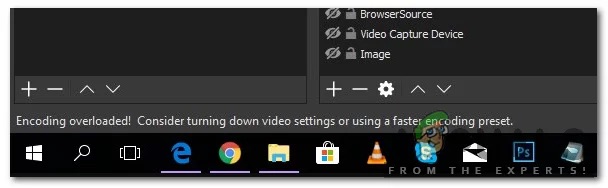
If OBS throws the dreaded “Encoding Overloaded” error at you. It’s frustrating, but don’t worry; you can fix it. Let me show you how.
What Does “Encoding Overloaded” Mean?
In simple terms, it means your computer’s CPU (the brain of your machine) is struggling to keep up with the demands of processing and compressing your video in real-time. Think of it like trying to stuff a giant suitcase into a tiny overhead bin—it just won’t fit! Screen recording, especially with high resolutions and frame rates, is particularly taxing on your CPU but you can fix it by offloading the work to a GPU (graphics processor) which is made for this sort of thing!
Troubleshooting Steps: Let’s Get Started
Before diving into OBS settings, let’s do some quick checks:
- Close Unnecessary Programs: Free up CPU and RAM by closing any background applications you don’t need for your recording or stream.
- Check Task Manager (Windows) or Activity Monitor (Mac): Monitor your CPU usage during recording. You’ve found the culprit if it’s consistently at or near 100%!
OBS Settings: Tweak Your Way to Smooth Recording
Now, let’s fine-tune your OBS settings:
Output (Scaled) Resolution:
Lowering this reduces the workload on your CPU. If you’re at 1080p, try 720p to start.
Frame Rate (FPS):
- Less FPS means less work for your CPU. 30 FPS is a good balance of smoothness and performance.
Encoder:
- If you have a dedicated NVIDIA or Intel GPU, try their hardware encoders (NVENC or QuickSync) to offload some work from your CPU.
- If not, stick with the software encoder (x264) but adjust its settings.
Encoder Preset:
- Within your chosen encoder, switch to a faster preset like “very fast” or “superfast” to ease the CPU load. Remember that faster presets might slightly reduce video quality.
Recording Format:
- If you’re recording for later editing, consider using a less CPU-intensive format like .mkv or .flv instead of .mp4.
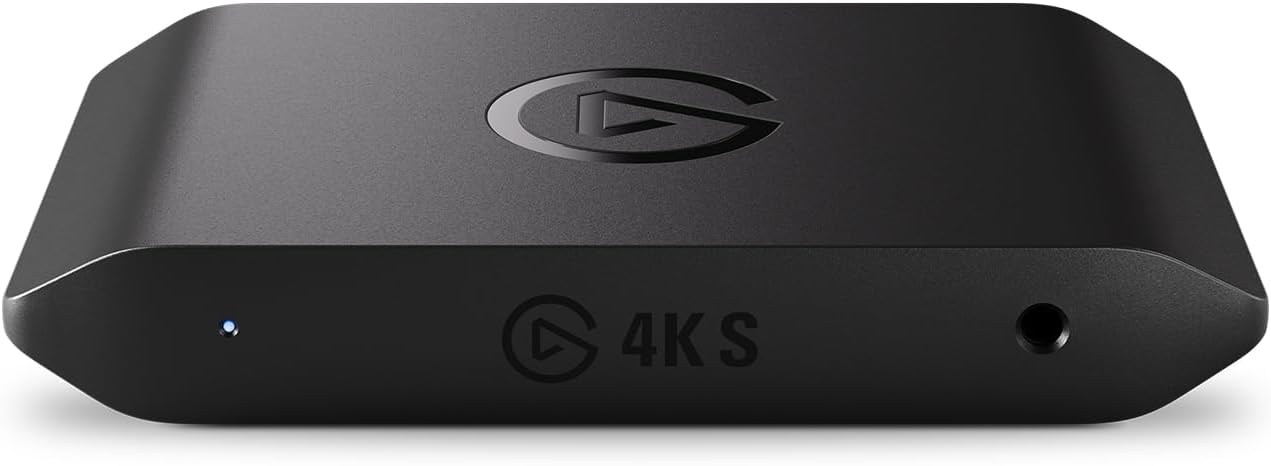
Want to Fix CPU Overloaded Permanently? Get This.
Advanced Tips for Gamers
- Lower in-game graphics settings to reduce the complexity of visuals.
- Disable Game Mode and Game DVR on Windows, which can sometimes interfere with OBS.
- Use a Capture Card to offset the CPU usage.
Need More Help?
Don’t give up if you’ve tried these steps and still see that error! Consider:
- Simplifying complex scenes in OBS.
- Upgrading your hardware (a faster CPU or a dedicated GPU can make a world of difference).
- Reaching out to the OBS community or forums for further assistance.
- Using a Capture Card for OBS.
Remember, fixing the “Encoding Overloaded” error is entirely possible. With some tweaking and patience, you’ll be back to recording and streaming smoothly fast!
Why My Voice Sounds Weird When Recorded: Solved
If you’ve ever recoiled in horror while listening back to your own podcast recordings, you’re not alone. The jarring disconnect between the voice you hear in your head and the one emanating from your speakers is a common phenomenon, often dubbed the “weird voice” syndrome. But fear not, aspiring podcaster! Understanding the science and art behind this auditory illusion can empower you to achieve a podcasting voice that’s both authentic and captivating.
Cracking the “Weird Voice” Code
Several factors conspire to create this sonic discrepancy. Let’s break them down:
- Bone Conduction vs. Air Conduction: Your voice isn’t just something you hear; it’s something you feel. When you speak, sound vibrations travel not only through the air to your ears but also through your skull and bones, creating a richer, fuller sound that you’re intimately familiar with. Microphones, however, are deaf to this internal symphony, capturing only the airborne vibrations. The result? A recording that sounds thinner, less resonant, and altogether… weird.
- The Psychology of Perception: Your brain has spent a lifetime constructing a mental image of your voice, shaped by years of bone-conducted sound. When confronted with a recording that lacks this internal resonance, it’s like encountering a stranger wearing your face. This cognitive dissonance triggers the “uncanny valley” effect, making your own voice sound alien and unsettling.
- The X-Factors: Equipment and Environment: The quality of your microphone, the acoustics of your recording space, and the nuances of audio processing all play a role in shaping your recorded voice. A mismatched mic, a noisy room, or overzealous editing can amplify imperfections and create a sonic caricature that’s far removed from your natural voice.
Podcasting: Where Sound Quality Matters
For podcasters, the stakes are high. Your voice is your brand, your connection to your audience. A “weird” voice can be distracting, undermining your message and credibility. Let’s explore how equipment and environment specifically impact your podcast’s sonic landscape.
The Microphone: Your Sonic Soulmate
Think of your microphone as an extension of your voice, a conduit for your personality and passion. Choosing the right one is crucial.
- Dynamic vs. Condenser: Dynamic mics are like trusty workhorses, rugged and forgiving, ideal for handling loud voices and plosives. Condenser mics, on the other hand, are more sensitive and nuanced, capturing subtle details and delicate inflections.
- Cardioid vs. Omnidirectional: Cardioid mics are laser-focused, picking up sound primarily from the front and rejecting noise from the sides and rear. Omnidirectional mics, conversely, are all-inclusive, capturing sound from all directions. They’re great for interviews and group recordings but less ideal for noisy environments.
- USB vs. XLR: USB mics offer plug-and-play simplicity, perfect for beginners. XLR mics require an audio interface but provide greater flexibility and control for advanced users.
The Audio Interface: Your Sonic Control Center
An audio interface acts as the bridge between your microphone and your computer, converting analog signals to digital. It’s the unsung hero of your podcasting setup, ensuring a clean, high-quality signal.
- Preamps: Think of preamps as the muscle behind your microphone, amplifying its signal for optimal recording. Quality preamps can make a noticeable difference in clarity and detail.
- Inputs and Outputs: Choose an interface with enough inputs for multiple microphones or instruments, and outputs to connect headphones or studio monitors for monitoring.
- Phantom Power: Condenser mics require 48V phantom power, supplied by the audio interface. Make sure your interface has this feature if you’re planning on using a condenser mic.
Headphones and Monitors: Your Sonic Feedback Loop
Accurate monitoring is essential for capturing a great sound. Headphones allow you to hear your voice in isolation, while studio monitors provide a more realistic representation of how your podcast will sound on speakers.
- Closed-Back vs. Open-Back Headphones: Closed-back headphones offer superior isolation, preventing sound leakage during recording. Open-back headphones are more spacious and have a more natural sound, ideal for mixing and mastering.
- Studio Monitors: Invest in monitors with a flat frequency response for accurate sound reproduction. Consider the size of your room and your budget when making your selection.
Recommended Equipment To Improve Recorded Voice
| Category | Budget-Friendly | Mid-Range Upgrade | Premium Setup |
|---|---|---|---|
| Microphone | Audio-Technica ATR2100x-USB | Rode PodMic | Shure SM7B |
| Headphones | Sony MDR7506 | Beyerdynamic DT 770 PRO | Sennheiser HD 650 |
| Audio Interface | Focusrite Scarlett Solo (Optional) | Universal Audio Volt 2 | Universal Audio Apollo Twin X DUO |
| Acoustic Treatment | Auralex Studiofoam Wedgies | More Auralex or GIK Acoustics 242 | GIK Acoustics Tri-Trap & Panels |
| Software | Audacity or Reaper | Adobe Audition or Logic Pro X | Pro Tools |
| Additional | Mic Stand, Pop Filter, Shock Mount, Cables | Mic Stand, Pop Filter, Shock Mount, Cables | Mic Stand, Pop Filter, Shock Mount, Cables |
Acoustic Treatment: Your Sonic Sanctuary
Your recording environment is more than just a backdrop; it’s an active participant in shaping your sound. Acoustic treatment helps tame unruly reflections, reverberations, and background noise, creating a sonic sanctuary for your voice.
- Absorption Panels: These panels absorb sound waves, reducing echoes and reverberation. Strategically placed on walls and ceilings, they can transform a chaotic space into a controlled recording environment.
- Bass Traps: Low-frequency sounds can be particularly problematic, muddying your recordings with boomy bass. Bass traps are designed to absorb these frequencies, tightening up your sound.
- Diffusers: Diffusers scatter sound waves, creating a more balanced and natural sound. They’re especially useful in smaller rooms where absorption alone can make the sound too dead.
- Software and Plugins: Your Sonic Playground
Audio editing software and plugins offer a world of possibilities for enhancing your podcast’s sound.
- DAWs (Digital Audio Workstations): DAWs like Audacity, GarageBand, and Logic Pro X are your virtual recording studios, allowing you to record, edit, mix, and master your audio.
- EQ and Compression: These essential tools help you shape your voice, control dynamics, and achieve a polished, professional sound.
- Noise Reduction and De-essing: These plugins help eliminate unwanted background noise and harsh sibilance, improving clarity and intelligibility.
- Reverb and Delay: Add depth and atmosphere to your voice with these creative effects, but use them sparingly to avoid sounding artificial.
From “Weird” to Wonderful: Tips for a Professional Podcast Sound
Ready to transform your podcast from amateur hour to audio excellence? Here are some key tips:
- Choose the Right Mic: Research different microphone types and select one that complements your voice and recording style.
- Optimize Your Space: Treat your recording environment with acoustic panels, bass traps, and diffusers. Minimize background noise and distractions.
- Master Your Tools: Learn the basics of audio editing and processing. Start with subtle adjustments and avoid over-processing.
- Practice and Experiment: The more you record and listen back, the better you’ll understand your voice and how to capture it effectively.
- Embrace Your Uniqueness: Your voice is your signature. Don’t try to sound like someone else. Embrace your natural tone and let your personality shine through.
Free Podcast Sound Effects
To stand out in the podcasting landscape, you need more than just great content – you need a professional and engaging listening experience. And that’s where sound effects come in.
From dramatic stings to subtle transitions, sound effects can elevate your podcast to the next level. However, finding high-quality, legally usable sounds can be tricky. This guide will walk through everything you need to know about finding and using free sound effects, all while staying on the right side of copyright law.

Understanding Sound Effects in Podcasting
Sound effects are the unsung heroes of podcasting. They can set the mood, or create the atmosphere, and enhance your storytelling in ways that words alone can’t. Here are some of the common types of sound effects used in podcasts:
- Intro/Outro Music: Short musical clips to introduce or conclude your podcast episodes
- Transition Sounds: Sounds to smoothly transition between segments or topics within an episode
- Background Ambience: Soundscapes to create atmosphere or setting (e.g., city sounds, nature sounds)
- Sound Effects: Specific sound effects to enhance storytelling or add humor (e.g., footsteps, door creaks, applause)
Used effectively, sound effects can:
- Grab the listener’s attention.
- Create a sense of professionalism.
- Enhance the storytelling
- Add humor or drama
- Make your podcast more memorable.
Navigating Copyright & Licensing for Sound Effects
Before we dive into the treasure trove of free sound effects, let’s talk about copyright. Copyright law protects original creative works, including sound effects. Using copyrighted sound effects without permission can lead to legal trouble.
That’s where licensing comes in. A license grants you permission to use a copyrighted work under certain conditions. Here are some key terms you need to know:
- Royalty-free: You pay a one-time fee to use the sound effect, and there are no ongoing royalties or licensing fees.
- Creative Commons: A non-profit organization that offers various licenses with different levels of restrictions. Some may require attribution or prohibit commercial use.
- Public Domain: Works or effects (rare) that are no longer protected by copyright and are free for anyone to use.
Remember: Always check the license of each sound effect before using it in your podcast.
Top Resources for Free Podcast Sound Effects
Ready to find some awesome sounds? Here are some of the best websites offering free sound effects for podcasts:
-
- Pixabay: Offers a vast library of royalty-free sound effects with no attribution required.
- Freesound: Database of Creative Commons licensed sounds. Attribution is often required.
- SoundBible: Provides a mix of royalty-free and Creative Commons-licensed sound effects. Check individual sound descriptions for licensing information.
- YouTube Audio Library: Royalty-free music and sound effects.
| Resource | License Type(s) | Attribution Required? | Pros | Cons |
|---|---|---|---|---|
| Pixabay | Royalty-free | No | Vast library, easy to use | May have less unique or niche sounds |
| Freesound | Creative Commons | Often | Large community, diverse selection | Licensing can be complex |
| SoundBible | Mixed | Varies | User-friendly, good for basic sound effects | Smaller library |
| YouTube Audio Library | Royalty-free | No | Easy to access for YouTube creators | Limited selection compared to other sites |
| PremiumBeat by Shutterstock | Royalty-free (paid) | No | High-quality, curated collection | Requires subscription or individual purchase |
Tips for Choosing and Using Sound Effects
- Match the mood: Select sound effects that complement the tone and content of your podcast.
- Less is more: Don’t overdo it with sound effects. Use them strategically to enhance, not distract.
- Seamless integration: Ensure sound effects blend smoothly with your audio. Use audio editing software to adjust volume and timing.
- Double-check licensing: Always verify the license and attribution requirements before publishing your podcast.
Creative Ways to Use Sound Effects
- Create a signature sound: Use a unique sound effect to brand your podcast and make it instantly recognizable.
- Build suspense: Use sound effects to create tension and anticipation.
- Enhance storytelling: Use sound effects to bring your stories to life and immerse your listeners.
- Add humor: Use funny sound effects to punctuate jokes or create lighthearted moments.
Bonus: Free Tools for Editing and Mixing Sound Effects
- Audacity: A free, open-source audio editor with powerful features for editing and mixing sound effects.
- GarageBand (Mac): A user-friendly audio editing software that comes pre-installed on most Macs.
- Online audio editors: Several free online tools, like TwistedWave, offer basic audio editing capabilities.
Zoom Livetrak L-8 for Podcasting
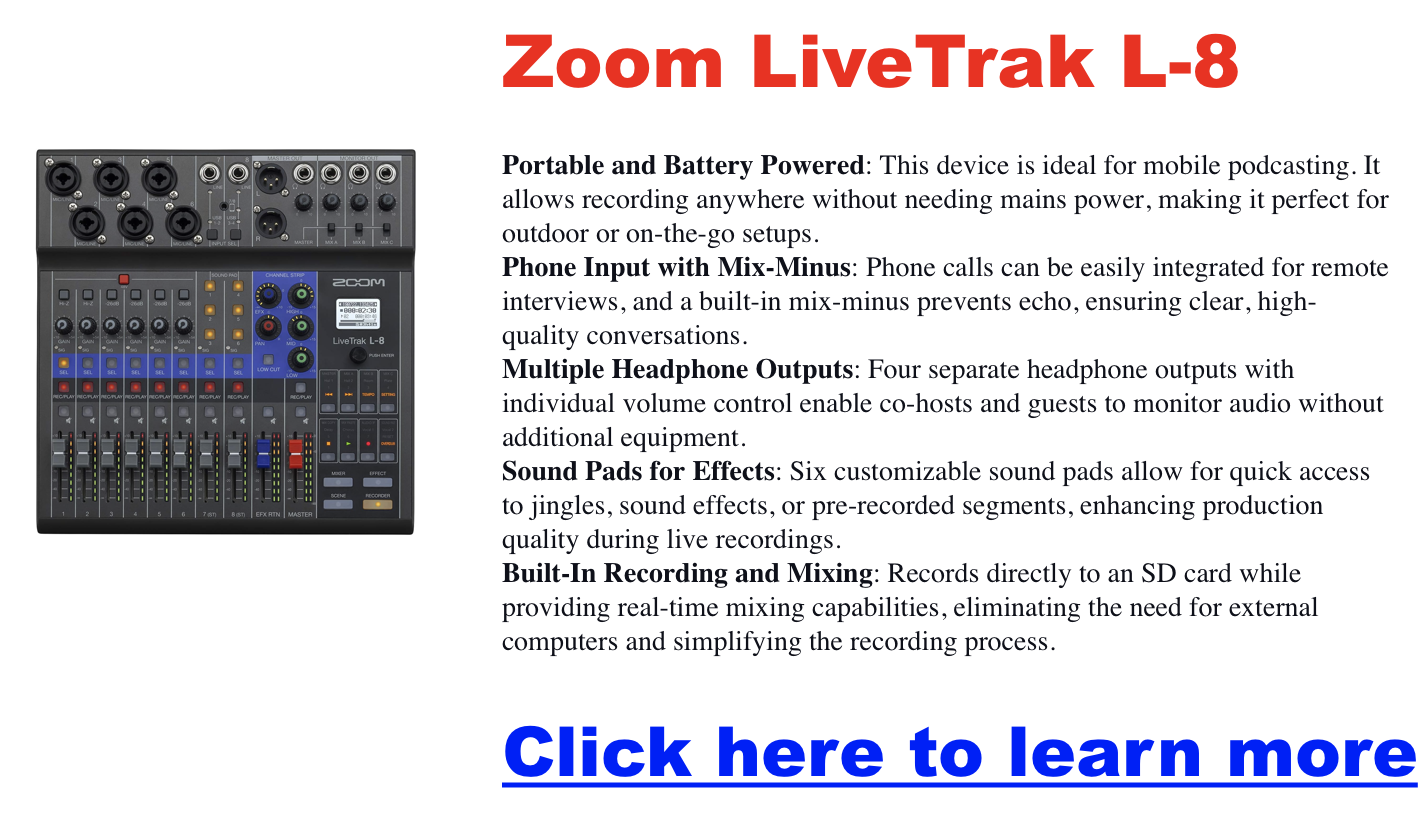
If you’re a podcaster, musician, or live performer looking for a portable, do-it-all mixer and recorder, the Zoom LiveTrak L-8 might be on your shortlist. But is it worth it in 2025? We compiled real user reviews and technical comparisons to help you decide if it’s the right fit for your workflow.
What Is the Zoom LiveTrak L-8?
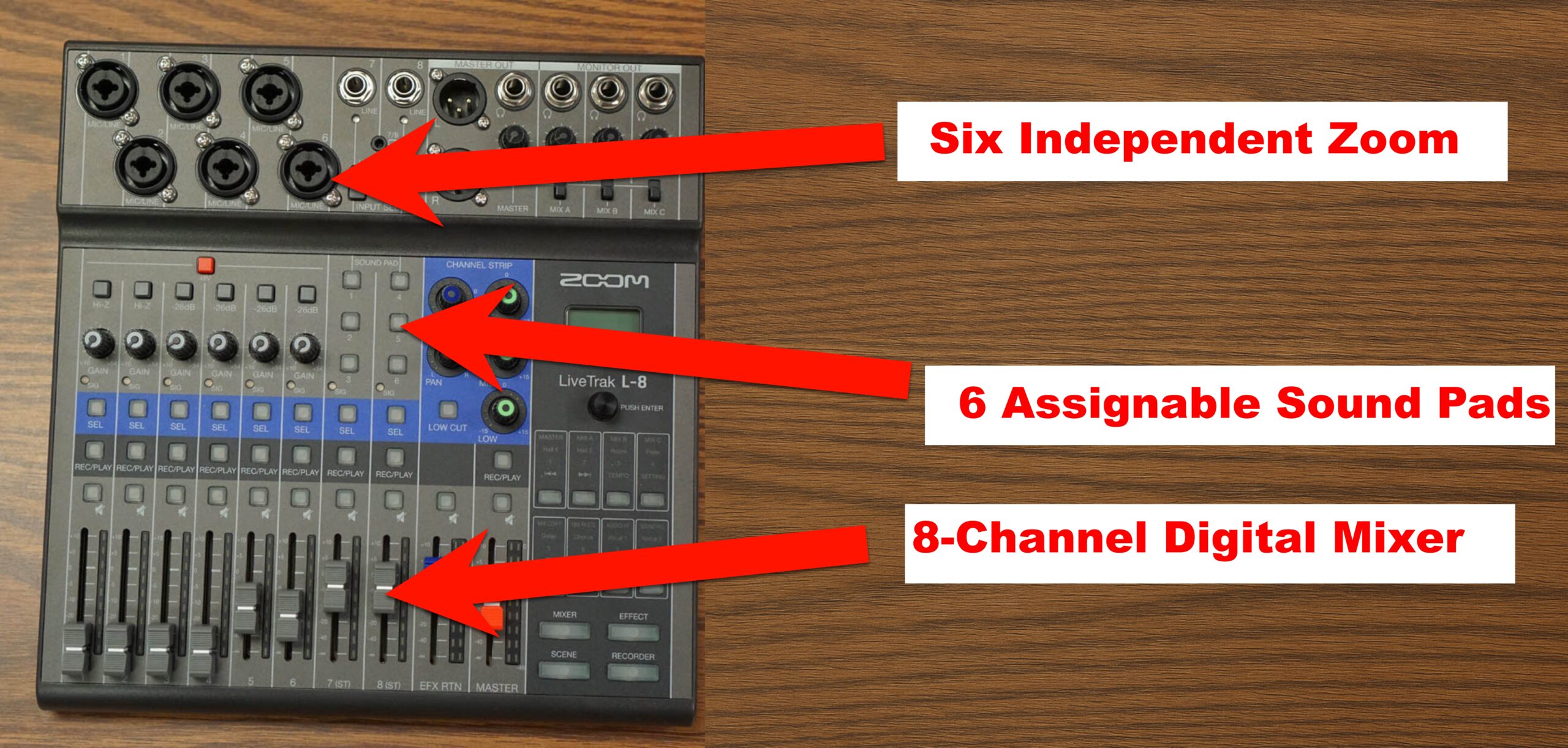
The L-8 is an 8-channel digital mixer and multitrack recorder tailored for podcasters, musicians, and creators on the move. It delivers pro-level recording quality with minimal setup, powered by batteries or USB, making it ideal for both studio and field use.
Key Specifications
- Channels: 8
- Inputs: 6 x XLR-1/4″ combo, 2 x 1/4″ TS, 1 x 1/8″ TRRS
- Outputs: 2 x XLR main, 4 x 1/4″ TRS headphones
- Recording: 12-track simultaneous, 10-track playback
- Resolution: 24-bit/96kHz
- Dimensions: 10.55″ x 11.1″ x 2.91″
- Weight: 3.4 lbs
Who Should Consider the L-8?
This mixer is a favorite among:
- Podcasters needing mix-minus, multiple headphone outputs, and portability
- Musicians recording jam sessions or live gigs
- Streamers and content creators using iOS devices or OBS setups
Firmware and Software Compatibility
Firmware Updates: Zoom continues to release updates to improve DAW compatibility and recording stability. Always download the latest firmware from Zoom’s official site.
DAW and Streaming Software: Works with GarageBand, Ableton, Pro Tools, and OBS. For iOS use, grab an Apple Lightning to USB Camera Adapter.
iOS Integration: Acts as a 12-in/4-out interface when used with an iPad or iPhone — ideal for mobile setups and podcasting on the go.
Key Features That Stand Out
Portability: Battery-powered, compact, and travel-friendly. Great for remote interviews, church setups, or mobile musicians.
Multitrack Recording: Simultaneously record all inputs to an SD card. Mix on the device or export to your DAW later.
Sound Quality: Includes 6 low-noise mic preamps and onboard effects like reverb and chorus. 3-band EQ + high-pass filter per channel.
User-Friendly Interface: Touch-friendly knobs, intuitive layout, and 6 sound pads for triggering audio clips or stingers during a live show.
Zoom L-8 vs Other Mixers
Zoom L-8 vs. L-12
- Phantom Power: L-8 has group phantom on/off; L-12 allows split (ch. 1–4 and 5–8)
- Size: L-8 is lighter, battery-powered
- Best For: L-8 for mobility, L-12 for bigger setups with varied mics
L-8 vs. Rodecaster Pro
- Processing: Rodecaster has advanced DSP; L-8 offers EQ control instead
- Connectivity: Rodecaster uses USB-C; L-8 uses micro-USB
- Price: L-8 is more budget-friendly
Real Use Case Highlights
Podcasting: Mix-minus works seamlessly for phone interviews. Multiple headphone outs let everyone monitor the session.
Music Recording: Capture high-res multitracks without a laptop. Built-in FX save post-processing time.
Live Sound: Great for performers and public speakers. Easily record live sets or mix stage monitors in real-time.
Pros and Cons
Pros
- Battery-powered, great for remote use
- Multitrack recording and playback
- Solid preamps and onboard effects
- Easy mix-minus for podcasters
Cons
- Group-only phantom power toggle
- Micro-USB instead of USB-C
- Limited onboard effect routing
Frequently Asked Questions
Is it good for beginners? Yes — intuitive interface and sound pads make it beginner-friendly with room to grow.
Can I use it for remote interviews? Absolutely. The built-in mix-minus prevents call feedback — just plug in your phone via TRRS.
Does it run without an outlet? Yes, via 4 AA batteries or USB power bank.
L-8 or L-12? Choose L-8 for mobile use. Go with L-12 for more channels and individual phantom power zones.
Where can I buy it? Amazon, Sweetwater, and B&H all carry the L-8 with occasional discounts and bundles.
Rodecaster Pro: All-in-One Podcast Production Studio
Looking for the best podcast production setup in 2025? The Rode RØDECaster Pro II is a standout solution for creators who want professional-quality sound without the headache of complicated gear. Whether you’re launching your first show or upgrading your studio, this guide breaks down everything you need to know—from features and benefits to expert tips and upgrade advice.
RØDECaster Pro II Overview: What It Does Best
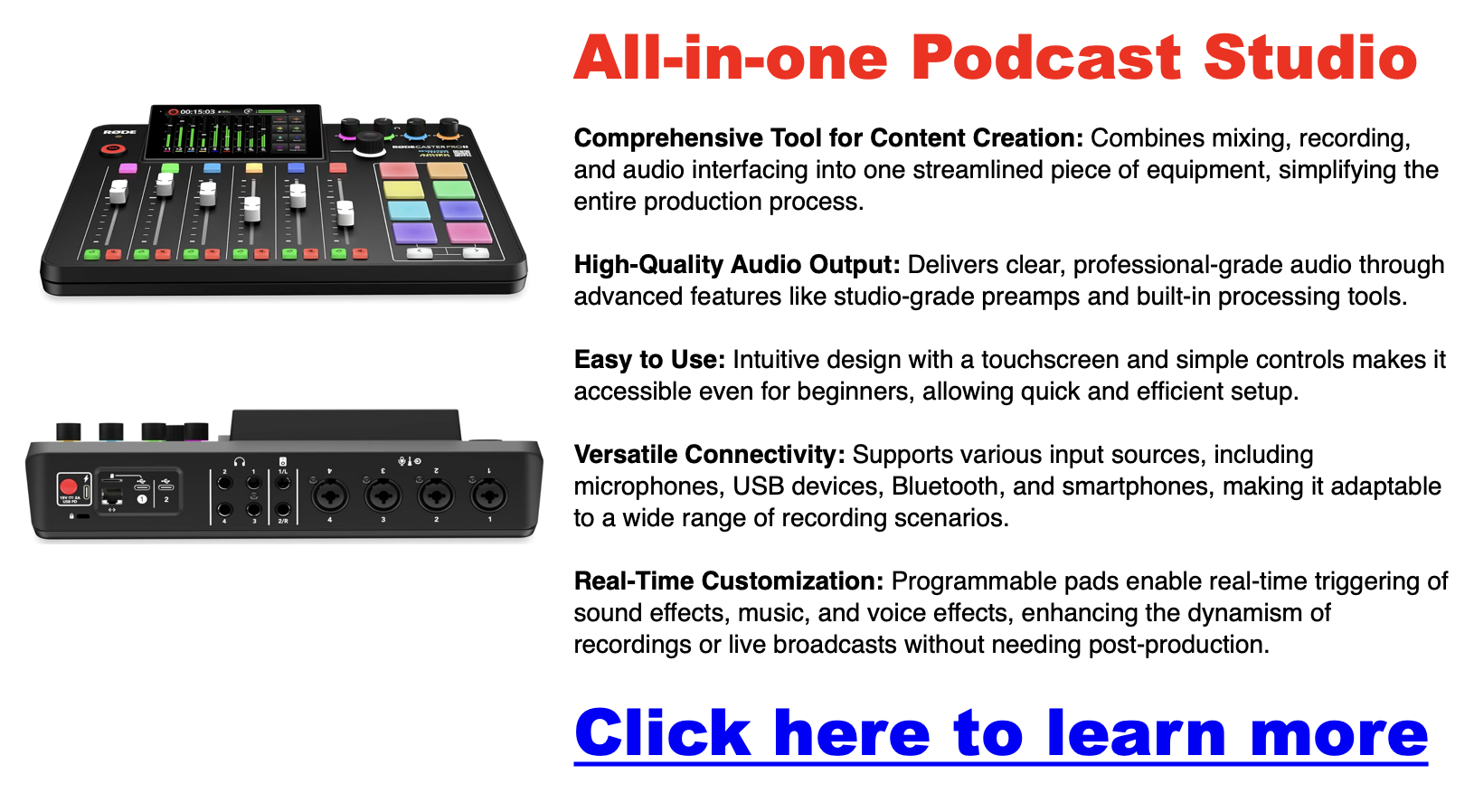
The RØDECaster Pro II is a feature-packed audio production console built for podcasters, streamers, musicians, and content creators. It blends studio-quality preamps, onboard audio processing, customizable SMART pads, and multi-track capabilities—all in one sleek unit.
Key Features:
-
Four high-quality mic inputs with studio-grade preamps
-
SMART Pads to trigger sound effects, voice FX, or MIDI commands
-
APHEX audio processing for pro-level clarity and tone
-
Multi-track recording for post-production flexibility
-
Built-in mixer with faders and multiple input types (USB, Bluetooth, TRRS)
Why Creators Choose the RØDECaster Pro II
High-Quality Audio, No Hassle
With up to 76dB of gain and ultra-low noise, this console eliminates the need for mic boosters—even for gain-hungry mics like the Shure SM7B. It works beautifully with both dynamic and condenser mics.
Beginner-Friendly Design
Despite its power, the RØDECaster Pro II is incredibly easy to use. The large touchscreen interface and intuitive layout mean even first-time users can produce professional-grade sound with minimal setup.
Versatile for All Content Types
This unit isn’t just for podcasts. It’s perfect for livestreams, remote interviews, music production, and video content creation. You can connect smartphones via Bluetooth, plug in USB-C devices, or use traditional XLR mics.

What’s New vs the Original RØDECaster Pro?
The Pro II adds major upgrades:
-
Improved preamps with higher gain and lower noise
-
Dual USB-C ports to connect two devices at once
-
Enhanced Bluetooth for clearer remote interviews
These improvements make it a great step up—especially if you’re managing multi-source audio or want cleaner results without extra gear.

Programmable SMART Pads
The RØDECaster Pro’s SMART pads are more than just sound effect triggers. These eight pads are fully customizable, allowing you to load them with your audio files, music beds, or voice effects. Additionally, you can use these pads for advanced functions like pitch shifting, reverb, and even MIDI commands, giving you full control over your audio environment.
Highlights:
- Customization: Load your audio files and effects.
- Advanced Functions: Includes pitch shifting, reverb, and MIDI commands.
- Dynamic Control: Easily add layers to your content with a single tap.
Advanced Audio Processing
The RØDECaster Pro II is equipped with APHEX audio processing tools, including the Aural Exciter, Big Bottom, and Compellor. These tools are designed to enhance the quality of your audio, whether by adding warmth and depth to voices or compressing dynamic range for a more consistent output. Additionally, the built-in noise gate and compressor help reduce background noise and maintain balanced levels throughout your recording.
Highlights:
- APHEX Processing: Enhances audio clarity and richness.
- Noise Gate and Compressor: Keeps background noise at bay and balances levels.
- Professional Sound: Achieve broadcast-quality audio with ease.
Multi-Track Recording
One of the standout features of the RØDECaster Pro II is its multi-track recording capability. This feature lets you record each input channel separately, which is incredibly useful during post-production. Whether you need to edit out a mistake or apply effects to individual tracks, multi-track recording gives you the flexibility to refine your content to perfection.
Highlights:
- Separate Track Recording: Each input can be recorded individually.
- Post-Production Flexibility: Easier to edit and apply effects.
- DAW Integration: Seamless export to Digital Audio Workstations for further editing.

The RØDECaster Pro II: What’s New?
Key Upgrades
The RØDECaster Pro II takes everything great about the original and enhances it with several key upgrades. The most notable improvements include even better preamps with higher gain and lower noise, dual USB-C interfaces that allow you to connect multiple devices simultaneously, and enhanced Bluetooth connectivity for superior audio quality during remote interviews or call-ins.
Highlights:
- Enhanced Preamps: Higher gain, lower noise.
- Dual USB-C Interfaces: Connect multiple devices simultaneously.
- Improved Bluetooth: Better audio quality for remote connections.
Who Should Upgrade?
If you already own the original RØDECaster Pro, the decision to upgrade will depend on your specific needs. If you frequently work with multiple devices, require even higher audio fidelity, or engage in many remote interviews, the RØDECaster Pro II could be a worthwhile investment.
Considerations:
- Multiple Device Connections: Ideal for complex setups.
- Higher Audio Fidelity: Best for professional-grade projects.
- Remote Interviews: Enhanced Bluetooth for clearer calls.
User Testimonials and Reviews
What Users Love
Many users rave about the RØDECaster Pro’s ease of use, high-quality audio output, and versatility of the SMART pads. It’s often praised for simplifying the production process without compromising on the quality of the final product.
Common Praise:
- Ease of Use: Intuitive and user-friendly.
- Audio Quality: Consistently high across various setups.
- Versatility: Adapts to different content creation needs.
Common Complaints
While the RØDECaster Pro is generally well-received, some users have noted the steep learning curve associated with its more advanced features. The price point can also be a barrier for hobbyists or those new to content creation.
Common Issues:
- Learning Curve: Advanced features may be challenging for beginners.
- Price: Considered expensive by some users, especially beginners.
How to Optimize Your Use of the RØDECaster Pro
Best Practices for Audio Quality
Pay attention to microphone placement and level settings to get the best possible audio from your RØDECaster Pro. Use the built-in noise gate and compressor to maintain clean, balanced audio, and use the APHEX processing to add warmth and depth to your recordings.
Tips:
- Microphone Placement: Keep it consistent and at the right distance.
- Use Audio Processing: Leverage the noise gate and compressor for balanced levels.
- Adjust Levels: Ensure levels are set correctly to avoid distortion or clipping.
Customizing Your Workflow
The RØDECaster Pro is highly customizable, allowing you to tailor its settings to fit your specific needs. Spend some time setting up the SMART pads with your most-used effects and sounds, and adjust the input levels to match your recording environment.
Tips:
- Customize SMART Pads: Load frequently used effects and sounds.
- Adjust Inputs: Set levels that suit your recording space.
- Streamline Workflow: Tailor settings to your production style for efficiency.
Troubleshooting Common Issues
If you encounter issues with the RØDECaster Pro, such as connectivity problems or audio glitches, you can take a few steps. First, ensure that all firmware is up to date. If problems persist, consult the user manual or Rode’s support resources for further guidance.
Tips:
- Update Firmware: Ensure the latest updates are installed.
- Check Connections: Verify that all cables and devices are properly connected.
- Consult Resources: Use Rode’s support and forums for troubleshooting.
FAQs About the RØDECaster Pro
Common Questions
Many users wonder if the RØDECaster Pro can handle multiple simultaneous inputs or what software is compatible with the device. The good news is that the RØDECaster Pro is designed to be highly versatile and works seamlessly with most recording software.
Common FAQs:
- Multiple Inputs: Yes, it can handle up to four simultaneous inputs.
- Software Compatibility: Compatible with most DAWs and recording software.
- Live Streaming: Yes, it’s ideal for live-streaming setups.
Expert Tips
If you’re looking to get the most out of your RØDECaster Pro, here are a few expert tips:
Insider Tips:
- Backup Recordings: Always create a backup of your recordings directly to the microSD card to avoid losing data.
- Firmware Updates: Regularly check for updates to benefit from the latest features and improvements.
Podcast Setup for Two People (2026): Best Equipment for Co-Hosted Shows
The best podcast setup for two people in 2026 is two dynamic XLR microphones (Samson Q2U or RODE PodMic) plugged into a Zoom PodTrak P4 or Focusrite Scarlett 2i2, with closed-back headphones for each host. That combination gives you independent audio tracks, clean isolation, and room to grow — without overspending on gear you don’t need yet.
Below you’ll find gear picks organized by budget, a quick-start wiring guide, and answers to the questions co-hosts ask most.
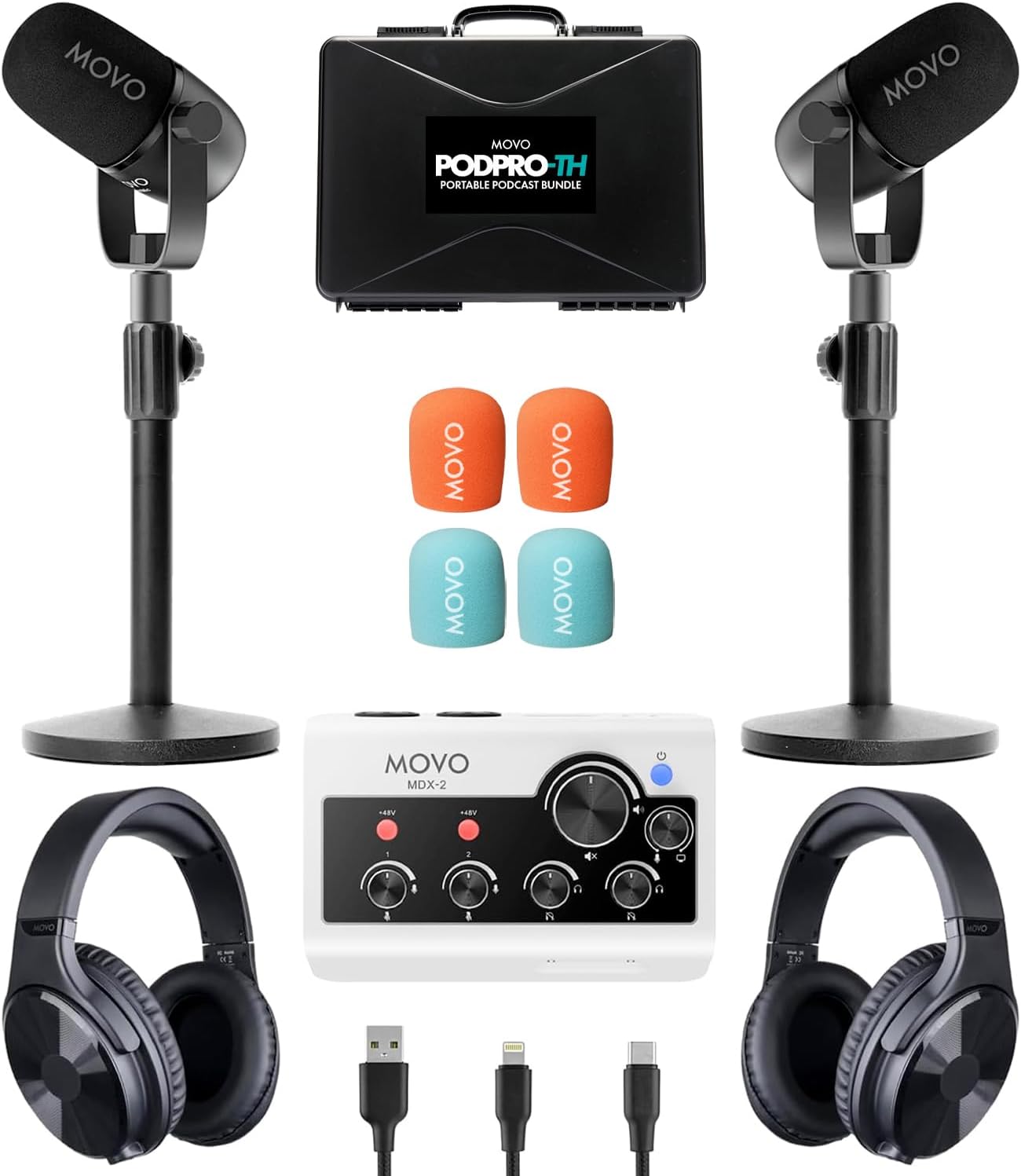
→ Browse two-person podcast equipment on Amazon
What Makes a Two-Person Setup Different From Solo Podcasting?
Recording two hosts in the same room introduces three problems a solo setup never faces: crosstalk between microphones, uneven volume between hosts, and a mixer or interface that can handle two separate inputs at once. Get those three things right and everything else is refinement.
The equipment categories are the same — microphones, interface/mixer, headphones, cables, software — but every category now needs to be multiplied or upgraded to handle two channels. That’s the core framing for the gear guide below.
Two-Person Podcast Equipment: Budget Tiers
Budget Setup (~$150–$250 total): Two USB Mics, No Interface Needed
The cheapest viable two-person setup uses two USB microphones plugged directly into a laptop. The tradeoff: most DAWs can only use one USB audio device at a time, so you’ll need a workaround (Aggregate Device on Mac, Voicemeeter on Windows) or a platform like Riverside.fm that records each host locally.
- Samson Q2U (~$60 each) — hybrid USB/XLR dynamic mic; our top recommendation for beginners. You can start USB and later switch to XLR with an interface. Check current price →
- Blue Yeti (~$90–$110) — popular USB condenser with a cardioid mode. Works, but the Q2U beats it on value and upgrade flexibility. See our Blue Yeti boom arm guide if you already own one.
Bottom line: Two Samson Q2Us at ~$120 total is the most financially responsible starting point for a co-hosted show.
Mid-Range Setup (~$400–$650): XLR Mics + Interface or Dedicated Podcast Recorder
This is the sweet spot for most two-person podcasts. You get independent multitrack recording, proper gain control per host, and a setup that won’t embarrass you two years from now.
Option A — Focusrite Scarlett 2i2 (4th Gen) + two XLR mics (~$430–$500 total)
The Scarlett 2i2 (~$200) is the most popular two-channel interface in podcasting. The 4th Gen added Auto Gain (sets your levels automatically) and Clip Safe (prevents distortion if you get loud). Two RODE PodMic (~$100 each) or Samson Q2U XLR inputs round out the rig. One limitation: only one headphone output, so you’ll need a headphone splitter or a small headphone amp for both hosts to monitor simultaneously.
Option B — Zoom PodTrak P4 + two XLR mics (~$400–$450 total)
The Zoom PodTrak P4 (~$150–$199) is podcast-specific, which makes it smarter for co-hosted shows than the Scarlett 2i2. It has four XLR inputs (room to add guests), four individual headphone outputs with independent volume controls, mix-minus for remote callers, and records directly to a microSD card without a computer. The 2i2 wins on audio fidelity; the P4 wins on podcasting utility.
| Feature | Focusrite Scarlett 2i2 (4th Gen) | Zoom PodTrak P4 |
|---|---|---|
| Price (approx.) | ~$200 | ~$150–$199 |
| XLR Inputs | 2 | 4 |
| Headphone Outputs | 1 | 4 (individual volume) |
| Records Without Computer | No | Yes (microSD) |
| Mix-Minus for Remote Guests | No | Yes |
| Best For | Home studio, music crossover | Podcast-only, field recording |
Microphone picks for this tier:
- Samson Q2U (~$60) — dynamic, USB/XLR hybrid; best beginner XLR mic
- RODE PodMic (~$100) — dynamic, broadcast-tuned, built-in pop filter; step up in warmth
- Shure SM7B (~$400) — the studio standard, but needs high-gain preamps; skip it until your show is established. See our RODE PodMic vs Shure MV7 comparison.
Dynamic mics like the Q2U and PodMic reject room noise better than condensers, which matters when two people are talking in the same room. Read our microphone polar patterns guide to understand why pickup pattern choice is critical for in-room co-hosting. For a full overview of XLR vs USB microphone tradeoffs, we cover that separately.
Pro Setup (~$900–$1,500+): RODECaster Pro II or Equivalent
The RODECaster Pro II (~$699) is the all-in-one benchmark for serious co-hosted shows. It handles four XLR inputs, built-in sound pads, Bluetooth for phone calls, and advanced per-channel processing (EQ, compression, de-essing) without any external software. Pair it with two RODE PodMic 2s and two NTH-100 headphones and you have a broadcast-ready rig out of the box. The RODECaster Video is the video-forward variant if you’re building a video podcast studio simultaneously.
At this price tier, also consider whether a Yamaha MGX series mixer fits your workflow if you have a more complex routing setup.
Headphones for a Two-Person Podcast
Both hosts need headphones to monitor audio during recording — catching clipping, background noise, or mic distance issues in real time rather than discovering them in the edit. Closed-back headphones are non-negotiable for in-room recording; open-back designs bleed sound into your microphones.
Top picks:
- Sony MDR-7506 (~$113) — industry standard for decades; flat response means you hear what’s actually there
- Audio-Technica ATH-M50x (~$150) — slightly more comfortable for long sessions
- Beyerdynamic DT 770 Pro (~$150) — excellent isolation, great for rooms with ambient noise
Our full best podcast headphones guide breaks down monitoring options across all price points.
Accessories You Actually Need (and Ones to Skip)
Need:
- Boom arms (one per mic) — keeps mics at consistent distance, reduces desk vibration. A basic $20 arm works fine at the budget tier.
- XLR cables — one per mic. A 6-foot cable per host is usually enough for across-a-table setups.
- Pop filters or windscreens — reduces plosive sounds (“p” and “b” sounds) that distort even good mics.
Skip (for now):
- Acoustic foam panels — treat your room first by recording in a smaller space with soft furnishings (rugs, curtains, bookshelves). Foam panels help, but they don’t replace a fundamentally bad room.
- Cloudlifter — only needed for low-output dynamic mics like the SM7B. The Q2U, PodMic, and most starter mics don’t need it.
- Shock mounts — nice to have, but boom arms with proper cable routing solve most vibration problems.
See our full podcast equipment bundles guide if you’d rather buy a matched kit than piece together individual components.
How to Wire a Two-Person In-Room Podcast Setup
- Mount each microphone on a boom arm, positioned 6–8 inches from the host’s mouth at a slight downward angle.
- Run an XLR cable from each mic to a separate input on your interface or recorder (Ch 1 and Ch 2).
- Connect both sets of headphones. On the Scarlett 2i2, use a headphone splitter from the single output. On the PodTrak P4, plug each pair into its own dedicated jack.
- Connect the interface to your computer via USB. Select it as the input device in your recording software.
- Set input levels: speak at recording volume and adjust gain until the signal peaks around -12 to -6 dBFS. Do this for each host independently.
- Enable multitrack recording in your software so each mic records to its own separate track.
See our podcast microphone setup guide for detailed positioning photos and level-setting screenshots. For software choices, our best podcast editing software roundup covers every major DAW option from Audacity to Adobe Audition.
Recording a Two-Person Podcast Remotely
If your co-host is in a different location, skip consumer video calls. Zoom compresses audio significantly and doesn’t give you separate tracks per host. Use a dedicated remote recording platform instead.
| Platform | Separate Tracks | Video | Free Tier | Best For |
|---|---|---|---|---|
| Riverside.fm | Yes | Yes (4K) | Limited | Video-first shows |
| Squadcast | Yes | Yes | No | Audio-focused pros |
| Zencastr | Yes | Yes | Yes | Budget remote setup |
| Podcastle | Yes | Yes | Yes | Beginners + AI editing |
Each host records locally in their own environment, and the platform stitches the tracks together. See our full remote podcast recording guide for a complete platform-by-platform breakdown, including our Squadcast vs Zencastr comparison.
Room Setup Tips for Two Hosts
Two voices in a room amplify every acoustic problem. These are the changes with the highest return on zero budget:
- Choose a smaller room with soft surfaces. Carpet, curtains, bookshelves, and upholstered furniture absorb reflections. A walk-in closet full of clothes is genuinely the best free recording booth.
- Sit close to the mics, not close to each other. 6–8 inches from each mic is the target. Two hosts sitting too far apart and too close together both create problems: too far causes thin, distant sound; too close causes bleed between microphones.
- Face each other across a table, not side by side. A face-to-face seating arrangement makes conversation feel natural and keeps each mic pointed away from the other host’s mouth.
- Record a 30-second test and listen back before every session. Catching a cable issue, a high-noise floor, or clipping before you record 45 minutes is the most valuable habit in co-hosted podcasting.
For lighting considerations if you’re building a video podcast, see our podcast lighting setups guide and our best cameras for podcasting recommendations.
What’s the Total Cost of a Two-Person Podcast Setup?
Here’s how the real numbers shake out in 2026:
| Tier | Equipment | Approx. Cost |
|---|---|---|
| Budget | 2x Samson Q2U (USB) + free software | ~$120 |
| Mid-Range A | 2x Samson Q2U + Focusrite 2i2 4th Gen + 2x Sony MDR-7506 | ~$430 |
| Mid-Range B | 2x RODE PodMic + Zoom PodTrak P4 + 2x ATH-M50x | ~$600 |
| Pro | 2x RODE PodMic 2 + RODECaster Pro II + 2x NTH-100 | ~$1,300 |
Our complete podcast startup cost guide covers hosting, software, and distribution costs on top of gear. If budget is tight, our best cheap podcast microphones page identifies the best-performing mics under $75.
Once your gear is sorted, you’ll need a podcast host to distribute your show. See our free podcast hosting guide and the full podcast hosting comparison for distribution options.
Frequently Asked Questions: Two-Person Podcast Setup
What is the best microphone setup for a two-person podcast?
The best two-person microphone setup is two dynamic XLR microphones — one per host — connected to a multi-channel interface or podcast recorder. The Samson Q2U (~$60 each) is the top budget pick; the RODE PodMic (~$100 each) is the mid-range upgrade. Dynamic mics reject more background noise than condensers, which is critical when two people share a room.
Do you need an audio interface for a two-person podcast?
Yes, if you’re using XLR microphones. An audio interface converts the analog XLR signal to digital and connects to your computer via USB. The Focusrite Scarlett 2i2 (~$200) and Zoom PodTrak P4 (~$150–$199) are the two most popular choices for two-person setups. If you use USB mics, you can skip the interface, but you’ll need workarounds to record two USB devices simultaneously.
What is the cheapest two-person podcast setup that actually works?
Two Samson Q2U microphones (~$60 each) plugged into a laptop via USB, recorded with free software like Audacity or GarageBand, is the cheapest functional two-person setup at roughly $120 total. You’ll need to solve the dual-USB-device problem on your operating system, but it’s doable and the audio quality is genuinely good.
Can two people use one microphone for a podcast?
Technically yes — an omnidirectional or bidirectional microphone placed between two hosts can capture both voices. In practice, this creates problems: uneven levels, bleed when one host is speaking, and no ability to independently adjust or edit each voice in post. Two mics is always the better answer, even at the budget tier.
What is the Zoom PodTrak P4 and is it good for two people?
The Zoom PodTrak P4 is a podcast-specific digital recorder and USB audio interface with four XLR inputs and four independent headphone outputs — making it one of the best purpose-built solutions for two-person (or even four-person) podcast recording. At ~$150–$199, it’s also more affordable than many comparable options. See our full Zoom PodTrak P4 review.
What software do you need for a two-person podcast?
For in-room recording, any DAW with multitrack capability works: Audacity (free), GarageBand (free, Mac), Adobe Audition (paid), or Hindenburg Journalist (paid). The critical setting is enabling separate tracks per input so you can independently edit each host’s audio. For remote co-hosting, platforms like Riverside.fm, Squadcast, or Zencastr handle the separate-track recording for you. See our best podcast editing software guide for a full comparison.
How do you prevent microphone bleed in a two-person podcast?
Use dynamic (not condenser) microphones, position each mic 6–8 inches from the host’s mouth, point mics away from the other host, and record in a room with soft surfaces to minimize reflections. Cardioid polar patterns reject sound from the rear and sides, which helps significantly. See our microphone polar patterns guide for a deeper explanation.
Is a two-person podcast setup different for video podcasts?
The audio setup is identical. For video, you’ll add cameras (one per host or a wide-angle shared shot), proper lighting, and potentially a more capable interface for routing audio to a streaming platform. See our best cameras for podcasting guide and our podcast lighting setups page for the video-specific additions.
What’s the difference between a podcast mixer and an audio interface for a co-hosted show?
An audio interface converts microphone signals to digital and sends them to your computer for recording. A mixer does the same but also lets you blend signals, apply EQ, and control levels in hardware before they hit the computer. For most two-person podcasts, an interface (Scarlett 2i2) or a purpose-built podcast recorder (PodTrak P4, RODECaster Pro II) is more practical than a traditional mixer. See our audio mixer for podcast guide if you’re specifically evaluating mixers.
Do both podcast hosts need headphones?
Yes. Both hosts should monitor audio in real time during recording to catch problems immediately — clipping, cable noise, mic distance drift, or one host’s mic cutting out. Closed-back headphones are required; open-back headphones bleed audio back into the microphones. See our best podcast headphones guide for current picks.
Related Resources
- Podcast equipment for co-hosts and groups
- Solo podcaster equipment guide
- Complete podcast equipment guide
- Podcast microphone setup walkthrough
- What equipment is needed for a podcast?
- Best podcast microphones (all budgets)
- Best audio interfaces for podcasting
- Portable podcast microphones
- Home podcast setup guide
- Podcast setup for two (this page)
- Best podcast editing software for all levels
- Podcast editing software: free and paid options
- How to record a podcast remotely
- Best remote podcast recording platforms
- Behringer Xenyx Q802USB review
- Free podcast hosting options
- How much does it cost to start a podcast?
How to Start a Podcast on Youtube
In the ever-evolving world of digital content creation, podcasters constantly seek ways to expand their reach and connect with new audiences. One increasingly popular strategy is repurposing podcast content for YouTube, the world’s second-largest search engine and a hub for video consumption. But is this the right move for you? Let’s dive in and explore the potential benefits and challenges of launching a YouTube channel for your podcast.
Is YouTube Right for Your Podcast?
Before you jump headfirst into video production, take a moment to assess whether YouTube aligns with your podcast format and target audience.
- Podcast Format: Some formats naturally lend themselves to video. Interview-style podcasts, where viewers can see the dynamic between host and guest, often thrive on YouTube. Similarly, storytelling or educational podcasts can benefit from visual aids and demonstrations. However, the transition to video may be more challenging if your podcast is highly niche or relies heavily on audio elements like sound effects or music.
- Target Audience: Do your listeners engage with video content? Analyze your audience demographics and preferences. Are they active on YouTube? Do similar podcasts in your niche have successful YouTube channels? Understanding your audience’s viewing habits will help you gauge the potential for growth on the platform.
Weighing the Pros and Cons of Starting a YouTube Channel
Starting a YouTube channel for your podcast offers several exciting possibilities but also comes with its own set of challenges. Let’s weigh the pros and cons.
Pros:
- Expanded Reach: YouTube boasts a massive audience, allowing you to tap into new listeners who might not have discovered your podcast otherwise.
- Monetization Opportunities: YouTube offers various monetization options, including advertising revenue, sponsorships, and merchandise sales, which could potentially create new income streams for your podcast.
- Increased Engagement: YouTube’s comment section and live chat features facilitate real-time interaction with your audience, fostering a stronger sense of community.
- Discoverability: Optimizing your videos for YouTube’s search and recommendation algorithms can boost your visibility and attract organic viewers — MORE ON THIS BELOW! THIS IS HUGE!
Cons:
- Time and Resources: Producing high-quality videos requires time, effort, and often additional equipment and software.
- Technical Skills: Video editing and production may involve a learning curve if you’re new to the medium.
- Audience Fragmentation: Juggling multiple platforms can be demanding, and you risk dividing your audience’s attention.
- Algorithm Dependency: YouTube’s algorithm can be unpredictable, making it challenging to maintain consistent viewership.
YouTube, Google, and the Power of Search
Having a presence that shows on Google & Youtube is a massive advantage because YouTube videos themselves can rank not only in YouTube’s search engine (example: how to videos – how to tie a tie has 60 million views), but YouTube videos also rank in Google (and other search engines too) for a given keyword as well.
Here take a look. This is the search result in YouTube for how to tie a tie… Take a look at the age of the video and the view count. It is a piece of content that has become an asset…. it was created once, and it has been popular for 9-14 years for these top results…. and they earn money on this!

Now lets take a look at the Google result as well…

Check out that thumbnail, the #2 result on YouTube is also the #1 result on Google. Safe to say that it gets a ton of traffic!
I use a keyword tool for Google and a different keyword tool for YouTube — let’s see how popular the search term is, and we’ll get back to why this is important.


I hope you’re following along, because the phrase “how to tie a tie” is searched for over 650 THOUSAND TIMES per month on YouTube itself.
How to Tie a Tie is also searched for over 300,000 times a month on Google itself.
That is close to a million searches a month! And it explains how they got so many views… And you can do this too with your podcast!
Relating It Back to Your Podcast…
I’m trying to show that if you’re strategic with the content you make with your podcast that you could very easily show up in the search results for something somebody is looking for.
That means if you have a podcast episode about something specific like “The Best Strategies for Winning in Dungeon and Dragons” you have a good chance of showing up both in YouTube and Google.
This also means you’ll attract a flood of new listeners to your channel if there is search volume for the topic.
New listeners means more subscribers, more visits to your podcast’s website, more clicks on the offers that get you paid — and a show that is growing exponentially!
If you have a website and a call to action in the podcast and description, you funnel those new listeners to your website and use that to make money (more on that below!).
Key Considerations Before You Launch
If you’re ready to take the plunge, here are some essential factors to consider:
- Content Strategy: Will you simply repurpose existing episodes or create unique video content? Experiment with formats like shorter clips or highlight reels to cater to YouTube’s shorter attention spans. Craft compelling titles and thumbnails to entice viewers to click.
- Technical Setup: Invest in a decent camera, microphone, and video editing software. Plenty of affordable options are available, and numerous free tutorials online can help you master the basics of video editing.
- Promotion and Growth: Cross-promote your YouTube channel on your podcast, website, and social media platforms. Utilize relevant keywords and tags to improve discoverability. Actively engage with your viewers through comments and community features.
Get a Webhost & Leverage Your Show’s Site
Click here to learn how to sign up for web hosting
If you have a website for your podcast, your YouTube channel can become a powerful tool to funnel viewers back to your site. This opens up a world of monetization opportunities beyond YouTube’s built-in features.
-
- Create Engaging Content for Each Episode
- Blog Post: Publish a blog post for each episode, summarizing key points, providing additional context, or offering behind-the-scenes insights.
- Transcript: Include a full or partial transcript of the episode, making your content accessible to a wider audience and improving SEO.
- Resources and Downloads: Provide free downloadable resources related to the episode’s topic, such as worksheets, checklists, or templates.
- Calls to Action: Encourage viewers to visit the website for further information, to join your email list, or to purchase related products or services.
- Create Engaging Content for Each Episode
Creating valuable (aka helpful) and engaging content on your website gives your audience a reason to visit and interact with your brand beyond just listening to your podcast or watching your videos. This fosters a deeper connection, builds trust, and ultimately increases conversion rates for your monetization efforts.
- Monetization Strategies:
- Sell merchandise: Offer branded t-shirts, mugs, or other products related to your podcast.
- Offer premium content: Create exclusive content or early access for paying subscribers on your website.
- Affiliate marketing: Promote products or services relevant to your audience and earn a commission on sales.
- Offer online courses or workshops: Share your expertise and generate income through educational content.
- Secure sponsorships or brand deals: Attract sponsors who want to reach your engaged audience.
- Protect Your Brand: Before launching your channel, ensure your podcast’s name is available as a .com and register it as a trademark to prevent others from using it. This safeguards your brand identity and future growth potential.