Synology DS1525+ for Podcasters: What You Need to Know Before You Buy
If you’re a podcaster shopping for a 5-bay NAS, the Synology DS1525+ is going to show up at or near the top of every recommendation list. And for good reason — it’s the successor to the DS1522+, which I’ve been running daily in my own podcast production workflow for over a year.
I’m not going to pretend I own the DS1525+. I don’t. But I know the Synology ecosystem inside and out because I use it every day — the DSM software, Hyper Backup, Synology Drive, the NVMe caching, the RAID configurations, all of it. That puts me in a strong position to walk you through what’s changed, what matters for podcasters specifically, and whether the DS1525+ is worth the upgrade over the unit I already trust with my files.
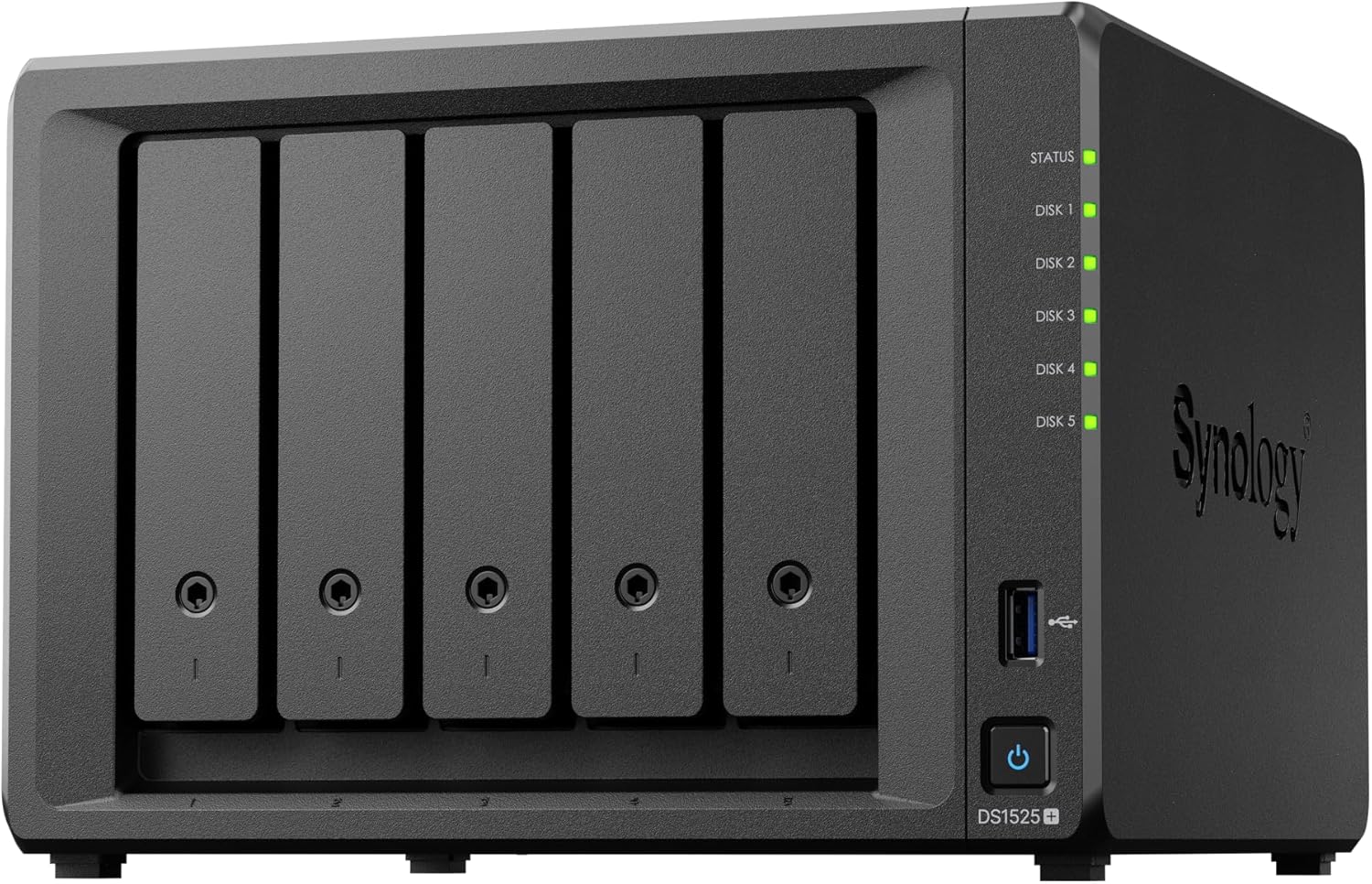
Click Here to Check the Current Price of the Synology DS1525+ on Amazon
What Is the Synology DS1525+?
The DS1525+ is Synology’s 2025 refresh of their 5-bay Plus series NAS. It’s a diskless enclosure — meaning you buy the unit and add your own hard drives — designed for small businesses, creative professionals, and power users who need centralized, protected, network-accessible storage.
For podcasters, that translates to a single device that holds all of your episode archives, multitrack recording sessions, video files, images, and show assets in one protected location. You can access those files from any computer on your network, share folders with editors or co-hosts remotely through remote collaboration tools, and set up automated backups so you never lose an episode to a dead drive.
If you’re still working off external USB drives or free cloud storage tiers, this is the category of device that replaces all of that with something centralized, redundant, and expandable. I explain the broader case for NAS storage in my podcast data storage guide, but the short version is: once your show grows past a handful of episodes, scattered files across drives and cloud accounts becomes a real productivity problem.
DS1525+ Specifications at a Glance
Here’s what you’re getting inside the box (diskless — drives sold separately):
| Spec | Synology DS1525+ |
|---|---|
| Drive Bays | 5 (expandable to 15 with two DX525 units) |
| CPU | AMD Ryzen V1500B quad-core, 2.2 GHz |
| RAM | 8 GB DDR4 ECC (expandable to 32 GB) |
| Network Ports | 2x 2.5GbE (link aggregation supported) |
| 10GbE Upgrade | Yes — via E10G22-T1-Mini module (sold separately) |
| M.2 NVMe Slots | 2 (for SSD caching or storage pools) |
| USB Ports | 2x USB-A 3.2 Gen 1, 2x USB-C (expansion) |
| Max Raw Storage | 100 TB native / 300 TB with expansion |
| RAID Support | SHR, RAID 0, 1, 5, 6, 10, JBOD |
| Read/Write Speed | Up to 696 MB/s read / 862 MB/s write |
| Retail Price (diskless) | ~$800 |
| Warranty | 3 years (extendable to 5) |
The quad-core V1500B processor is a meaningful step up from the dual-core R1600 in the DS1522+. If you’re running Docker containers, automated transcription workflows, or multiple background tasks alongside file serving, the extra cores and threads make a noticeable difference. For more on why ECC memory matters for podcasters running NAS devices, I break that down in a separate guide.
What Changed from the DS1522+ (and Why Podcasters Should Care)
Since I run the DS1522+ every day, I can speak directly to what these upgrades mean in a real podcast workflow. Here’s what Synology changed and whether each improvement actually matters for audio and video creators.
Upgraded CPU: Dual-Core to Quad-Core
The DS1522+ runs an AMD Ryzen R1600 — dual-core, four threads. The DS1525+ bumps that to the AMD Ryzen V1500B — quad-core, eight threads. This is the single biggest hardware improvement in the refresh.
For podcasters, this matters most if you’re doing anything beyond basic file storage. Running local transcription with Whisper, automating show notes generation, or using Docker containers for podcast workflow automation all benefit from additional CPU headroom. On my DS1522+, heavy background tasks can slow down file access noticeably — the V1500B should handle that kind of multitasking more gracefully.
Built-In 2.5GbE Networking (Replaces 1GbE)
The DS1522+ ships with four 1GbE ports. The DS1525+ replaces those with two 2.5GbE ports. That’s 2.5 times the per-port speed, and with link aggregation you can bond them into an effective 5GbE connection.
If you’re editing video directly from the NAS, this is a big deal. Transferring a 10 GB multitrack recording session that took over a minute on gigabit now finishes in roughly 30 seconds. For audio-only podcasters, gigabit was already fine — but if you’re doing any video podcasting at all, faster networking changes how you work.
For those who need even more speed, the DS1525+ also retains the PCIe slot for a 10GbE network upgrade module, which is the same upgrade path available on the DS1522+.
USB-C Expansion (Replaces eSATA)
The DS1522+ uses eSATA to connect expansion units. The DS1525+ switches to USB-C, using the new DX525 expansion unit instead of the older DX517. This is a modernization move — USB-C is far more common and easier to source cables for — though the actual transfer speed through the expansion port tops out at about 6 Gbps, which is adequate but not blazing.
The expansion potential is significant for podcasters who archive everything: with two DX525 units, the DS1525+ scales to 15 total drive bays and up to 300 TB of raw storage. That’s enough to archive years of multitrack audio, video masters, and raw footage without ever deleting anything. I talk more about long-term archiving strategy in my podcast backup and archiving guide.
More RAM Out of the Box
The DS1522+ ships with 8 GB but uses DDR4 ECC in a single-slot configuration. The DS1525+ also ships with 8 GB of DDR4 ECC but leaves one slot open for expansion up to 32 GB. Both units support the same maximum, but the DS1525+ makes the upgrade path slightly more straightforward.
DSM 7.3 and the Drive Compatibility Situation
This is worth addressing directly. When Synology launched their 2025 models, they initially required Synology-branded drives only — a move that generated significant backlash. In October 2025, Synology reversed course with DSM 7.3, restoring support for third-party SATA drives from brands like Western Digital and Seagate.
If you’re buying a DS1525+ today, third-party NAS drives work fine. Just make sure DSM 7.3 or later is installed. This is relevant for podcasters on a budget because Synology-branded drives carry a premium — being able to use standard NAS drives like the WD Red Plus or Seagate IronWolf keeps the total cost of ownership much more reasonable. For more on choosing the right RAID configuration and drive setup, I have a dedicated guide for that too.
DS1525+ vs DS1522+: Side-by-Side Comparison
| Feature | DS1525+ | DS1522+ |
|---|---|---|
| CPU | AMD Ryzen V1500B (4-core / 8-thread) | AMD Ryzen R1600 (2-core / 4-thread) |
| Base RAM | 8 GB DDR4 ECC | 8 GB DDR4 ECC |
| Max RAM | 32 GB | 32 GB |
| Network Ports | 2x 2.5GbE | 4x 1GbE |
| 10GbE Upgrade | Yes (E10G22-T1-Mini) | Yes (E10G22-T1-Mini) |
| M.2 NVMe Slots | 2 | 2 |
| Expansion | USB-C (DX525) | eSATA (DX517) |
| Max Drives (with expansion) | 15 | 15 |
| Drive Bays (native) | 5 | 5 |
| Price (diskless) | ~$800 | ~$700 |
My Take as a DS1522+ Owner
If I were buying brand new today, I’d go DS1525+ without hesitation. The quad-core CPU and 2.5GbE networking are genuine improvements that affect daily workflow, not just spec-sheet wins.
But if you already own a DS1522+ — like I do — this is not a “drop everything and upgrade” situation. The DS1522+ still runs beautifully. The DSM software is identical. If you’ve already added the 10GbE module to your DS1522+, you’re actually getting faster single-connection speeds than the DS1525+’s stock 2.5GbE ports. The upgrade makes the most sense for podcasters buying their first NAS or replacing an older 2-bay or 4-bay unit that they’ve outgrown.
How Podcasters Would Actually Use the DS1525+
Here’s where my real-world DS1522+ experience translates directly, because the DSM software and workflow are identical across both units.
Centralized Episode Storage and Asset Management
Every raw recording, multitrack session, edited master, image asset, and show note file lives on the NAS. No more hunting across external drives or cloud folders. This is the single biggest quality-of-life improvement when you move to a NAS — I cover the full case for it in my podcast data storage overview.
With five bays in a RAID 5 or SHR configuration, you get both substantial storage capacity and protection against a single drive failure. Using 8 TB drives, that’s roughly 32 TB of usable space — enough for thousands of podcast episodes with room to spare, even if you’re archiving video.
Automated Backups with Hyper Backup
Hyper Backup is one of Synology’s best features. You can schedule automatic backups to an external USB drive, a remote NAS at another location, or a cloud service like Backblaze B2, Google Drive, or Synology’s own C2 cloud. I run nightly backups and it’s completely hands-off — the kind of set-and-forget backup strategy that every podcaster needs but few actually implement.
Remote Collaboration with Synology Drive
If you work with an editor, co-host, or virtual assistant, Synology Drive lets you share specific folders with granular permissions. Your editor gets access to the raw recordings folder with read/write access. Your VA gets read-only access to the finished episodes. Nobody can accidentally delete your masters. It works across Mac, Windows, Linux, iOS, and Android — and you’re not paying monthly cloud storage fees for the privilege.
NVMe Caching for Faster DAW Access
Both the DS1522+ and DS1525+ have two M.2 NVMe slots. Using these as a read/write cache dramatically speeds up access to frequently-used files — like the current episode project you’re actively editing in your DAW. If you’re working in podcast editing software that reads multiple tracks from the NAS simultaneously, the SSD cache keeps those files ready without waiting on spinning hard drives.
Time Machine and Workstation Backup
The DS1525+ works natively as a Time Machine target for Mac users and supports standard backup protocols for Windows. This means your editing workstation — whether it’s a laptop or a desktop — gets backed up to the NAS automatically. If your computer dies, your entire system can be restored. I walk through the setup process in my Synology NAS setup guide with Time Machine instructions.
What About Total Cost? It’s Not Just the NAS.
The DS1525+ retails for around $800 diskless. But the total investment includes drives, and optionally RAM upgrades and the 10GbE module. Here’s a realistic breakdown for a podcaster:
Budget Build (~$1,400 total): DS1525+ ($800) plus 5x 4 TB WD Red Plus drives (~$120 each). Gives you roughly 16 TB usable in SHR, enough for years of audio-only podcasting.
Mid-Range Build (~$2,000 total): DS1525+ ($800) plus 5x 8 TB Seagate IronWolf drives (~$180 each) plus a 16 GB RAM upgrade (~$80). Around 32 TB usable — comfortable for video podcasters archiving footage.
Power User Build (~$2,500+): Add the E10G22-T1-Mini 10GbE module (~$110) and NVMe cache drives (~$100–150) to the mid-range build. This is the setup for podcasters editing video directly from the NAS or running multiple concurrent workflows.
For a broader look at what it costs to get a show off the ground, check out my complete podcast startup cost breakdown. A NAS isn’t a day-one purchase for most people — it’s the upgrade you make when your show has outgrown external drives and free cloud tiers.
Click Here to Check the Current Price of the Synology DS1525+ on Amazon
Who Should Buy the DS1525+ (and Who Shouldn’t)
The DS1525+ Is a Great Fit If You:
Are buying your first serious NAS for podcast production and want room to grow. The five bays give you RAID 5/6 options that 2-bay and 4-bay units can’t match, and the expansion potential means you won’t outgrow it for years.
Produce a video podcast and need fast, centralized access to large files. The 2.5GbE networking and optional 10GbE upgrade make working with video-size files over the network actually practical. If you’re shooting with a dedicated podcast camera, those files add up fast.
Want to consolidate scattered storage into a single, backed-up hub. If your podcast assets currently live across a mix of USB drives, Dropbox, Google Drive, and your computer’s internal storage, the DS1525+ replaces all of that with one organized, protected system.
Run automated workflows — transcription, show notes, clip generation — that benefit from a more powerful CPU. The quad-core V1500B handles Docker containers and background processing tasks better than the dual-core chip in the DS1522+.
You Might Want to Look Elsewhere If You:
Already own a DS1522+ and are happy with it. The software is identical. Unless you specifically need the faster networking or extra CPU headroom, your DS1522+ will serve you well for years to come.
Only need basic storage for an audio-only podcast. A 2-bay unit like the Synology DS225+ at around $300 might be all you need if you’re not archiving video or running heavy workflows. Pair it with two mirrored drives and you’ve got reliable, protected storage at a fraction of the cost.
Need hardware transcoding for a media server. The DS1525+ uses an AMD processor without Intel Quick Sync, which means no hardware-accelerated video transcoding. If Plex or Jellyfin transcoding is important to you, the Intel-based DS423+ or DS225+ would be a better fit for that specific use case.
Are on a tight budget. At $800 before drives, the DS1525+ is a serious investment. Check out my dirt-cheap NAS storage guide for more affordable entry points that still get you centralized, protected podcast storage.
How the DS1525+ Fits Into the 2026 Synology Lineup
Synology refreshed most of their desktop NAS lineup in 2025. Here’s where the DS1525+ sits relative to the other models podcasters might consider:
| Model | Bays | CPU | Networking | Price (diskless) | Best For |
|---|---|---|---|---|---|
| DS225+ | 2 | Intel J4125 | 1x 2.5GbE | ~$300 | Budget starter / backup NAS |
| DS923+ | 4 | AMD R1600 | 2x 1GbE (10GbE upgradeable) | ~$600 | Value pick with 10GbE path |
| DS925+ | 4 | AMD V1500B | 2x 2.5GbE | ~$640 | Mid-range workhorse |
| DS1525+ | 5 | AMD V1500B | 2x 2.5GbE (10GbE upgradeable) | ~$800 | Power user / growing podcasts |
| DS1522+ | 5 | AMD R1600 | 4x 1GbE (10GbE upgradeable) | ~$700 | Still excellent if found discounted |
| DS1825+ | 8 | AMD V1500B | 2x 2.5GbE | ~$1,100 | Production teams / heavy video |
The DS1525+ occupies the sweet spot for most serious podcasters. Five bays is the magic number — it’s enough for RAID 5 or RAID 6 with meaningful storage capacity, without the price jump to 8-bay territory. If you want to understand the broader podcast equipment ecosystem and where storage fits in, my equipment guide covers the full picture.
Frequently Asked Questions
Can I edit my podcast directly from the DS1525+?
Yes. With 2.5GbE or 10GbE networking, you can open multitrack audio sessions directly from the NAS in your editing software without copying files to your local drive first. Audio files are relatively small compared to video, so even the stock 2.5GbE connection handles this comfortably. For video editing, I’d recommend the 10GbE module — I cover the details in my NAS for video editing guide.
Do I need Synology-branded hard drives?
Not anymore. After backlash over the initial 2025 drive restrictions, Synology reversed course with DSM 7.3 (released October 2025). Standard NAS drives from Western Digital (Red Plus) and Seagate (IronWolf) work without restriction. Just make sure your unit is running DSM 7.3 or later.
Is the DS1525+ overkill for an audio-only podcast?
It depends on your workflow. If you record, edit, and publish a straightforward audio show with no video, a 2-bay or 4-bay NAS might be all you need. But if you archive raw recordings, run automated workflows, collaborate with editors, or plan to add video eventually, the DS1525+ gives you room to grow without replacing hardware. Planning for growth is a theme I come back to often — it’s part of treating your podcast like a business, which I discuss in my podcast business plan guide.
Should I upgrade from a DS1522+ to a DS1525+?
Probably not, unless you specifically need the faster stock networking or the extra CPU power for Docker and automation tasks. The DSM software experience is identical, and if you’ve already added a 10GbE module to your DS1522+, you’re ahead of the DS1525+’s base configuration on raw network speed. Save the money for drives or other podcast tools.
What RAID configuration should I use?
For most podcasters, Synology Hybrid RAID (SHR) is the best choice. It protects against a single drive failure while making efficient use of mixed-capacity drives. If you want deeper protection, RAID 6 or SHR-2 guards against two simultaneous drive failures at the cost of more storage overhead. I break down all the options in my RAID and reliable storage guide.
What happens if a drive fails?
In a RAID or SHR configuration, you pull the failed drive (hot-swappable, no downtime), slot in a replacement, and the NAS rebuilds automatically. Your data stays accessible through the entire process. If you’ve ever lost files to a dead external drive, this alone is worth the investment. For worst-case scenarios, I also have a guide on recovering a failed drive.
Can I access my files remotely?
Yes. Synology’s QuickConnect feature gives you secure remote access through a web browser or mobile app without any port forwarding or networking knowledge required. Your editor in another city can access shared folders as if they were on your local network. This is one of DSM’s strongest features and something I use regularly.
Is there a quieter or smaller alternative?
If five bays feels like more than you need, the 4-bay DS925+ (~$640) uses the same upgraded CPU and 2.5GbE networking in a slightly smaller chassis. For the absolute smallest footprint, the 2-bay DS225+ (~$300) is whisper-quiet and handles basic podcast storage duties well.
Final Verdict
The Synology DS1525+ is the NAS I’d buy today if I were starting from scratch. It takes everything I already trust about the DS1522+ — the rock-solid DSM software, the backup ecosystem, the collaboration features, the expansion potential — and adds meaningfully better hardware underneath it. The quad-core CPU and built-in 2.5GbE networking aren’t incremental spec bumps; they make a real difference in how fast you can work.
At ~$800 before drives, it’s not an impulse buy. But for podcasters who are serious about protecting their content library, streamlining their production workflow, and building infrastructure that grows with their show, the DS1525+ is about as future-proof as storage hardware gets.
If your podcast is still small and your budget is tight, start with something from my budget NAS storage guide and upgrade when you’re ready. But if you’ve outgrown external drives and you’re ready to treat your storage like the backbone of your podcast operation, the DS1525+ earns its spot at the top of the recommendation list.
Click Here to Check the Current Price of the Synology DS1525+ on Amazon
- The Ultimate Guide to Choosing Cameras and Lenses for Podcasting
- StreamYard Business Plan Review: Is It Worth $299/Month for Teams?
- Synology DS1525+ for Podcasters: What You Need to Know Before You Buy
- StreamYard Pricing (2026): Full Comparison of Plans, Differences, Features & Discounts
- Podbean Pricing: The Best Podcast Hosting Platform for Getting Started?