helpful-info
DJI Mic 3 vs DJI Mic 2: A Real-World Comparison for Podcasters
When you’re producing a podcast, audio quality isn’t just “nice to have”—it’s your brand. Listeners forgive a lot, but muffled voices, clipping, or dropouts will send them looking for another show. That’s why wireless microphone systems like DJI’s Mic series have become a go-to choice for podcasters who want professional results without a complex studio setup.
With the launch of the DJI Mic 3 in August 2025, creators are asking: how does it stack up against the already-excellent Mic 2? After reviewing multiple hands-on tests and real-world usage reports, here’s what podcasters need to know.
Audio Quality: Subtle but Meaningful Upgrades
Both the Mic 2 and Mic 3 capture pristine 24-bit/48kHz and 32-bit float audio. But the Mic 3 introduces a few features that podcasters will notice in editing and production:
-
Adaptive Gain Control (AGC): The Mic 3 automatically balances levels to avoid clipping when guests suddenly raise their voice—a common headache in interview shows.
-
Voice Tone Presets: Choose “warm” for a radio-style low end or “bright” for crisp detail. Podcasters who want less post-production tweaking will appreciate this.
-
Dual-Stage Noise Cancellation: Instead of a simple on/off switch, the Mic 3 lets you pick between Basic and Advanced ANC, making it easier to tame room noise without sacrificing clarity.
For podcasters recording in imperfect environments (coffee shops, home offices, convention floors), these upgrades make the Mic 3 a safer bet.
Design & Ease of Use
Podcasters juggle gear, guests, and scheduling. A mic system that just works is worth its weight in gold.
-
Smaller, lighter transmitters (16 g vs 28 g): Less visible on camera and more comfortable for long interviews.
-
Magnetic clips with rotatable design: Lets you aim the capsule directly toward your mouth, improving vocal pickup.
-
Redesigned charging case: Finally, the furry windshields and cables fit inside. No more forgetting wind muffs at home.
Trade-off: The Mic 3 removed the 3.5 mm input jack for lavalier mics. If you rely on plugging in an external lav, the Mic 2 may still have an edge.
Battery Life & Reliability
Nothing kills a podcast faster than a dead battery mid-recording. Here, the Mic 3 shines:
-
Battery Life: ~8 hours per transmitter, ~10 hours per receiver, and up to 28 hours total with the charging case (vs 18 hours total for the Mic 2). That’s an extra 10 hours of confidence on remote days.
-
Wireless Range: 400 m line-of-sight compared to 250 m on the Mic 2. You won’t need that much range in a podcast studio, but in event coverage or outdoor interviews, it means fewer dropouts.
Storage & On-Board Recording
Backups are non-negotiable in podcasting. The Mic 3 quadruples onboard memory:
-
32 GB per transmitter (vs 8 GB on the Mic 2).
-
Dual-File Recording: Save both a processed and raw safety track.
That means you’ll have peace of mind knowing your podcast episode won’t be lost to interference or a recorder glitch.
Compatibility & Workflow Features
Podcasters are increasingly recording across platforms: video podcasts, livestreams, or hybrid events.
-
Multi-Device Support: Works with cameras, phones, laptops, and even streams directly via Bluetooth.
-
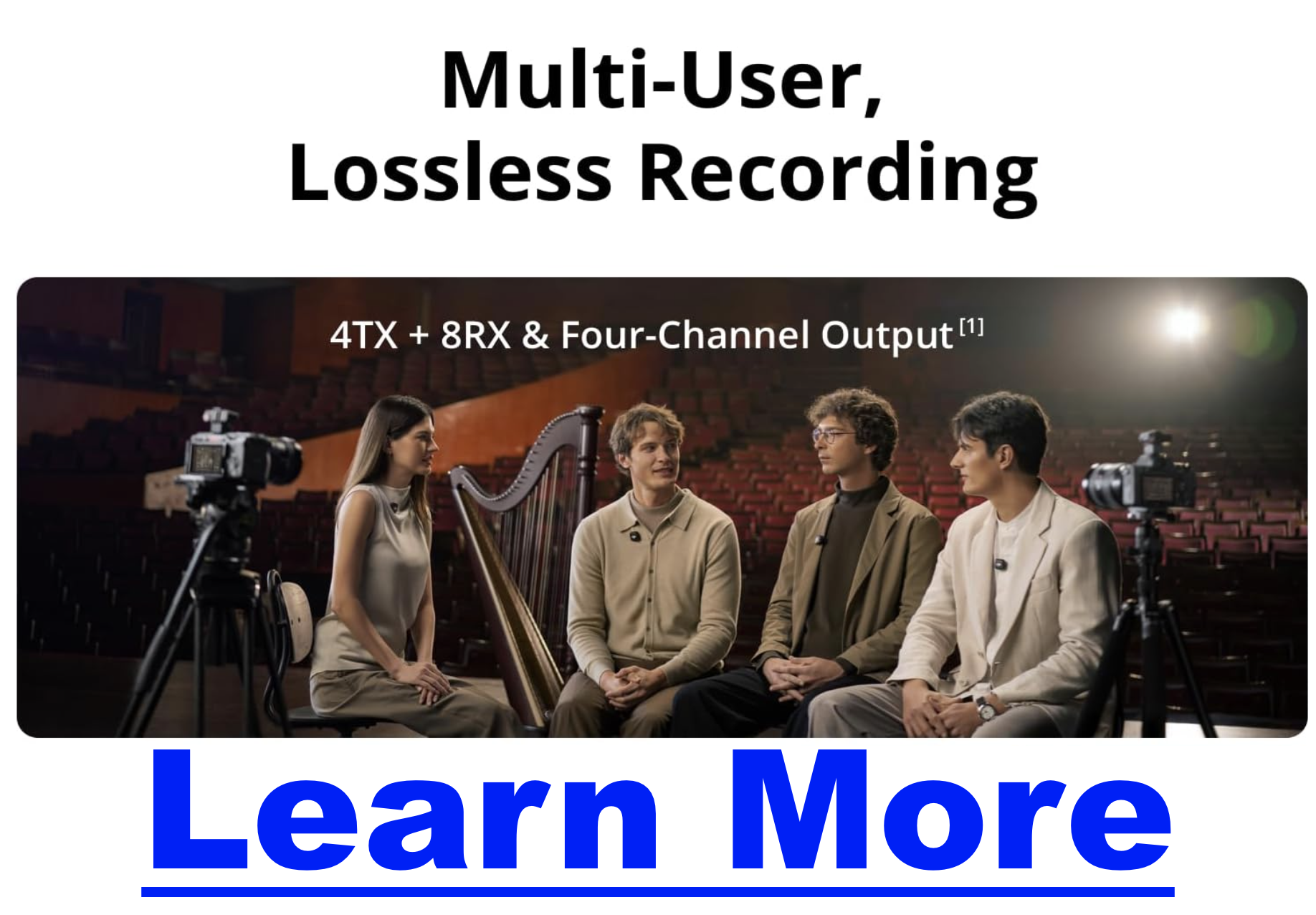
Timecode & Multi-Channel Support: Up to 4 transmitters and 8 receivers with built-in sync—a huge advantage for panel shows or multi-guest formats.
-
DJI Ecosystem Integration: If you already use DJI cameras (like the Osmo Action 5 Pro), the Mic 3 slots right in.
Quick Comparison: Mic 3 vs Mic 2
| Feature | DJI Mic 3 | DJI Mic 2 |
|---|---|---|
| Weight (TX) | 16 g | 28 g |
| Noise Cancelling | 2 levels (Basic/Advanced) | Single level |
| Voice Presets | 3 tone presets | None |
| Adaptive Gain Control | Yes (auto & dynamic) | Basic limiting |
| On-board Storage | 32 GB | 8 GB |
| Battery Life (total w/ case) | ~28 h | ~18 h |
| Wireless Range | ~400 m | ~250 m |
| Multi-Channel | Up to 4 TX / 8 RX | 2 TX / 1 RX |
| Charging Case | Fits mics + windscreens | Windscreens don’t fit |
Which One Should Podcasters Buy?
-
Choose the Mic 3 if: you want the best possible all-in-one system for podcasting, especially if you record outside a studio or need backups, long battery life, and advanced noise handling.
-
Choose the Mic 2 if: you need an analog lavalier input or want to save some money while still getting excellent audio quality.
For most podcasters, the Mic 3 is the safer long-term investment. It combines reliability, flexibility, and audio enhancements that reduce post-production work—a critical factor when you’re publishing episodes on a tight schedule.
Final Thoughts
Podcasters don’t need more complexity—they need tools that make recording easier and audio more reliable. DJI’s Mic 3 delivers that in spades. While the Mic 2 remains a solid option, especially for lav mic users, the Mic 3’s improvements in battery life, noise control, onboard recording, and ergonomics make it the standout choice for most creators.
In real-world use, the Mic 3 feels like the system that podcasters asked for: compact, dependable, and tuned for modern content creation.
11 Best Podcasting Books That Will Instantly Level Up Your Show (Organized by What You Want to Learn)
Podcasters are everywhere these days — but only a fraction of shows ever stand out. Why? Because great podcasting takes more than just hitting record. You need to master storytelling, sharpen your interview skills, grow an audience, and yes, even learn how to monetize your hard work.
The problem? Most lists of “best podcast books” are just random dumps. This one is different. I’ve organized the best podcasting books by what you want to learn, so you can grab the resource that actually solves your biggest challenge right now.
What Podcasters Usually Need to Learn
- Fundamentals — how to start, what gear you need, and how distribution works.
- Technical & Production — improving sound quality, editing, and workflows.
- Storytelling — creating episodes that people can’t stop listening to.
- Interviewing — asking better questions and connecting with guests.
- Growth & Marketing — attracting and keeping listeners.
- Monetization — turning your podcast into a revenue stream.
- Creative Confidence — developing your voice, presence, and style.
Best Books for Each Learning Goal
🎙️ Fundamentals of Podcasting
- Podcast Launch (John Lee Dumas) — A step-by-step beginner’s guide from one of podcasting’s most recognized names.
- Podcasting for Dummies (Evo Terra, et al.) — Accessible, broad coverage of everything you need to start.
🛠️ Technical & Production Skills
- Sound Reporting (Jonathan Kern) — NPR’s guide to audio journalism and production. A must for anyone serious about professional sound.
- Podcast Solutions (Michael Geoghegan & Dan Klass) — Hands-on workflows and setups to simplify the tech.
🎧 Storytelling & Content Creation
- Out on the Wire (Jessica Abel) — Learn storytelling secrets from Ira Glass and other audio legends.
- Make Noise (Eric Nuzum) — Find your creative voice and craft shows that connect deeply.
- Reality Radio (John Biewen, ed.) — Essays from veteran audio storytellers who shaped the medium.
🗣️ Interviewing
- The Art of the Interview (Lawrence Grobel) — Classic strategies for building trust and drawing out meaningful stories.
- Sound Reporting — Includes practical interviewing insights for journalists and podcasters alike.
📢 Growth & Marketing
- The Audience Is Listening (Tom Webster) — Research-backed strategies for finding and keeping listeners.
- Earn It (Steve Pratt) — Bold, creative approaches to marketing your podcast.
💵 Monetization
- Profit from Your Podcast (Dave Jackson) — Practical monetization tips from one of podcasting’s earliest educators.
- Podcasting for Promotion, Positioning & Profit (Kris Gilbertson) — A more entrepreneurial spin on how to leverage a podcast into authority and income.
🎭 Creative Voice & Confidence
- Permission to Speak (Samara Bay) — Helps you unlock authenticity and power behind the mic.
- Make Noise (Eric Nuzum) — Not just storytelling, but the courage to create your own lane.
Quick Comparison Table
| Topic | Best Books | Why Read Them |
|---|---|---|
| Starting Out | Podcast Launch, Podcasting for Dummies | Clear, structured foundations |
| Sound & Production | Sound Reporting, Podcast Solutions | Learn to sound professional |
| Storytelling | Out on the Wire, Make Noise | Build stronger narratives |
| Interviewing | The Art of the Interview | Master guest conversations |
| Growth | The Audience Is Listening, Earn It | Attract and keep listeners |
| Monetization | Profit from Your Podcast | Turn episodes into income |
| Voice & Confidence | Permission to Speak | Sound authentic and powerful |
How to Choose the Right Book for You
- If you’re brand new: Start with Podcast Launch or Podcasting for Dummies.
- If your audio sounds rough: Dive into Sound Reporting and Podcast Solutions.
- If you want to hook listeners: Out on the Wire and Make Noise are non-negotiable.
- If your format is interviews: The Art of the Interview will transform your approach.
- If you’re stuck on growth: Go with The Audience Is Listening or Earn It.
- If you’re ready to monetize: Grab Profit from Your Podcast.
Remember: don’t just read these — apply them episode by episode. Podcasting is a craft you build over time.
Conclusion
The difference between a podcast that fades out and one that builds a loyal audience often comes down to learning faster and applying smarter. These books give you direct access to the wisdom of podcasting pros who’ve already figured it out.
👉 Pick the book that matches your current challenge and put it into practice this week. You’ll be amazed how quickly your podcast levels up.
If you want even more guidance, check out my free resource: How to Make Money With a Podcast — video training that takes you beyond learning and into earning.
How to Record a Podcast Remotely (High Quality Guide)
How to Record a Podcast Remotely (High Quality Guide)
Click For Our Favorite Remote Podcast Recording Software
Recording a podcast with a remote guest doesn’t mean you have to sacrifice audio quality. If you have ever listened to a show where the guest sounds “robotic” or “underwater,” it’s likely because they were recording over a standard connection like Skype or Zoom.
The video above demonstrates how to solve this using StreamYard, my preferred remote podcasting software. It uses a technique called “local recording.”
Why local recording matters: Instead of recording the audio after it travels over the internet (where it gets compressed), software like StreamYard records the audio directly on your guest’s computer. It then automatically uploads the high-quality file to the cloud. This means even if your internet glitches during the call, your final recording sounds like you were in the same room.
It makes it insanely simple to record at the highest quality. Plus, because it automatically hands the files to the host, there’s no waiting for the remote person to process or upload the files — if you’ve ever chased someone for files, then you know what I mean! Check it out here.
1. What You Need Before Recording Remotely
Before you invite a guest, ensure you have the hardware basics covered to prevent common issues like echo and audio drift.
- Stable Internet Connection — A wired ethernet connection is best for stability, but strong Wi-Fi works if you are close to the router.
- Headphones for Everyone — Mandatory. If your guest doesn’t wear headphones, their microphone will pick up your voice coming out of their speakers, creating a nasty echo that is hard to fix.
- External Microphones — USB mics like the ATR2100x or XLR setups sound significantly better than laptop built-in mics. Explore mic options here.
- Quiet Recording Space — Avoid kitchens or tiled rooms. Carpeted rooms with soft surfaces (like a bedroom or closet) are ideal for dampening sound.
Want an all-in-one setup? Check out podcast equipment bundles.
2. Best Remote Podcast Recording Software (2025 Comparison)
When choosing software, look for “Double-Ender” tools that support:
- Local recording: Records to each participant’s device independently.
- Separate audio tracks: Essential for editing; allows you to cut a guest’s cough without deleting your own question.
- Ease of guest access: No complex downloads or accounts for them to manage.
Here’s a quick comparison of the top players:
| Platform | Local Recording | Video Support | Separate Tracks | Live Streaming |
|---|---|---|---|---|
| Riverside.fm | ✅ | 4K | ✅ | ✅ |
| StreamYard | ✅ | 4K | ✅ | ✅ |
| SquadCast | ✅ | 1080p | ✅ | 🚫 |
| Zencastr | ✅ | 1080p | ✅ | ✅ |
| Zoom | 🚫 | 720p | 🚫 | ✅ |
Need help choosing? See this full comparison guide.
Best All-in-One Choice: StreamYard
3. Setting Up Your Remote Recording Session
Here’s how to prep for a clean, hiccup-free session:
- Do a “Tech Check” 5 minutes early — Check internet speed, latency, and ensure the correct microphone is selected in the settings (browsers often default to the webcam mic!).
- Control the Environment — Turn off noisy appliances, fans, and silence phone notifications.
- Record Backups — Tech fails. Have each person record their own audio locally using QuickTime or Voice Memos as a “just in case” safety net.
- Monitor Audio — Watch the wav forms on screen. If you see a flat line, stop and fix it immediately.
Learn more about mic positioning and gain control.
4. Audio Best Practices for Remote Guests
Your guest likely isn’t an audio engineer. Send them these quick tips:
- Mic Technique: “Stay close to the mic—about one fist width (3–6 inches) away.”
- Plosives: “Angle the microphone slightly to the side of your mouth to avoid popping sounds on P’s and B’s.”
- Headphones: “Please wear wired headphones. Bluetooth headsets often lower the audio quality to save battery.”
If you hear echo during the call, here’s how to fix it.
5. Editing & Post-Production Tips
Remote files can sometimes drift out of sync or have different volume levels. Here is how to polish them:
- Loudness Normalization: Use tools like Auphonic to ensure both you and your guest are at the same volume (usually -16 LUFS for stereo).
- Drift Correction: If your guest’s audio slowly de-syncs from yours, you may need to stretch/shrink the track slightly in your editor. Dedicated software like Riverside/StreamYard handles this automatically.
- Silence Removal: Remove awkward pauses or lag caused by internet latency. Here’s how.
Want software picks? Check out this roundup.
6. Going Beyond Audio: Video Podcasting Tips
If you’re also recording video for YouTube or Spotify:
- Camera: Use a quality webcam or DSLR (see our picks).
- Lighting: Face a window or use a soft light. Never have a bright window behind you, or you will look like a silhouette.
- Eye Contact: Look at the camera lens, not at the screen, to simulate eye contact with the viewer.
Final Checklist Before You Hit Record
Make sure every episode starts strong:
- ✅ All participants have headphones plugged in
- ✅ Correct microphone input selected in settings
- ✅ Notifications/Do Not Disturb turned on
- ✅ Backup recorders are running
- ✅ Water is nearby (no dry throats!)
Conclusion
Remote podcasting doesn’t need to sound remote. With the right software, solid prep, and a few pro tips, you can record studio-quality shows from anywhere.
Recommended next steps:
- Try StreamYard or Riverside.fm for pro-level results. If you’re curious about StreamYard’s pricing click here.
- Browse the full Podcast Equipment Guide to level up your setup.
FAQs
Can I record a podcast remotely for free?
Yes! Free options like Zoom or QuickTime exist, but audio quality is often compressed and tracks are mixed together. For professional results, a dedicated tool is recommended.
How do I record remote guests with separate tracks?
Use StreamYard, Riverside, Zencastr, or SquadCast. These platforms record each person’s audio independently, allowing for cleaner editing.
What if my guest has bad internet?
Choose a tool that supports local recording (like StreamYard). The recording happens on their computer, so even if the internet drops, the file remains high quality.
What’s the best mic for remote podcasting?
A dynamic USB mic like the ATR2100x or the Shure MV7 is a solid starting point because they reject background noise better than condenser mics.
The Podcast Videographer’s Guide to Long-Term Project Archiving
For podcast videographers and content creators, the journey doesn’t end when you hit export. Archiving your project properly ensures that your work remains protected, accessible, and usable for years to come. Whether you’re working solo or managing a large production studio, this guide walks you through the best long-term storage options, comparing cost, reliability, and usability—plus, it gives you actionable workflows tailored to your needs.
🧠 Start Here: The 3-2-1 Video Backup Strategy
Before we talk hardware or cloud providers, you need a rock-solid backup philosophy. Enter the 3-2-1 backup rule—an industry-standard approach popularized by photographer Peter Krogh.
Here’s the breakdown:
-
3 copies of your data
Your original file + two separate backups. -
2 different types of storage media
Example: a hard drive and a cloud service, to reduce risk from hardware-specific failures. -
1 off-site backup
This protects your data from local disasters like fire, flood, or theft.
A modern take for video professionals might look like:
-
Copy 1 (Active Work): Your fast SSD or NAS for editing.
-
Copy 2 (Local Backup): An external hard drive or second NAS, preferably stored in a different building.
-
Copy 3 (Off-Site): Cloud storage (like Backblaze, Crashplan Pro) or an LTO tape stored at a remote location.
💾 Compare Your Options: Storage Types Breakdown
Here’s how the most common storage solutions stack up:
| Feature | Cloud Storage | NAS (Network Attached Storage) | Physical Media (LTO / HDD) |
|---|---|---|---|
| Best For | Off-site backups, easy access, team sharing | Active projects, collaboration | Deep archival, cold storage |
| Initial Cost | Low to none | Moderate to high | High (especially LTO systems) |
| Recurring Cost | Subscription + possible egress fees | Electricity + maintenance | None (except tape cost) |
| Accessibility | Anywhere with internet | Fast local, slower remote | Requires hardware access |
| Data Integrity | High (managed) | High (RAID, scrubbing) | Extremely high (30+ year lifespan) |
| Security | Network-dependent | Full control, can be air-gapped | Fully air-gapped, immune to cyber threats |
☁️ Option 1: Cloud Backup Services (Simple, Set-and-Forget)
These are designed for ease of use and automated protection, not daily collaboration or asset delivery. Ideal for archiving projects once they’re complete.
🔹 Backblaze Personal Backup
-
Use Case: Personal computers, photographers, solo editors
-
Cost: ~$9/month per computer (unlimited storage)
-
Pros:
-
Truly unlimited storage
-
Auto-backups of external drives
-
Easy restore via web or shipped hard drive
-
-
Cons:
-
Can’t backup NAS devices
-
Limited control over folder-level retention
-
🔹 CrashPlan Pro / Small Business
-
Use Case: Solo creators or small studios
-
Cost: ~$10/month per device (unlimited)
-
Pros:
-
Business-grade security and versioning
-
Works on Windows, Mac, Linux
-
-
Cons:
-
Not ideal for high-speed restoration of huge files
-
Less common in video workflows compared to Backblaze
-
🔹 iDrive / Acronis / Carbonite
-
Similar to the above: All-in-one backup services with interfaces that prioritize simplicity over deep configurability.
-
Good for off-site copies but less ideal for direct archive access or media pipelines.
✅ Best For:
Automated off-site backups with minimal setup.
💾 2. Cloud Object Storage (Advanced, Pay-as-You-Go)
These are enterprise-grade platforms built for developers, media professionals, and IT teams who want granular control over their storage architecture. They offer:
-
APIs for automation
-
Scalability into petabytes
-
Different storage tiers (standard vs archive)
-
Fine-grained pricing (storage, egress, PUT/GET requests)
🔹 Amazon S3 (Simple Storage Service)
-
Use Case: High-reliability storage for web delivery, archiving, or backup
-
Cost:
-
~$0.023/GB/month (Standard)
-
~$0.004/GB/month (Glacier Deep Archive)
-
Egress fees: ~$0.09/GB out
-
Requests: Charged per API call (can add up)
-
-
Pros:
-
Battle-tested infrastructure
-
Lifecycle policies (automatically move files to archive)
-
Integrates with AWS ecosystem
-
-
Cons:
-
Confusing pricing
-
Costly if you need frequent access or restores
-
Requires knowledge of buckets, policies, IAM roles
-
🔹 Backblaze B2 Cloud Storage
-
Use Case: Budget-friendly alternative to Amazon S3
-
Cost:
-
~$0.005/GB/month (storage)
-
$0.01/GB (download)
-
Minimal API call charges
-
-
Pros:
-
Clear pricing
-
Compatible with many S3 tools
-
Excellent for archive-style use cases
-
-
Cons:
-
Slower feature rollout compared to AWS
-
Not optimized for hot storage or web delivery at scale
-
🔹 Wasabi Hot Cloud Storage
-
Use Case: Low-cost S3-compatible storage with no egress fees
-
Cost:
-
~$5.99/TB/month
-
No egress or API call fees
-
-
Pros:
-
Flat-rate pricing (no surprises)
-
S3-compatible
-
Good for video archival and access
-
-
Cons:
-
90-day minimum storage duration
-
Occasional lag in feature parity with AWS
-
🔹 Google Cloud Storage
-
Use Case: Media storage with advanced access control and global redundancy
-
Cost:
-
~$0.02/GB/month (Standard)
-
~$0.004/GB/month (Coldline/Archive)
-
Egress and request costs similar to AWS
-
-
Pros:
-
Powerful analytics and ML integration
-
Globally distributed
-
-
Cons:
-
Complicated billing
-
Egress can kill your budget if misconfigured
-
🔹 Microsoft Azure Blob Storage
-
Similar use cases to Amazon S3 and Google Cloud.
-
Offers Archive tier (
$0.00099/GB) and Hot tier ($0.018/GB) -
Complex lifecycle management but enterprise-grade features.
🧠 TL;DR – Which Should You Use?
| Use Case | Recommended Option |
|---|---|
| Automated, no-fuss backup of computers | Backblaze or CrashPlan Pro |
| Cost-effective cloud archive with some tech comfort | Backblaze B2 or Wasabi |
| Max control, scalability, and automation | Amazon S3 or Google Cloud Storage |
| Deepest archive with lowest cost per TB | Amazon Glacier Deep Archive or Azure Archive |
💡 Bonus Tip: Mixing Storage Tiers
If you’re using something like S3 or Google Cloud, you can configure lifecycle policies to automatically move old video files to cheaper archive tiers after X days:
-
0–30 days: Hot/Standard (for frequent access)
-
30–90 days: Nearline
-
90+ days: Archive / Glacier
This ensures you only pay premium rates for the files you’re actively using.
💾 Option 2: Network Attached Storage (NAS)
A NAS is your local file powerhouse, ideal for ongoing projects and team access.
Pros:
-
Fast Local Access – Edit straight from the NAS.
-
Redundancy – RAID protects from drive failure.
-
Control – You own your storage environment.
Cons:
-
Cost – Initial setup can be pricey.
-
Upkeep – You’ll need to handle security, drive replacements, etc.
Popular Picks:
-
Synology DS923+ or DS1522+
-
QNAP TVS-h674 for high-end 10GbE performance
📼 Option 3: LTO Tape Storage
The gold standard in Hollywood. LTO is unmatched for ultra-long-term archiving.
Pros:
-
Archival Lifespan – 30+ years is standard.
-
Low Cost per TB – Perfect for massive libraries.
-
Offline Protection – Immune to ransomware.
Cons:
-
Expensive Hardware – LTO drives start around $4,000.
-
Slower Access – Tapes are sequential, not random-access.
-
Tech Lock-In – New LTO drives may not support old tape formats.
🛠 Recommended Workflows
🧑💻 For Solo Creators / Small Studios
-
Working Files: Fast SSD or 4-bay NAS
-
Local Backup: External HDD
-
Off-Site: Backblaze B2 or Wasabi for peace-of-mind cloud storage
🏢 For Production Studios / Large Teams
-
Active Projects: High-speed NAS with RAID and 10GbE
-
Recent Projects: Slower NAS or high-capacity external drive
-
Long-Term Archive: LTO system with 2 copies – one on-site, one stored off-site
🔐 Final Thoughts: Protect Your Legacy
Archiving isn’t just about saving space—it’s about preserving your creative legacy. With the right mix of speed, redundancy, and cost-efficiency, your content will remain safe and accessible long after the final cut.
Live Streaming for Podcasters: The Best Platforms to Grow Your Audience & Engage Live
Podcasting is no longer limited to audio-only content released once a week. Not only that, but in 2025, more creators are using video and live streaming to connect with listeners in real time, to expand their reach, and create repurposable content across multiple platforms.
Whether you want to interact with your audience mid-show, broadcast a behind-the-scenes look at your recording process, or simulcast to YouTube, Facebook, and LinkedIn all at once — the right live streaming platform can help you do it with ease.
In this guide, we’ll explore why live streaming matters for podcasters, what features to look for, and review the top live streaming platforms — from beginner-friendly options like StreamYard to advanced tools like OBS.
Why Podcasters Should Consider Live Streaming
Live streaming offers unique advantages over traditional podcast production:
- Immediate audience feedback – See what resonates with your audience as it happens.
- Multistreaming reach – Broadcast to multiple platforms simultaneously for maximum visibility.
- Content repurposing – Turn a single live broadcast into an edited podcast episode, YouTube highlights, and social clips.
- Monetization opportunities – Enable tips, super chats, memberships, or even ticketed live events. Live streamed events also work as a fantastic way to bring in new audience members, who might be interested in behind the scenes, bonus content.
- Community building – Live interaction helps deepen listener loyalty and engagement.
Key Features to Look for in a Live Streaming Platform
Before you choose a tool, consider:
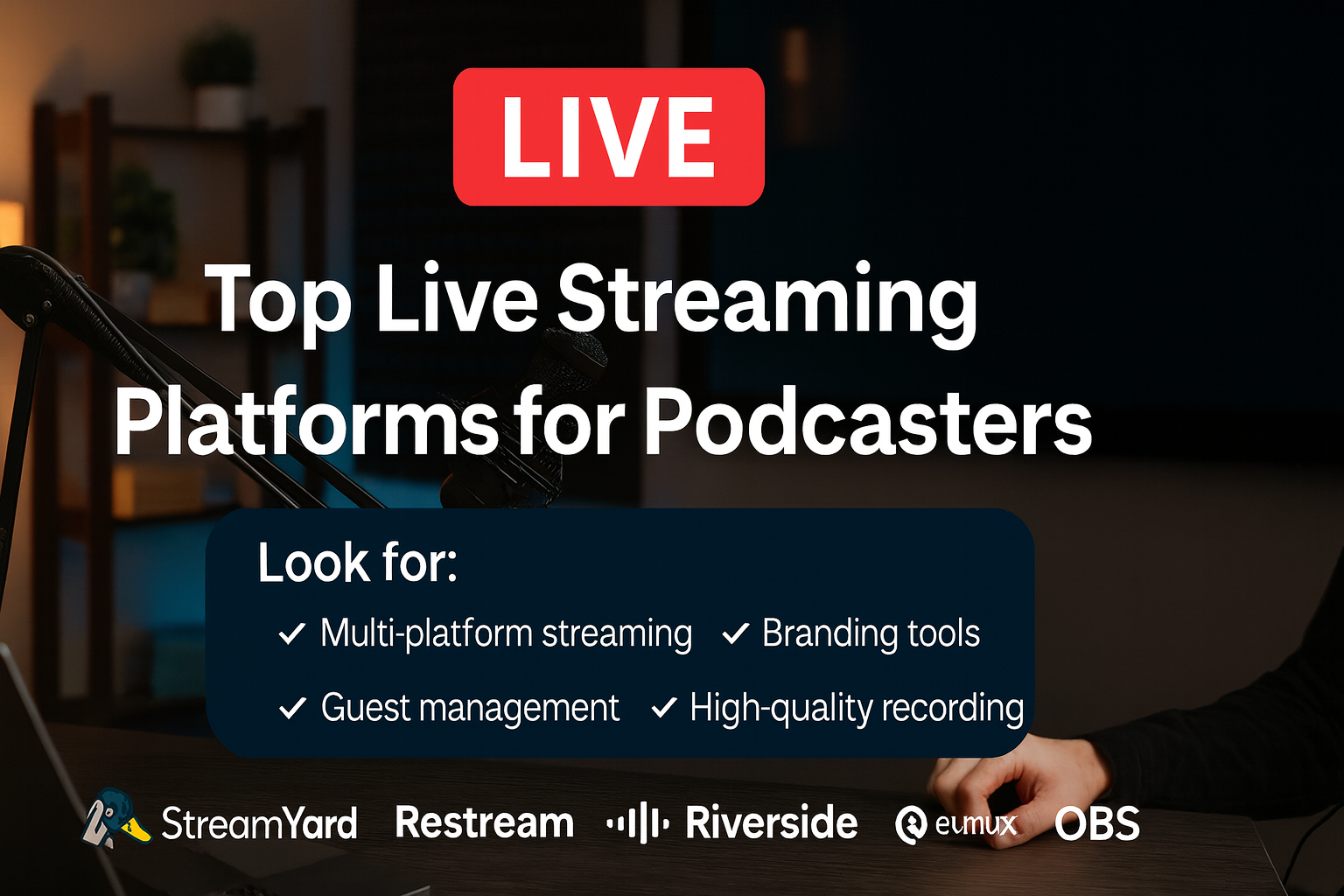
- Multi-platform streaming (YouTube, Facebook, LinkedIn, Twitch, etc.) – Where is your audience, and what is the best way to connect with them. It may be YouTube, Facebook, IG, TikTok, or all the above.
- Guest management (number of guests, ease of joining, backstage areas, moderation)
- Branding & customization (logos, overlays, backgrounds, custom layouts)
- Audience engagement (chat integration, polls, Q&A, on-screen comments)
- Recording quality (1080p+, separate audio/video tracks)
- Ease of use (learning curve, tech requirements)
- Pricing & free trial options
- Integrations (podcast hosts, editing software, CRM tools, monetization platforms)
The Top Live Streaming Platforms for Podcasters
1. StreamYard – Best for Beginners Who Want Ease & Reliability
Why podcasters love it: StreamYard is entirely browser-based and incredibly easy to use. Invite guests with a simple link, brand your stream with overlays and backgrounds, and stream to multiple destinations without technical headaches. This is a one-stop shop in a lot of ways because it bakes commonly needed tools right into the tool. For instance, it will record separate tracks, video files for optimum quality. It can also do transcriptions on the fly, and can reduce the amount of extra tools needed to get a podcast out.
- Strengths: Simple interface, up to 10 guests, unified chat, solid branding.
- Weaknesses: No built-in polls/Q&A, higher starting price than some competitors. We have Streamyard pricing here.
- Best for: Podcasters who want a plug-and-play streaming experience.
2. Restream – Best for Broad Audience Reach
Why podcasters love it: Restream supports streaming to 30+ platforms at once, plus unified chat from all destinations. It’s a powerhouse for reach and engagement.
- Strengths: Massive platform compatibility, unified chat, branding profiles, engagement tools.
- Weaknesses: Slightly more complex interface, prerecorded clip length limits on lower plans.
- Best for: Creators who want to stream everywhere at once and manage all chats in one place.
3. Riverside.fm – Best for High-Quality Recording & Post-Production
Why podcasters love it: Riverside records each guest locally in up to 4K video and lossless audio, ensuring top-tier quality for post-production while also streaming live.
- Strengths: Pristine local recording, integrated editing tools, audience call-ins.
- Weaknesses: More expensive for high recording hours, branding tools still maturing.
- Best for: Professional podcasters who want broadcast-quality source material.
4. Streamlabs Talk Studio (Melon) – Best Budget-Friendly Option
Why podcasters love it: Melon offers a StreamYard-like experience at a lower cost, with solid branding features and integration into the Streamlabs ecosystem (including donation alerts).
- Strengths: Affordable, up to 25 participants, built-in monetization alerts.
- Weaknesses: No separate audio tracks, fewer overlay themes.
- Best for: Podcasters on a budget who still want multi-streaming and branding.
5. EvMux – Best for Customization & Advanced Layouts
Why podcasters love it: EvMux gives you OBS-level layout control in the browser, letting you create multiple scenes and switch between them mid-show.
- Strengths: Full layout customization, scene transitions, split-track audio on Pro plan.
- Weaknesses: Higher learning curve, newer platform with evolving features.
- Best for: Tech-savvy podcasters who want a unique, TV-style live production.
6. Crowdcast – Best for Interactive, Community-Driven Shows
Why podcasters love it: Crowdcast is built for webinars and live events, with Q&A upvoting, polls, and attendee management built in.
- Strengths: Excellent audience interaction tools, event registration, private streaming options.
- Weaknesses: Higher price, limited multi-destination options on lower tiers.
- Best for: Podcasters who run interactive shows, workshops, or ticketed live events.
7. OBS Studio – Best Free, Advanced Option for Complete Control
Why podcasters love it: OBS (Open Broadcaster Software) is a free, open-source tool for streaming and recording. It offers complete flexibility in scene design, multi-camera setups, and advanced audio routing.
- Strengths: 100% free, unlimited customization, integrates with any platform via RTMP (most notably YouTube Live).
- Weaknesses: Steep learning curve, manual setup for guests (needs plugins like VDO.Ninja for remote interviews).
- Best for: Experienced podcasters or those willing to learn who want full creative and technical control without recurring software costs.
Quick Comparison Table
| Platform | Best For | Price Range | Max Guests | Multi-Stream | Recording Quality |
|---|---|---|---|---|---|
| StreamYard | Beginners, ease of use | Free – $89/mo | 10 | Yes | Up to 4K local |
| Restream | Maximum reach | Free – $39/mo+ | 10 | Yes (30+ platforms) | 1080p cloud, split-track |
| Riverside.fm | High-quality recording | Free – $29/mo+ | 9 guests + host | Yes | 4K local multi-track |
| Melon | Budget-friendly streaming | Free – $15/mo | 25 | Yes | 1080p mixed |
| EvMux | Custom layouts | Free – $49/mo | 12 | Yes | 1080p, split-track |
| Crowdcast | Interactive events | $34 – $136/mo | 4 presenters | Limited | 1080p mixed |
| OBS Studio | Complete control, free | Free | Unlimited (manual setup) | Yes (via RTMP) | Depends on settings (4K possible) |
How to Choose the Right Platform for Your Podcast
Ask yourself:
- Do I value ease of use or advanced control?
- Is multi-streaming reach or recording quality my bigger priority?
- Will my live shows be interactive events or broadcast-style episodes?
- What’s my budget for live streaming tools?
Our best advice: See which platforms have a free trial and give them a chance. The best thing you can do is make a private example episode of your podcast and see how everything works / doesn’t work – and to flesh out any workflow issues that may arise. For instance, you might realize you don’t like the chat interface of a specific platform because you can’t remove bad-faith users then decide if that’s okay with you or if it’s a deal breaker.
Tips for a Successful Live Podcast
- Promote your live event early via email and social media – a mailing list is a fantastic way to get people to come check out the livestream. This is especially true if the livestream is the same time every week, or on some kind of schedule because people will naturally check it out without needing an email blast to remember. But having the shoutout on social media is great too!
- Test your tech (mic, camera, internet) before going live.
- Use branding elements (logo, overlays) for a professional look.
- Actively engage with the chat and address viewers by name.
- Record at the highest possible quality for future editing and repurposing.
- Know that there will be bugs and that it’s part of the process. All you can do is try to fix it, and try to prevent issues for the next one.
Conclusion
Live streaming can transform a podcast from a one-way conversation into a real-time, interactive experience. It is also a fantastic way to grow your audience with new people, and a great way to keep a content schedule too. Whether you want the plug-and-play simplicity of StreamYard, the far-reaching power of Restream, the production quality of Riverside, or the complete control of OBS — there’s a platform to fit your needs.
Start with the one that matches your current skill level and goals, then expand your toolkit as your live streaming game grows. Hope this helps.
Best Free Podcast Hosting in 2026 (No Trial, No Credit Card)
The best free podcast hosting platform for most beginners in 2026 is Spotify for Podcasters — it offers unlimited storage, built-in analytics, and no upload caps. If you want a cleaner upgrade path to paid hosting later, Podbean’s free plan is the safer long-term choice.
But “free hosting” isn’t one-size-fits-all. Storage caps, episode limits, monetization eligibility, and feed ownership rules vary wildly across platforms — and those differences matter a lot once you’ve published a dozen episodes. This guide breaks down every platform worth considering in 2026 so you can pick the right one for your actual situation.
Jump to: Full comparison table | Platform breakdowns | Lock-in explained | FAQ
→ Try Podbean’s free plan — no credit card required
Free Podcast Hosting Platforms Compared (2026)
Every platform below offers a permanent free tier — not a time-limited trial. Here’s how they stack up on the things that actually matter:
| Platform | Storage / Upload Limit | Distribution | Analytics | Monetization on Free? | Best For |
|---|---|---|---|---|---|
| Spotify for Podcasters | Unlimited | Spotify-native + RSS for others | Strong (Spotify data) | Eligibility-based Partner Program | Fastest launch, unlimited hosting |
| Podbean | 5 hours total / 100GB bandwidth/mo | Manual submission to all directories | Basic stats | No (paid upgrade required) | Clean upgrade path, serious beginners |
| RedCircle | Unlimited (1 podcast; per-file size limits apply) | All major platforms | Standard stats | Yes — ads + listener support | Testing monetization early |
| Acast Starter | 5 episodes maximum | RSS + major directories | Basic | Marketplace access varies | Short series or concept testing |
| Pinecast | Unlimited uploads; only 10 most recent episodes visible | RSS / manual submission | Basic stats | Tip jar (fees apply) | Indie creators, small back-catalogs |
| Buzzsprout | 2 hours/month; episodes auto-expire after 90 days | One-click distribution | Strong (paid tiers) | No (paid upgrade required) | Testing the platform before committing |
| Spreaker | Limited total storage | Auto distribution | Basic | Eligibility-based | Live streaming experiments |
Platform-by-Platform Breakdown
Spotify for Podcasters — Best for Unlimited Free Hosting
Spotify for Podcasters is the most generous free tier available in 2026. There are no storage limits, no episode caps, and no upload throttling — you can publish as often as you want and your entire back-catalog stays accessible. The tradeoff is that Spotify’s analytics are Spotify-centric: you get rich data on listeners who find you through Spotify, but third-party listener data is harder to access without integrating external tools.
Monetization through the Spotify Partner Program exists but is eligibility-based — location, audience size, and content type all factor in. Don’t assume it’s available to you on day one.
Worth reading: Spotify Podcast Monetization — What’s Actually Possible
Podbean — Best Free Plan With a Clear Upgrade Path
Podbean’s free tier gives you 5 hours of total storage and 100GB of monthly bandwidth — enough for 10 to 15 standard-length episodes before you hit the cap. Storage does not reset monthly; once you use it, you’ve used it. That makes this tier best suited for validating a show concept rather than running an indefinite series.
Where Podbean wins is the upgrade experience. Paid plans are reasonably priced, the interface doesn’t change dramatically, and you keep your RSS feed and distribution when you move up. It’s one of the least disruptive paths from free to paid in the hosting space.
See full pricing details: Podbean Pricing Plans Explained | Podbean vs Anchor | Podbean vs Buzzsprout
RedCircle — Best Free Option for Early Monetization
RedCircle’s free plan supports unlimited hosting for a single podcast and includes access to its ad marketplace and listener support tools — something most free tiers lock behind a paywall. This makes it worth a serious look if you want to start experimenting with revenue from episode one.
The caveats: per-episode file size limits can be a problem if your episodes run long (60+ minutes in high-quality audio), and the platform is best suited to creators running one show at a time. If you’re planning a podcast network, you’ll outgrow the free tier quickly.
Buzzsprout — Best Beginner Experience, Weakest Free Tier
Buzzsprout is widely considered the most beginner-friendly podcast host available — the setup is fast, the interface is polished, and support is excellent. The free tier, however, is the most restrictive on this list: 2 hours of uploads per month, and episodes automatically expire and disappear from your feed after 90 days.
That 90-day expiration is the dealbreaker for most people. It’s genuinely fine for “I want to see how this works before paying” — but not for building a real show. If you’re using Buzzsprout free, treat it as a test drive.
More context: Buzzsprout Pricing | Why Some Podcasters Regret Choosing Buzzsprout
Acast Starter — Best for a Short Series
Acast’s free Starter plan caps you at 5 episodes — which sounds limiting but is actually a solid fit for a mini-series, a promotional podcast, or a proof-of-concept run before pitching a show. Distribution is solid, analytics work, and you get access to Acast’s marketplace for ads (though eligibility requirements apply).
If your goal is an ongoing show, you’ll need a paid plan quickly. See: Acast Pricing
Pinecast — Best for Indie Creators Who Don’t Need Back-Catalog Visibility
Pinecast lets you upload an unlimited number of episodes on its free tier, but only the 10 most recent episodes are publicly accessible in your feed. Everything older becomes invisible to listeners and directories until you upgrade. If your content is evergreen and you plan to run more than a short series, this creates a real discoverability problem over time. For creators publishing a handful of episodes and happy to let older content fade, Pinecast is clean and simple.
Will I Get Locked In to a Free Podcast Host?
This is the most common concern beginners raise — and the good news is that lock-in is mostly avoidable if you plan for it from day one. Your podcast’s RSS feed is the key. As long as you control it, you can redirect listeners to a new host if you ever switch. Here’s what actually matters:
- Submit your podcast to directories yourself. Don’t rely on auto-submission that links your show to the platform’s account. See: How to Distribute a Podcast
- Keep original audio backups. Don’t assume your host will always have your files. Download your episodes regularly: How to Download Your Podcast Episodes
- Know what doesn’t transfer. Analytics history, monetization settings, and platform-native features rarely migrate cleanly. Your listeners and your RSS feed do.
- Understand the platform gravity risk. The more you build inside a platform’s native ecosystem (exclusive features, embedded monetization), the harder the psychological pull to stay. This is especially worth understanding about Spotify.
Related: Controlling Your Podcast’s Distribution
What to Look for in Any Free Podcast Host
Before you sign up for any free plan, run through these five checkpoints:
- Storage type: Is it a monthly allowance or a total bucket? A monthly reset is much more sustainable for an ongoing show.
- Episode visibility: Does older content stay in your feed, or does it expire? Expired episodes disappear from Spotify, Apple Podcasts, and everywhere else.
- RSS feed ownership: Can you export your RSS feed and redirect it to a new host if you switch? If not, look elsewhere.
- Monetization eligibility: If monetization is listed as a feature, read the fine print. Geography, audience size, and content type often have requirements that aren’t obvious upfront.
- File size limits: Even “unlimited” plans sometimes cap individual file uploads. If you record long-form episodes in high quality, verify this before committing.
For a broader look at what separates good hosting from bad, see: Best Podcast Hosting Platforms | Podcast Hosting Platform Comparisons
What Is Podcast Hosting? (The One-Paragraph Version)
A podcast host stores your audio files, generates your RSS feed, and distributes your show to Apple Podcasts, Spotify, and other directories. Without a host, there’s nowhere for your episodes to live — you can’t upload audio to Google Drive and expect it to appear in podcast apps. Your host is the infrastructure layer between your recording setup and your listeners’ ears. If you’re new to this, start here: Easy Podcast Hosting for Beginners
Frequently Asked Questions: Free Podcast Hosting
What is the best free podcast hosting platform in 2026?
Spotify for Podcasters is the best free podcast hosting platform for unlimited storage with no episode caps. If you want a cleaner paid upgrade path later, Podbean’s free plan is the better starting point. RedCircle is the strongest free option if early monetization is a priority.
Can I really host a podcast for free forever?
Yes — Spotify for Podcasters and RedCircle both offer permanent free tiers with no time limits. Podbean’s free plan has no time limit but does have a 5-hour total storage cap, so it’s technically free until you fill it. Buzzsprout’s free tier expires episodes after 90 days, making it unsuitable for a permanent free setup.
Do free podcast hosts make money from my show without telling me?
Some do. Certain platforms insert dynamically placed ads into your episodes as a condition of the free tier — this is common with Spreaker and some legacy hosts. Spotify for Podcasters and Podbean do not insert ads into your content on the free tier. Always check the platform’s terms of service before signing up.
Will I lose my listeners if I switch from a free host to a paid one?
Not if you migrate correctly. The key is setting up a 301 redirect from your old RSS feed to your new one before switching. When done properly, Apple Podcasts, Spotify, and other directories update automatically and your subscriber counts stay intact. The risk of losing listeners comes from switching without redirecting the feed, or from having the old platform delete your feed before the redirect is in place.
What’s the difference between total storage and monthly upload limits?
Monthly upload limits reset every 30 days — you get a fresh allocation each month regardless of what you’ve already published. Total storage is a one-time bucket: once you fill it, you can’t upload more without deleting old episodes or upgrading. For a long-running show, monthly resets are far more sustainable. Podbean’s free plan uses total storage (5 hours); Buzzsprout uses monthly uploads (2 hours/month with episode expiration).
Can I monetize my podcast on a free hosting plan?
Sometimes. RedCircle’s free plan includes access to its ad marketplace and listener support tools. Spotify for Podcasters has a Partner Program, but eligibility depends on your geography, content type, and audience size — it’s not automatic. Podbean and Buzzsprout require a paid upgrade before monetization tools are unlocked.
What happens if a free podcast hosting service shuts down?
If you’ve submitted your podcast to directories yourself (rather than relying on platform auto-submission) and kept backups of your original audio, a shutdown is an inconvenience rather than a catastrophe. You’d need to move your files to a new host and update your RSS feed — but your episodes and your audience would survive. This is exactly why maintaining local audio backups matters regardless of which host you use.
Is free podcast hosting good enough for a professional show?
It depends on your goals. For audience building, content strategy, and growing a real listener base, free hosting works fine in the early stages. Where free tiers consistently fall short is analytics depth, monetization flexibility, advanced distribution controls, and customer support. Most shows that grow beyond a few hundred listeners per episode find that paid hosting features — particularly robust analytics and direct monetization — become worth the cost relatively quickly.
How much storage do I need for a podcast?
A typical 30-minute episode encoded at 128kbps stereo runs around 60MB. An hour-long episode at the same quality is roughly 110–120MB. At that rate, Podbean’s 5-hour free tier gives you approximately 10 standard-length episodes before you hit the cap. If you publish weekly, that’s roughly two months of content before needing to upgrade or make choices about deleting old episodes.
What is an RSS feed and why does it matter for podcast hosting?
Your RSS feed is the technical backbone of your podcast — it’s the file that tells Apple Podcasts, Spotify, and other directories when you’ve published a new episode, what the episode is called, and where the audio lives. Every legitimate podcast host generates an RSS feed for you automatically. What matters is whether you control that feed: specifically, whether you can redirect it to a new host if you ever switch. If the platform owns your RSS feed and won’t let you export or redirect it, you’re locked in. See: RSS Feed Generator for Podcasters
→ Start your podcast free with Podbean — no credit card needed
Final Verdict: Which Free Podcast Host Should You Use?
For most beginners in 2026, the decision comes down to two platforms:
- If you want zero constraints on storage and the fastest possible launch — use Spotify for Podcasters. It’s unlimited, free, and works immediately.
- If you want a “real” hosting experience with a clean path to paid features later — use Podbean. The 5-hour storage cap means you’ll eventually need to upgrade, but the platform, interface, and upgrade experience are all significantly more serious than the free-forever alternatives.
- If early monetization matters to you — use RedCircle. It’s the only free plan that gives meaningful access to ad and listener support tools without requiring an upgrade first.
Nothing you choose today is permanent. As long as you maintain RSS feed control and local audio backups, switching hosts later is a solvable problem — not a catastrophe.
Related comparisons:
How to Animate Your Podcast Show with AI (No Animation Skills Needed)
More Than Just Ads: How Crime Junkie Monetizes Smarter
If you’re running a true crime podcast, you’ve probably thought about monetization—and the most obvious method is running sponsored ads on your episodes.
Maybe you’re already pitching sponsors or considering mid-roll spots. Yes, ads can bring in money. But what if there’s a whole ecosystem of income streams that can multiply your revenue, often with less effort, and help you build a sustainable business around your podcast?
The Sponsored Ad Mindset: What You’re Missing
Running sponsored ads is just the first step on a longer journey. It’s important, but it’s only one piece of the puzzle.
Ads:
- Depend on your current download numbers to command decent rates
- Require you to constantly find new sponsors or renew deals
- Are limited to direct ad reads or pre-produced spots
- Can feel like you’re “selling out” if the sponsor doesn’t really align with your audience
If you want to grow your income without chasing sponsors every month, it’s time to start thinking bigger.
Enter Crime Junkie: The True Crime Monetization Masterclass
Let’s look at one of the biggest true crime podcasts: Crime Junkie. Their monetization success isn’t just from ad reads.
Their secret? They’ve built a monetization machine that leverages their podcast and their website, community, and brand into multiple income streams.
How Crime Junkie Does It
1. Website as a True Crime Hub
Their site isn’t just a landing page. It’s a rich resource center with:
- Detailed case summaries, photos, timelines
- Interactive maps and quizzes about cases
- Links to cold case resources, news articles, and support groups
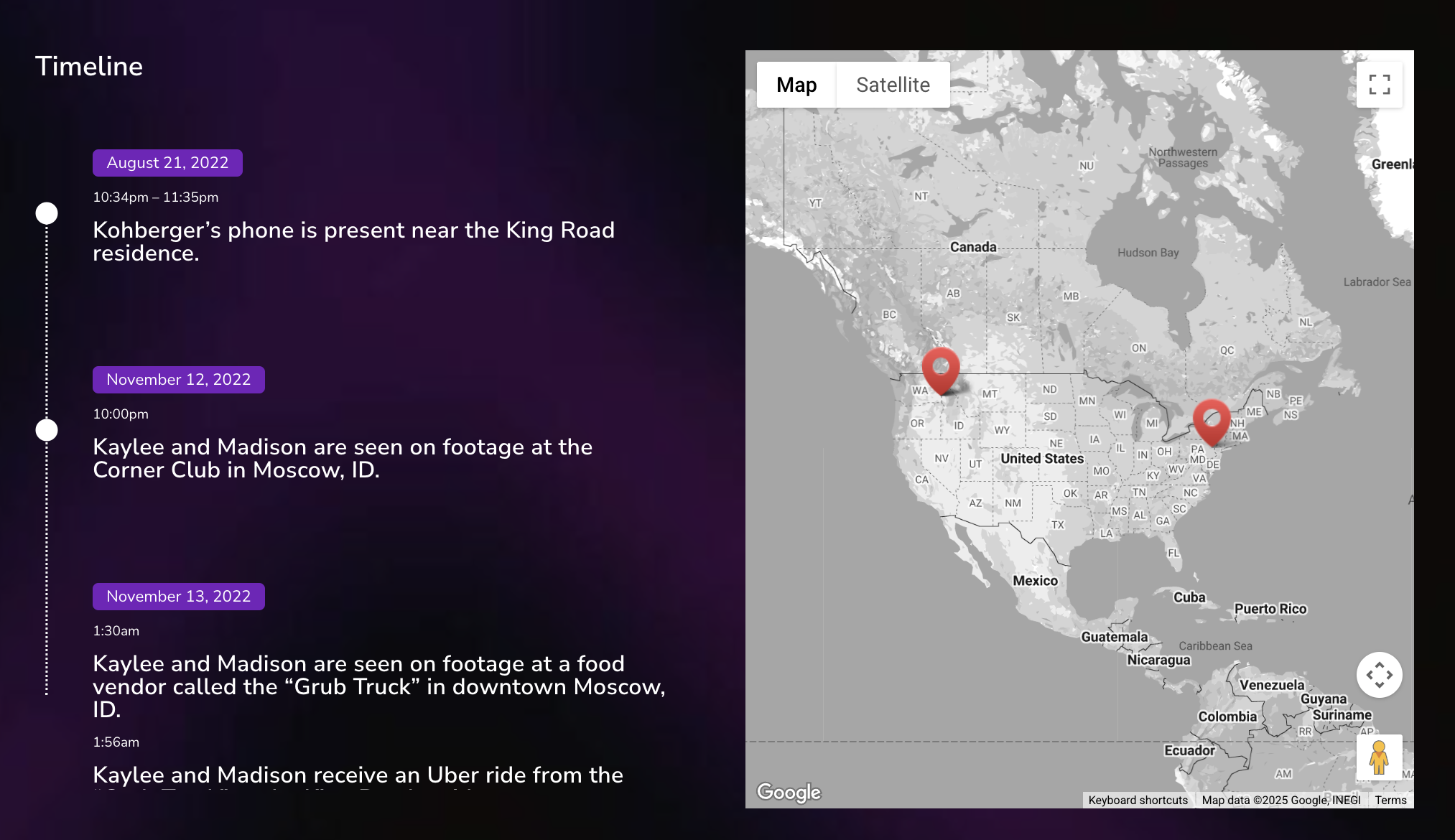
This content ranks high on Google, pulling in search engine traffic from people looking for crime info—many discovering the podcast through the site.

And if you were to search the keywords they show up for in my fancy tool you’d see them for yourself!
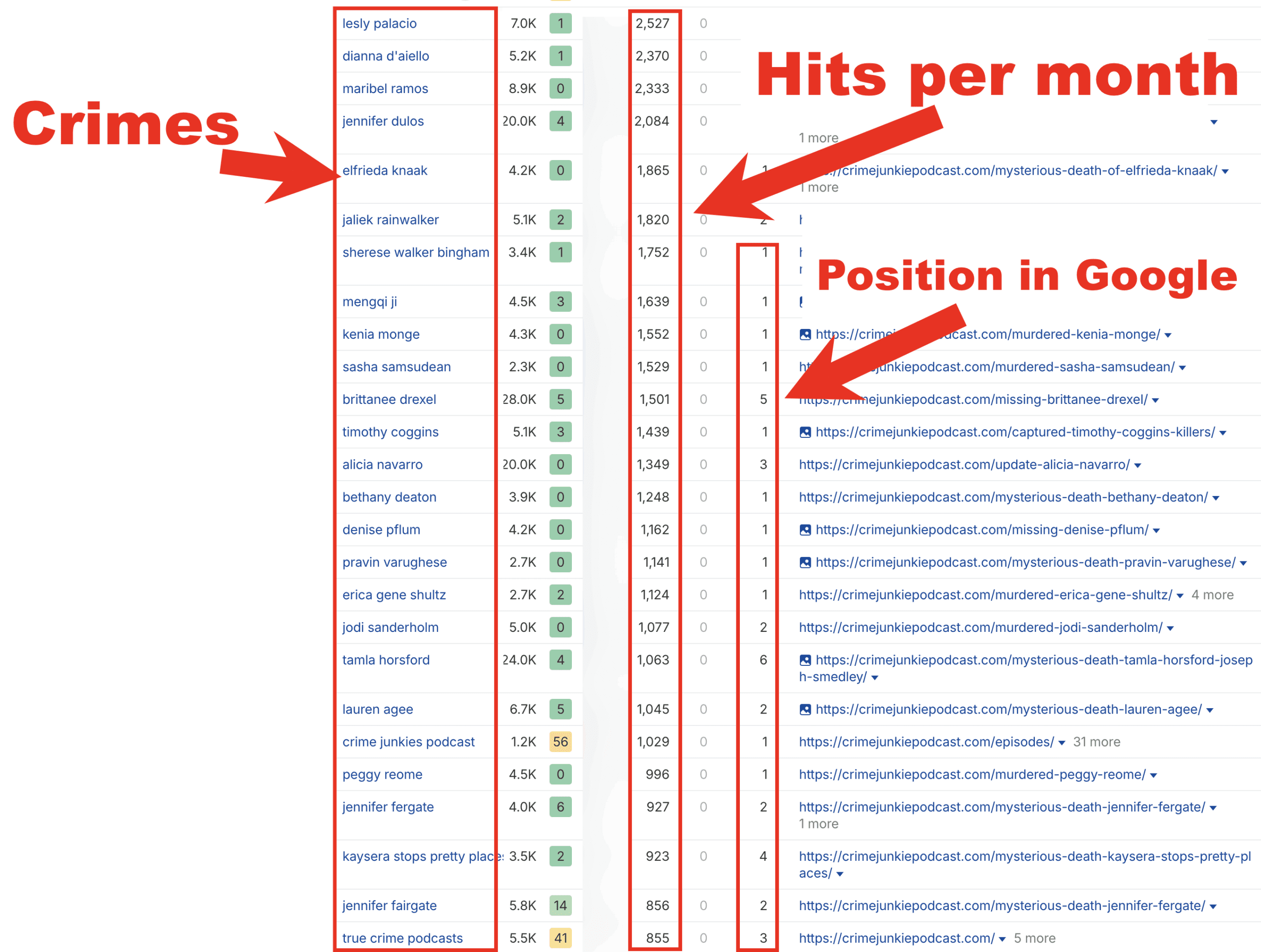
2. Building a Loyal, Engaged Community
Beyond listeners, Crime Junkie cultivates superfans:
- Email newsletters with exclusive content
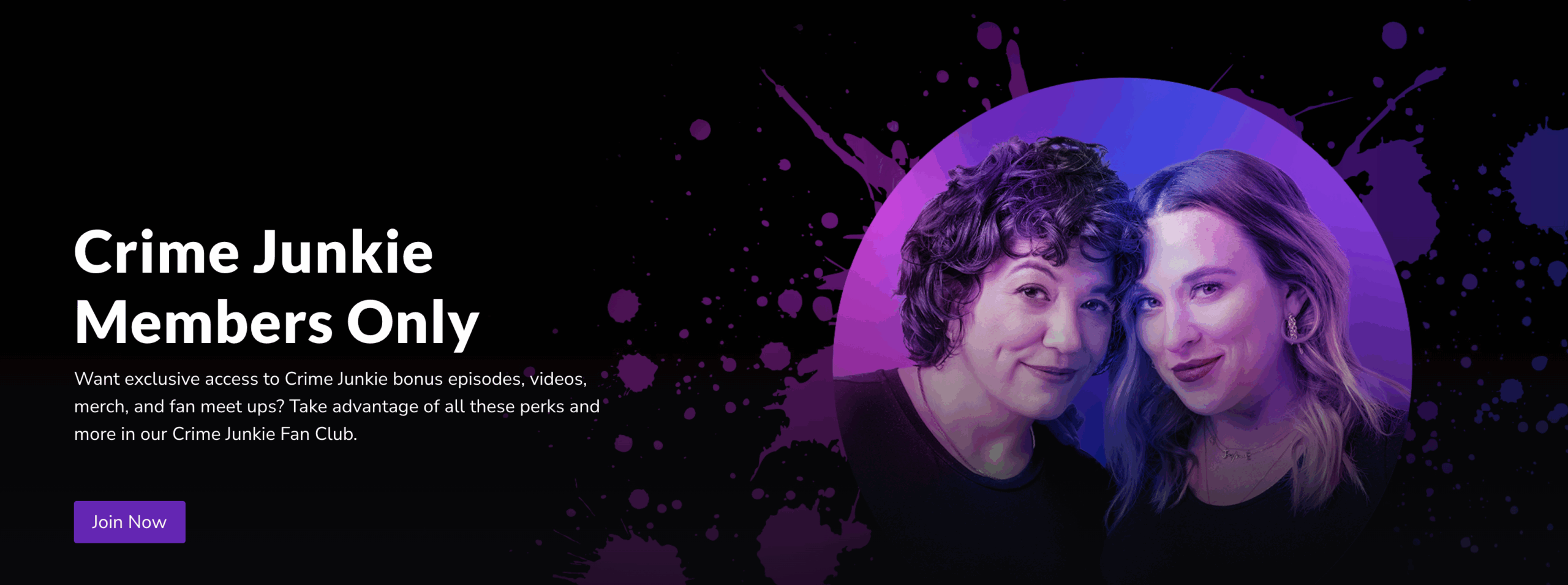
- Membership perks with bonus episodes or early access
- Fan club and social media engagement that keeps listeners coming back
This community is a direct channel for monetization beyond podcast platforms.
3. Smart Sponsorships & Brand Partnerships
They partner with companies that fit their true crime audience:
- Mystery subscription boxes (e.g., Hunt a Killer)
- True crime books and documentaries
- Crime-themed games and collectibles
These partnerships include ads on the podcast, website banners, newsletter placements—creating bundled, high-value sponsorship packages.
4. Affiliate Marketing & Merchandising
Crime Junkie promotes products their fans actually want—often earning commissions on sales or offering exclusive merchandise:
- Mystery box affiliate programs
- True crime books and streaming services
- Themed merchandise sold directly or through third parties
Click For Free Podcast Monetization Strategy
What This Means For Your Podcast
If you’re only thinking “I need a sponsor to make money,” it’s time to expand your view. You can start building your own monetization ecosystem:
- Create a website packed with rich content that ranks in Google for true crime searches
- Grow an email list to communicate directly with your listeners—offering exclusive content and offers
- Find sponsors and partners that deeply align with your niche, then bundle ad opportunities across your podcast, website, and newsletter
- Add affiliate promotions for products your audience cares about, generating passive income
- Offer premium content or memberships for superfans willing to pay for bonus episodes, behind-the-scenes access, or ad-free listening
Starting Small: Your First Steps Beyond Ads
Even with a modest audience, you can:
- Build a simple website with episode show notes, transcripts, and resources
- Create a lead magnet (like a checklist or case tracker) to start collecting emails
- Reach out to a handful of sponsors that fit your niche and propose simple ad deals
- Add 1–2 affiliate links into your show notes or website content
- Engage your listeners with bonus content on Patreon or a private community
Click For Free Podcast Monetization Strategy
Why This Matters
Ads alone can be a fickle income source. But with a diverse, audience-centered monetization strategy, you create:
- Multiple income streams
- Stability if sponsors leave or platforms change
- Greater creative freedom—you’re not tied to just one revenue source
- A valuable asset you own and control: your website, email list, and community
Final Thought
If you want to go beyond “just sponsored ads” and build a podcast monetization machine like Crime Junkie’s, the best time to start is now.
Your podcast deserves more than just ads—it deserves a smart, diversified strategy that grows with your audience and maximizes your earning potential.
Ready to build a real, scalable monetization system for your podcast?
Click For Free Podcast Monetization Strategy
Transistor.fm Pricing: Plans, Costs, and Whether It’s Worth It
Last Updated: June 2026 | By Matt
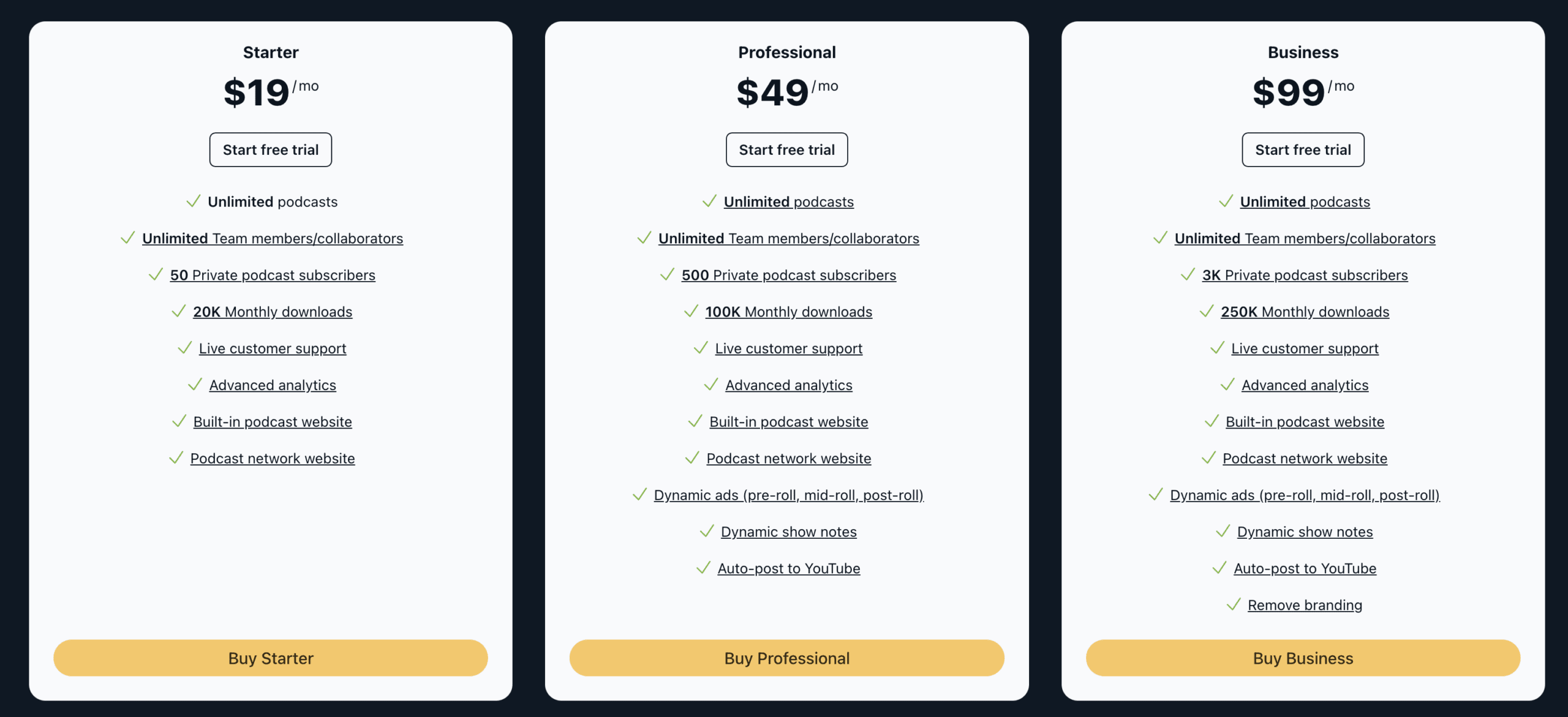
Transistor.fm pricing starts at $19/month (Starter), with Professional at $49/month, Business at $99/month, and an Enterprise tier from $199/month. Every paid plan includes unlimited podcasts, unlimited team members, and private podcasting, plus a 14-day free trial. Pay yearly and you get 12 months for the price of 10.
There’s no permanently free plan, so if cost is your only concern you may want to compare it against free podcast hosting options first. But for creators who want to run more than one show without paying per podcast, Transistor is one of the few podcast hosting platforms that makes unlimited shows the default at every tier.
Start your free 14-day Transistor.fm trial
How Much Does Transistor.fm Cost in 2026?
Here are Transistor’s current plans. Pricing is based on monthly downloads, not the number of shows, and the yearly column reflects Transistor’s “12 months for the price of 10” annual discount.
| Plan | Monthly | Yearly | Monthly Downloads | Private Subscribers | Standout Features |
|---|---|---|---|---|---|
| Starter | $19 | $190 | 20,000 | 50 | Unlimited shows, podcast website, advanced analytics, API access |
| Professional | $49 | $490 | 100,000 | 500 | Everything in Starter + dynamic ad insertion, dynamic show notes, auto-post to YouTube |
| Business | $99 | $990 | 250,000 | 3,000 | Everything in Professional + remove Transistor branding |
| Enterprise | $199+ | $1,990+ | 250,000+ | 3,000+ | Custom limits for high-volume shows; contact sales |
All paid plans include unlimited podcasts, unlimited team members, and private podcasting. Transcription is available as a paid add-on (sold in monthly hour blocks) rather than being bundled into the base price.
Does Transistor.fm Have a Free Plan?
No. Transistor does not offer a permanently free tier. The lowest paid plan is Starter at $19/month. What you do get is a 14-day free trial on every plan, with full access to publishing, your podcast website, and analytics. If you don’t upgrade, your account simply pauses rather than charging you automatically.
If a $0 starting point is non-negotiable, it’s worth weighing Transistor against budget-focused hosts. I’ve covered the trade-offs in detail in my Buzzsprout pricing breakdown and Podbean pricing guide, both of which offer lower or free entry points with tighter limits.
What Do You Actually Get With Transistor?
Transistor leans toward power-without-clutter rather than a sprawling feature list. The features that matter most for day-to-day podcasting:
- Unlimited podcasts — one account hosts as many shows as you want, with no per-show fee.
- Private podcasting on every plan — secure RSS feeds for internal, paid, or course content, starting at the Starter tier.
- Video podcast hosting — Transistor now hosts and distributes video episodes, a meaningful upgrade from its older audio-to-YouTube-only approach.
- Dynamic ad insertion — add or swap pre-roll, mid-roll, and post-roll ads after publishing (Professional and above).
- Auto-post to YouTube — push new episodes to YouTube automatically (Professional and above).
- Built-in podcast website — a one-click site plus a separate network site if you run multiple shows.
- AI transcription — available as a paid add-on for accessibility and show notes.
- Advanced analytics and API access — included on every plan, even Starter.
Who Is Transistor.fm Best For?
Transistor fits a specific kind of podcaster especially well:
- Creators running multiple shows — the unlimited-podcasts model is the cheapest path if you publish more than one feed.
- Teams and agencies — unlimited collaborators and role management come standard.
- Coaches and course creators — private podcasting at every tier supports membership and client-only feeds.
- Businesses wanting clean branding — the Business plan removes Transistor branding entirely.
If your priority is a built-in ad marketplace or the deepest possible analytics, a different host may serve you better. For private-feed-heavy workflows specifically, compare it against the field in my guide to the best private podcast platforms.
Is Transistor’s Yearly Plan Worth It?
Annual billing gives you 12 months for the price of 10, which works out to roughly 17% off versus paying monthly. In real numbers: Starter drops from $228 to $190 a year, Professional from $588 to $490, and Business from $1,188 to $990. If you’re committed to podcasting for the next year, the annual plan is an easy win.
How Does Transistor Compare to Other Hosts?
The clearest way to read Transistor against the competition is by its pricing model. Most budget hosts charge per show or restrict private feeds; Transistor prices by downloads and includes unlimited shows and private podcasting on every plan.
| Feature | Transistor | Typical Budget Host |
|---|---|---|
| Pricing basis | Monthly downloads | Often per show or per hour uploaded |
| Number of shows | Unlimited on every plan | Frequently one show per plan |
| Private podcasting | Included on every plan | Often higher tiers only |
| Video podcast hosting | Yes | Varies |
| Built-in ad marketplace | No (run your own / dynamic ads) | Sometimes included |
| Free trial | 14 days | Varies |
For head-to-head detail on the budget options, see my Buzzsprout pricing, Podbean pricing, and Acast pricing guides.
Switching to Transistor: What to Expect
Migrating from another host is straightforward and won’t disrupt your audience:
- Import your existing show via its RSS feed.
- Set up a 301 redirect from your old feed (Transistor provides the instructions).
- No audio re-compression or quality loss on imported episodes.
- Your existing subscribers stay subscribed automatically.
Most creators complete the move in well under an hour. If you’re also rethinking your web presence during the switch, my walkthrough on how to create a podcast website pairs well with Transistor’s built-in site builder.
The Verdict: Is Transistor.fm Worth the Price?
For podcasters who run multiple shows, need private feeds, or want a clean, reliable platform that scales, Transistor is well worth $19–$99/month. You’re paying a modest premium over the cheapest hosts in exchange for unlimited shows and private podcasting baked into every tier. The main reasons to look elsewhere are if you need a built-in ad marketplace or a permanently free plan.
Try Transistor.fm free for 14 days
Frequently Asked Questions
How much does Transistor.fm cost?
Transistor.fm costs $19/month for Starter, $49/month for Professional, and $99/month for Business, billed monthly. An Enterprise tier starts at $199/month for high-volume shows. Paying annually gives you 12 months for the price of 10, dropping the effective cost to roughly $190, $490, and $990 per year respectively.
Does Transistor.fm have a free plan?
No, Transistor.fm does not offer a permanently free plan. The lowest paid tier is Starter at $19/month. However, every plan includes a 14-day free trial so you can publish episodes and test the full platform before committing. If you don’t upgrade, your account pauses rather than charging you automatically.
Is there a Transistor.fm free trial?
Yes. Transistor.fm offers a 14-day free trial on every plan, including Starter. During the trial you can publish episodes, build your podcast website, and explore analytics. You won’t be charged automatically at the end—you have to actively choose and confirm a paid plan to continue past the trial period.
How much do you save with Transistor’s yearly plan?
Transistor’s annual billing gives you 12 months for the price of 10, effectively two free months a year. That makes Starter about $190/year instead of $228, Professional $490 instead of $588, and Business $990 instead of $1,188—saving roughly 17% compared with paying month to month.
Can you host multiple podcasts on one Transistor plan?
Yes. Every Transistor.fm plan, including the $19 Starter tier, lets you host unlimited podcasts under a single account at no extra cost. Each show gets its own RSS feed, website, and analytics. This is Transistor’s biggest differentiator, since most competitors charge per show or cap the number of feeds you can run.
Does Transistor.fm support video podcasts?
Yes. Transistor now offers video podcast hosting and distribution, a change from earlier years when it only auto-posted audio to YouTube as a static image. You can host video episodes and distribute them to platforms like YouTube and Spotify, making it a viable choice for creators producing video-first shows.
Does Transistor include private podcasting?
Yes. Private podcasting is included on every Transistor plan. Starter supports 50 private subscribers, Professional supports 500, and Business supports 3,000. This makes Transistor a strong pick for internal company podcasts, paid membership feeds, or course content—features many hosts restrict to higher tiers or charge extra to unlock.
What happens if you exceed your Transistor download limit?
Transistor doesn’t shut off your audio if you exceed your monthly download cap. According to Transistor, they keep serving episodes to your listeners and reach out to move you to a higher tier if you consistently go over. There’s no automatic overage fee or sudden interruption for your audience.
Can you monetize a podcast on Transistor?
Yes, though Transistor has no built-in ad marketplace. You keep full ownership of your content and can run your own sponsorships, use dynamic ad insertion (Professional and up), or sell access to a paid private feed. If you want an automated ad network, a host with built-in monetization may suit you better.
How does Transistor pricing compare to Buzzsprout and Podbean?
Transistor starts higher ($19/month) than the entry tiers at Buzzsprout or Podbean, but it prices by monthly downloads and includes unlimited shows and private podcasting on every plan. Budget hosts often charge per show or limit private feeds, so Transistor can actually be cheaper for creators running multiple podcasts.
How to Present Information Clearly on Your Podcast (Audio-Only or Video)
Podcasting isn’t just about talking into a microphone—it’s about clearly delivering value to your audience in a way that sticks. Whether you’re hosting an audio-only show or a full video production, the way you present information directly impacts how well your listeners absorb, remember, and act on what you share.
This guide walks you through proven strategies for both audio and video formats, ensuring your content is clear, compelling, and impossible to tune out.
Why Presentation Style Matters in Podcasting
Podcasting is unique in that it’s an intimate, one-to-one medium—often consumed while driving, cooking, or exercising. If your ideas aren’t clearly delivered, they’re gone. Listeners can’t skim or re-read like on a blog.
Why clarity is essential:
- Listeners may tune out quickly if confused or overwhelmed
- Retention and loyalty increase with clarity and pacing
- More effective storytelling = better word-of-mouth
- Sponsors and guests respect professional delivery
Core Principles for Presenting Information (Both Formats)
| Principle | Why It Matters | How to Apply It |
|---|---|---|
| Use Conversational Tone | Makes you more relatable and easier to follow | Avoid jargon, speak like you’re talking to a friend |
| Break It Into Segments | Helps listeners process and retain information | Use headings, segments, and transitions |
| Repeat Key Points | Reinforces takeaways and helps with recall | Paraphrase important ideas 2–3 times per episode |
| Use Examples & Stories | Makes abstract or complex ideas easier to digest | Insert relevant metaphors, stories, or analogies |
| Summarize Frequently | Keeps listeners oriented and reminds them of value | End each section with a mini-recap or listener takeaway |
Strategies for Audio-Only Podcasts
Without visuals, you need to make your information “seeable” with your voice.
🌟 Paint Pictures With Words
- “Imagine standing in front of a giant whiteboard…”
- Use storytelling, analogies, and sensory language
- Think of each episode as an audio TED Talk with visuals in your voice
⚠️ Signpost and Structure
- Start by telling listeners what to expect
- Use phrases like:
- “Here’s what we’re going to cover…”
- “That brings us to part two…”
- “So, what’s the big takeaway here?”
♻️ Repeat & Reinforce
- Use the Power of Three: introduce, explain, summarize
- Give examples after explanations
- Say: “Let me break that down again quickly…”
🔗 Show Notes & External Resources
- Tease downloads early: “Don’t worry about remembering all this—I’ve got a cheat sheet in the show notes.”
- Drive action: “Visit [yourdomain.com/framework] for the visual guide.”
😊 Invite Real-Time Interaction
- “Pause and write this down.”
- “Picture this in your head for a second…”
- Ask reflective questions that listeners mentally respond to
Strategies for Video Podcasts
With visuals, you can directly show your ideas, not just describe them.
🖼️ On-Screen Text and Overlays
- Add text overlays during key insights
- Use bullet points for list segments
- Highlight quotes or stat comparisons while speaking
🎥 Screen Share or Cutaway Footage
- Screen share for walkthroughs, tutorials, data visualizations
- Cut to relevant B-roll to keep things dynamic and multi-sensory
📊 Slides or Whiteboards
- Think of your podcast as a mini masterclass
- Use pre-designed slides (Canva, Google Slides)
- Call out each visual: “Take a look at the bottom right corner…”
- Use an onscreen whiteboard to demonstrate and teach
➡️ Camera Cuts & Transitions
- Use multi-camera setups or zooms for emphasis
- Hard cuts between segments help keep viewers engaged
🧡 Real Props
- Hold up a book you’re referencing
- Demonstrate a tool or physical item
- Creates trust and energy through tactile connection
📰 Companion Visual Downloads
- Turn your slides or frameworks into downloadable PDFs
- Mention them early and at the end
- “You can get the visual breakdown of this at podname.com/visualguide”
Repurposing Visuals for Other Platforms
| Platform | Repurposing Ideas | Benefits |
| YouTube Shorts | Clip a key visual moment + add captions | Expands reach and improves discoverability |
| Turn slides into carousels or reels | Builds community and boosts visual storytelling | |
| Pin episode takeaways or visual summaries | Drives evergreen traffic to episodes and show notes | |
| Blog | Embed visuals as support for written posts | Improves SEO and on-page engagement |
| Send recap graphics, visual outlines, or download links | Increases opens and clickthroughs with added value content |
❓ Podcast Presentation FAQ
Q: Should I script or speak freely?
A: Use a hybrid method. Scripts help with clarity, especially for intros, transitions, or complex content. Freestyle speaking helps you sound authentic and human. Many podcasters bullet their points and freestyle around them.
Q: What if my topic is complex or data-heavy?
A: Break it into small, digestible parts. Offer analogies. Use repetition. And always pair the episode with a cheat sheet or visual reference in the show notes.
Q: How do I make listeners remember what I said?
A: Echo ideas using the Rule of Three: say it, show it, summarize it. Connect each point to something relatable or emotional. Stories work better than stats.
Q: Can I use visuals if my podcast is audio-only?
A: Absolutely. Visuals can live in your:
- Show notes
- Blog posts
- Social media clips
- Downloadable resources (e.g., PDFs, mind maps, swipe files)
Q: What tools help with presenting visually on video?
A: Top tools include:
- OBS Studio for live overlays and scenes
- Riverside.fm for recording guests and split-screen
- Ecamm Live for live shows and presentations
- Descript for editing and adding text/visuals post-recording
Q: How long should visual segments stay on screen?
A: Long enough for the viewer to read (5–10 seconds), but not so long that it stalls the flow. Use animations or fades to guide the eye.
Q: How can I turn these ideas into email growth or monetization?
A: Offer companion resources:
- Visual guides, swipe files, checklists
- Mention them mid-episode and place CTAs in the show notes
- Use these to build your list or offer tripwire products
Final Thoughts
Great podcasting isn’t just about having something to say—it’s about saying it clearly, memorably, and visually. Your listeners need help following along, retaining what they hear, and applying your ideas. The clearer your delivery, the deeper your impact.
Whether you’re narrating a story, teaching a process, or explaining a product—clarity builds trust.