
Matt
Best Laptops for Podcasting in 2026 (Mac and Windows)
The best laptop for podcasting in 2026 is the MacBook Pro 14-inch with M5 Pro — it handles multitrack editing without breaking a sweat, runs silent under load, and gets real-world battery life that matches Apple’s claims. If that’s out of budget, the MacBook Air 15-inch M4 is the next best thing for most podcasters. For Windows users, the Dell XPS 16 is the strongest all-around option.
That said, the right laptop depends on your workflow. A solo audio podcaster has different needs than someone producing a multi-camera video show. This guide breaks down the top picks for 2026 — including both macOS and Windows options — with real-world context about what each machine actually does well for podcast production.
What Makes a Laptop Good for Podcasting?
Most consumer laptops can technically run podcast editing software. The difference between a frustrating experience and a fast one comes down to four things:
CPU performance determines how quickly your editing software processes audio — applying effects, rendering exports, handling multiple tracks simultaneously. Apple Silicon (M3, M4) dominates this category because the chip architecture is purpose-built for sustained workloads without thermal throttling.
RAM determines how many tracks, plugins, and applications you can run at once before the system slows down. 16GB is the practical minimum for serious podcast editing in 2026; 18GB or more gives you comfortable headroom for video production, screen recording, and AI-based tools running simultaneously.
Storage speed and size affects how quickly audio files load, save, and export. NVMe SSDs at 512GB or above are standard on all the machines listed here. If you’re storing large video files locally, 1TB is a more realistic starting point. See: Podcast Data Storage Guide | The Storage Mistake That Sabotages Podcasters
Fan noise and thermal behavior is a concern many podcasters overlook until they’re mid-recording. If your laptop’s fans spin up while you’re monitoring a recording, that noise gets picked up. Fanless machines like the MacBook Air eliminate this problem entirely. Pro laptops like the MacBook Pro are quiet enough under typical editing loads that fan noise isn’t a practical issue.
Best Laptops for Podcasting in 2026
MacBook Pro 14-inch (M5 Pro) — Best Overall
A few months ago, I was still editing podcast episodes on a 2012 MacBook Pro. It wheezed through multitrack sessions, crashed if I had too many plugins open, and exporting episodes took forever. Eventually it just couldn’t keep up. I upgraded to the 14-inch MacBook Pro and the difference was immediate — editing software opened instantly, exports were done before I expected them to start, and the whole workflow stopped feeling like a fight. That single hardware upgrade was the best thing I’ve done for my production process.
The M5 Pro chip — released in March 2026 — takes things further. Its 18-core CPU (six super cores and twelve performance cores) delivers around 30% faster CPU performance over the M4 Pro, and up to 4x the AI performance compared to the previous generation. For podcasters running AI-based noise reduction, transcription tools, or local language models alongside their DAW, that headroom is meaningful. Battery life claims up to 24 hours, and real-world editing use consistently lands in the 14–18 hour range — genuinely untethered all-day performance.
The M5 Pro also upgrades to Thunderbolt 5 (vs. Thunderbolt 4 on the base M5), which brings 120Gb/s bandwidth for external storage and display connectivity. The full port lineup remains the best on any laptop in this guide: three Thunderbolt 5 ports, HDMI, SD card reader, MagSafe charging, and a 3.5mm headphone jack. Standard storage doubles to 1TB over the previous generation. You can connect an audio interface, an external monitor, and a card reader simultaneously without a hub.
- CPU/GPU: M5 Pro (18-core CPU — 6 super cores + 12 performance cores / up to 20-core GPU)
- RAM: 24GB unified memory standard (up to 96GB)
- Storage: 1TB to 8TB SSD (2x faster read/write than M4 Pro, up to 14.5GB/s)
- Display: 14.2-inch Liquid Retina XDR (3024×1964)
- Battery: Up to 24 hours
- Ports: 3x Thunderbolt 5, HDMI, SD card reader, MagSafe, 3.5mm jack
- Wireless: Wi-Fi 7 + Bluetooth 6 (via Apple N1 chip)
- Starting price: ~$2,199
If you produce a serious show, edit video, or run multiple software tools simultaneously, the MacBook Pro 14-inch with M5 Pro is the machine to get.
MacBook Air 15-inch (M4) — Best for Silent, Mobile Recording
The MacBook Air 15-inch is the best laptop for podcasters who want silence and portability above all else. It has no fan — zero — which means no mechanical noise whatsoever, ever. For podcasters who record while traveling, in coffee shops, or anywhere they can’t control the acoustic environment, a laptop that’s guaranteed not to spin up a fan mid-recording is genuinely valuable.
The M4 chip handles podcast editing workloads easily. Where it falls short of the MacBook Pro is sustained heavy processing — long exports or complex video rendering under continuous load will eventually slow down as the chip throttles to manage heat without a fan. For audio-only podcasting, this is rarely a real-world problem. For video production, it depends on how complex your projects are.
Battery life is exceptional — 15+ hours in real-world use. The 15-inch screen is a meaningful upgrade over the 13-inch for editing work, giving you more timeline visibility in your DAW without connecting an external display. Port selection is more limited than the Pro: two Thunderbolt 4 ports, MagSafe, and a 3.5mm jack, which means you’ll need a hub if you want to connect an audio interface and external monitor simultaneously.
- CPU/GPU: Apple M4 (8-core CPU / 10-core GPU)
- RAM: 16GB or 24GB
- Storage: 256GB to 2TB SSD
- Display: 15.3-inch Liquid Retina
- Battery: 15–18 hours
- Ports: 2x Thunderbolt 4, MagSafe, 3.5mm jack
- Starting price: ~$1,299
The right choice if silence and battery life matter more to you than maximum processing headroom.
Dell XPS 16 (2025) — Best Windows Laptop for Power Users
For podcasters who want to stay in the Windows ecosystem and need serious processing power, the Dell XPS 16 is the strongest option available. Intel Core Ultra 7 and Ultra 9 processors with optional NVIDIA discrete graphics mean it handles multitrack audio, video editing, and streaming simultaneously without bottlenecking.
The OLED display option is genuinely impressive for video podcasters who color-grade footage — deep blacks and accurate color make a meaningful difference when you’re making visual quality calls. The XPS 16 also runs relatively quietly under moderate load, though under sustained heavy processing the fans are audible. That’s a consideration if you plan to record audio near the laptop.
Battery life is the weakest point in this comparison — real-world use under editing workloads is closer to 6–8 hours than the advertised 10. For desktop-replacement use where you’re mostly plugged in, that’s irrelevant. For mobile work, it’s a real limitation.
- CPU/GPU: Intel Core Ultra 7 or Ultra 9, optional NVIDIA RTX 4050/4060/4070
- RAM: 16GB to 64GB LPDDR5x
- Storage: 512GB to 4TB SSD
- Display: 16.3-inch FHD+ or 3.5K OLED touchscreen
- Battery: ~10 hours (6–8 under editing loads)
- Ports: 3x USB-C/Thunderbolt 4, microSD, 3.5mm jack
- Starting price: ~$1,899
The best Windows laptop for podcasters who use Windows-specific software or prefer the platform’s flexibility and customization.
HP Spectre x360 16 — Best for Remote Interviews and Travel
The HP Spectre x360 16 is a 2-in-1 convertible that covers a use case the other laptops on this list don’t: video calls and remote interviews in non-ideal environments. The built-in webcam and microphone array are meaningfully better than most laptop-class hardware — useful for Zoom recordings, Riverside sessions, and on-the-road interviews where you can’t set up external gear.
The 2-in-1 form factor (it folds flat into tablet mode) is less relevant for editing and more relevant for portable presentations or taking notes during interviews. The OLED touchscreen at 2.8K resolution is excellent. Port selection is comprehensive for a Windows machine: two USB-C, one USB-A, HDMI 2.1, and a 3.5mm jack.
Processing power is solid but not exceptional compared to the XPS 16 at similar price points. Where it earns its place is in the overall package — decent battery, good built-in AV hardware, flexible form factor — for podcasters whose workflow involves a lot of remote collaboration. See: How to Record a Podcast Remotely
- CPU/GPU: Intel Core Ultra 7, optional RTX 4050
- RAM: 16GB or 32GB
- Storage: 1TB SSD
- Display: 16-inch 2.8K OLED touchscreen
- Battery: 10–18 hours depending on configuration
- Ports: 2x USB-C, 1x USB-A, HDMI 2.1, 3.5mm jack
- Starting price: ~$1,299
Acer Aspire 5 — Best Budget Laptop for Beginner Podcasters
If you’re launching your first podcast and aren’t ready to spend $1,200+, the Acer Aspire 5 is the budget pick that actually holds up. It runs Audacity, GarageBand alternatives, and basic DAWs without issue at the AMD Ryzen 7 / Intel Core i7 configuration. The port selection is unusually complete for a budget laptop: USB-C, USB-A, HDMI, ethernet, and a 3.5mm jack — which means no adapters required for most podcast setups.
It won’t handle complex video editing or heavy plugin stacks gracefully, and the build quality reflects the price point. Fan noise under load is audible. But as a starter machine for an audio podcast — record, basic editing, export, upload — it does the job at a price that leaves budget for a better microphone, which will do more for your show’s quality than the laptop would anyway. See: Best Budget Podcast Microphones
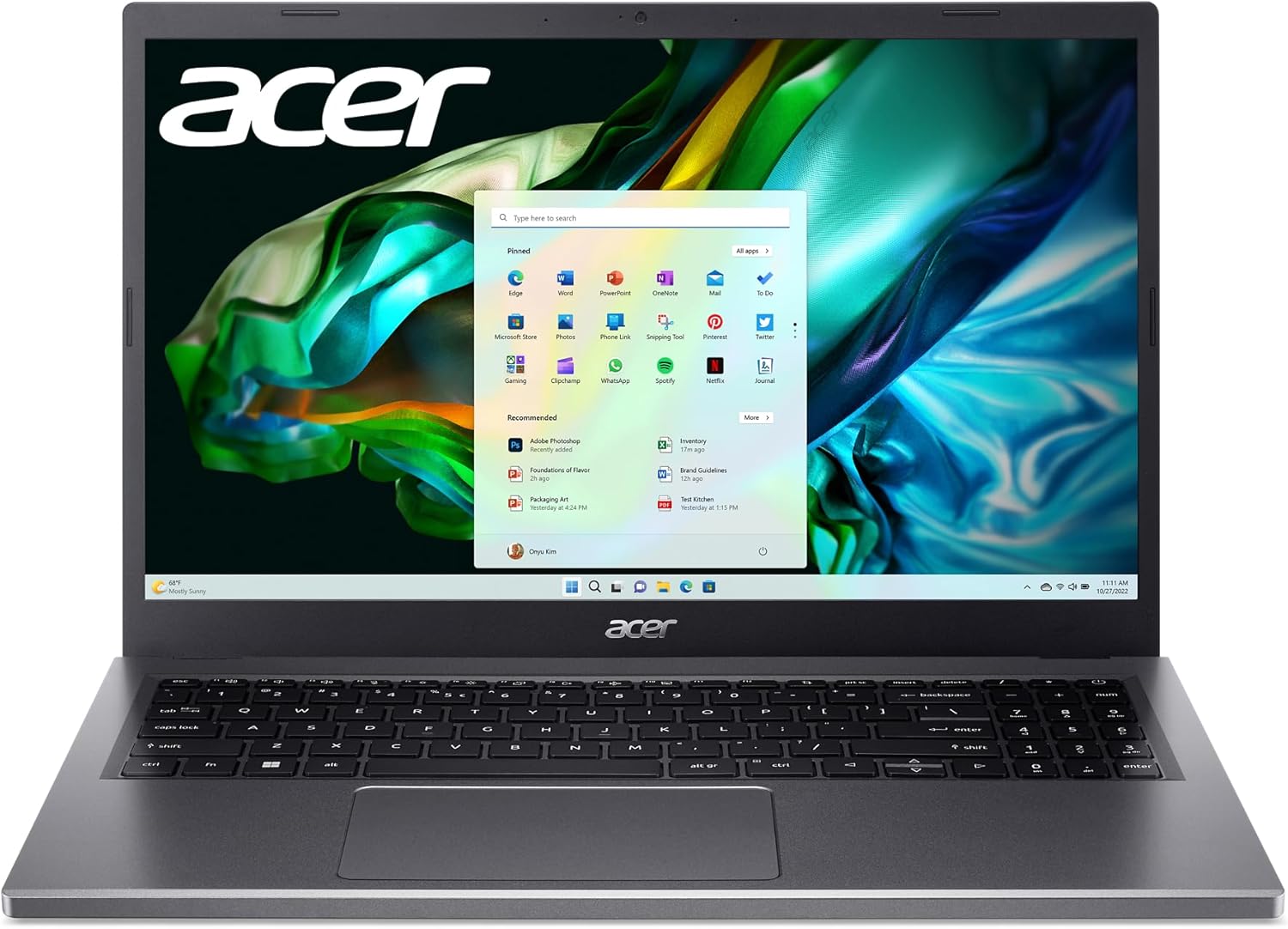
- CPU: Intel Core i5/i7 or AMD Ryzen 7
- RAM: 8GB to 16GB
- Storage: 512GB SSD
- Display: 15.6-inch Full HD IPS
- Battery: ~8 hours
- Ports: USB-C, USB-A, HDMI, Ethernet, 3.5mm jack
- Starting price: ~$499
Podcasting Laptop Comparison Table (2026)
| Laptop | Best For | Chip/CPU | RAM | Battery | Starting Price |
|---|---|---|---|---|---|
| MacBook Pro 14 (M5 Pro) | Pro audio & video editing | M5 Pro | 24GB+ | Up to 24 hrs | $2,199 |
| MacBook Air 15 (M4) | Silent mobile recording | M4 | 16–24GB | 15+ hrs | $1,299 |
| Dell XPS 16 | Windows power users | Intel Core Ultra | 16–64GB | ~10 hrs | $1,899 |
| HP Spectre x360 16 | Remote interviews, travel | Intel Core Ultra | 16–32GB | 10–18 hrs | $1,299 |
| Acer Aspire 5 | Beginners, tight budget | Intel i5/i7 or Ryzen 7 | 8–16GB | ~8 hrs | $499 |
Mac vs. Windows for Podcasting: Which Should You Choose?
This is the most common question beginners ask, and the honest answer is that both platforms work well — the differences are mostly about software preferences and workflow, not fundamental capability.
Choose Mac if you want to use Logic Pro (Mac-exclusive and genuinely excellent for podcast editing), GarageBand as a free starting point, or if you value the tight hardware-software integration that Apple Silicon provides. MacOS is also notably stable under sustained creative workloads — crashes and driver issues are rare compared to Windows. The fanless MacBook Air is a unique advantage for podcasters who record near their laptop.
Choose Windows if you already use Windows-specific software, prefer the wider hardware selection and price range, want to upgrade components like RAM and storage yourself (most Macs can’t be upgraded after purchase), or need specific compatibility with Windows-only tools. Adobe Audition and most professional DAWs run on both platforms with equivalent performance.
The one genuinely Mac-exclusive advantage worth highlighting: Logic Pro. At $199.99 (one-time), it’s one of the most capable DAWs available at any price and runs exclusively on Mac. If Logic Pro is part of your workflow or something you want to learn, that alone justifies the Mac choice for many podcasters. See: Best Podcast Editing Software | Podcast Editing Software for All Levels
How Much RAM Do You Actually Need for Podcast Editing?
The practical answer in 2026: 16GB for audio-only podcasting, 18–24GB if you also edit video or run AI tools, 32GB+ for complex multi-camera video production with heavy effects stacks.
8GB is workable for simple recording and basic editing in Audacity or GarageBand, but you’ll feel the limitation if you have multiple apps open, run noise reduction plugins in real time, or work with long sessions. On Apple Silicon machines, unified memory architecture makes 16GB behave more like 24GB on traditional systems because the CPU and GPU share the same memory pool efficiently.
One important note: RAM in most modern MacBooks (Air and Pro) cannot be upgraded after purchase. Choose the RAM configuration you’ll need in two to three years, not just what you need today.
Frequently Asked Questions: Best Laptops for Podcasting
What is the best laptop for podcasting in 2026?
The MacBook Pro 14-inch with M5 Pro is the best overall laptop for podcasting in 2026. It handles multitrack audio editing, plugin processing, and video production simultaneously, runs quietly under all typical workloads, and delivers up to 24 hours of battery life. For podcasters who prioritize budget, the MacBook Air 15-inch M4 at $1,299 or the Acer Aspire 5 at $499 cover most use cases at lower price points.
Do you need a powerful laptop for podcasting?
Not necessarily. A basic audio podcast — record, edit in Audacity, export MP3, upload — can run on almost any modern laptop made in the last five years. You need more processing power for multi-track editing with plugins, AI-based noise reduction and enhancement tools, video podcast production, and simultaneous streaming. If you’re launching a first show, prioritize a good microphone and recording environment over laptop specs — those will do more for your audio quality than the computer will.
Is Mac or Windows better for podcast editing?
Both work well. Mac has the advantage of Logic Pro (an excellent Mac-exclusive DAW), Apple Silicon’s efficiency and silent fanless operation on the Air, and macOS stability under sustained workloads. Windows has broader hardware choice, a wider price range, and upgradeable components on some models. Most major podcast editing software — Adobe Audition, Reaper, Hindenburg, Descript — runs on both platforms with equivalent performance.
What specs should I look for in a laptop for podcasting?
The minimum practical specs for podcast editing in 2026 are 16GB RAM, 512GB SSD, and a modern multi-core CPU (Apple M3/M4, Intel Core Ultra, or AMD Ryzen 7). For audio-only podcast editing, these specs are comfortable. Add a discrete GPU and 32GB+ RAM if you’re producing video content. Pay attention to port selection — you need at least one USB-C or Thunderbolt port for an audio interface, plus a 3.5mm headphone jack for monitoring.
Can a budget laptop handle podcast editing?
Yes, with realistic expectations. The Acer Aspire 5 and similar budget Windows laptops handle basic recording and editing in Audacity without issue. Where budget laptops struggle is with heavy plugin stacks, real-time AI processing, and video editing. Fan noise under load is also more pronounced on budget hardware — relevant if you’re recording near the machine. For audio-only podcasting on a tight budget, a $499–$599 laptop plus a quality external microphone is a better investment than spending more on the computer.
Is the MacBook Air good enough for podcasting, or do I need the MacBook Pro?
The MacBook Air M4 is good enough for the majority of podcasters. It handles multitrack audio editing, runs all major podcast software, and is completely fanless — meaning no mechanical noise during recording. The MacBook Pro becomes worth the extra cost if you do sustained heavy video editing, run complex plugin chains on long sessions, need more than two Thunderbolt ports, or need 18GB+ RAM for memory-intensive workflows.
Does laptop fan noise actually affect podcast recording?
It can, depending on your setup. If your microphone is within a foot or two of a running laptop fan, the noise may appear in your recording — particularly with sensitive condenser microphones in quiet environments. The MacBook Air is fanless and never presents this problem. The MacBook Pro is quiet enough under typical editing loads that fan noise is rarely an issue in practice. Budget Windows laptops with aggressive thermal management can be audible during sustained workloads. Position your microphone away from your laptop’s vents and do a test recording to check before relying on a specific setup.
How much storage do I need on a laptop for podcasting?
512GB is the minimum for comfortable audio podcasting — an hour of uncompressed WAV audio is roughly 600MB, so a 512GB drive fills up faster than you might expect if you keep raw recordings. 1TB is a better starting point, especially if you also work with video. For long-term archiving, external drives or a NAS are a better solution than relying on internal laptop storage. See: How to Archive and Back Up Your Podcast | Best NAS for Video Editing and Podcasting
What editing software should I use on my new podcast laptop?
On Mac, GarageBand is free, already installed, and capable enough for most audio podcasting. Logic Pro is the step-up option at $199.99 (one-time) for more advanced mixing and production. On Windows, Audacity is free and handles basic editing; Adobe Audition is the professional standard for audio-focused podcasters; Descript is worth considering for anyone who wants to edit by editing text rather than waveforms. See: Podcast Editing Software: Free and Paid Options
Should I buy a laptop or a desktop for podcasting?
If your recording setup is fixed — same desk, same location — a desktop computer gives you more processing power per dollar and better upgradeability. If you record remotely, travel for interviews, or just prefer the flexibility of a laptop, the current generation of Apple Silicon laptops in particular are powerful enough that the performance difference over a desktop is minimal for most podcast production workflows. See: Best Desktop Computers for Podcasters
The Rest of Your Podcast Setup
A good laptop is the engine, but the microphone is what your listeners actually hear. The best laptop in the world can’t fix a poor recording environment or an underpowered microphone. If you’re choosing between spending more on a laptop or spending more on the audio chain, prioritize the audio chain — the improvement will be more noticeable to your audience.
OP3 Podcast Analytics: What It Can (and Can’t) Do for Your Show
What Is OP3 (Open Podcast Prefix Project)?
OP3 is a free, privacy-first service that tracks podcast downloads through a simple redirect prefix. When a listener hits play, the audio request goes through OP3’s prefix before reaching your hosting platform—giving OP3 the ability to log the request and filter out noise.
Quick Facts About OP3:
- ✅ Built on Cloudflare’s edge network—fast and globally distributed
- ✅ Tracks over 3,000 shows and 18+ million downloads/month
- ✅ Entirely open-source and public
- ✅ Does not store personal listener data or IP addresses
- ✅ Follows IAB-style download filtering standards
What OP3 Can Do for Podcasters
🎧 Accurate, Privacy-Safe Download Tracking
OP3 filters out:
- Bot traffic
- Range requests (i.e., partial downloads)
- Duplicate plays from the same listener within 24 hours
This results in clean, standards-compliant stats that sponsors and researchers can trust.
🌍 Breakdown by App, Country, and Time
OP3 shows you which platforms your downloads are coming from (Spotify, Apple Podcasts, Overcast, etc.), what countries your listeners are in, and how downloads vary by day or hour.
👤 Unique Listener Estimation
OP3 hashes the IP and User-Agent combo to estimate unique listeners per episode—without ever storing personal data.
📊 Public Stats Pages
Every podcast using OP3 gets a public stats dashboard, which is great for:
- Sharing your reach with sponsors
- Adding transparency for nonprofit or journalism projects
- Linking in press kits
🧩 Developer API
Build your own podcast dashboard, integrate with data tools, or create public visualizations using OP3’s open API.
💸 It’s 100% Free
Seriously. No account required. No upsells. No tracking. Just plug it in and go.
Best Use Cases for OP3
- Sponsor & Advertiser Reporting: If you’re monetizing your podcast, OP3 gives you neutral, third-party download verification.
- Self-Hosted or Low-Cost Podcasting: If your host doesn’t offer good analytics—or charges extra for them—OP3 fills the gap.
- Academic & Media Research: Because it’s open and standards-based, OP3 is perfect for journalism and podcast research projects.
- Custom Dashboards: If you’re technical (or have a developer on your team), OP3’s data can power everything from BI dashboards to marketing tools.
- Transparency-First Brands: Want to show your podcast’s reach publicly? OP3 lets you do that with no friction.
What OP3 Can’t Do
OP3 is powerful, but also intentionally limited. Here’s what it doesn’t offer:
❌ Listener Behavior Tracking
- No info on how long someone listened
- No episode completion data
- No ad skip metrics
❌ Personalization or Audience Demographics
- No age, gender, location beyond country
- No cookies, email capture, or individual IDs
❌ Dynamic Ad Insertion (DAI)
- OP3 doesn’t serve your media or insert ads
- You’ll need a separate podcast host with ad capabilities
❌ Subscription / Follower Tracking
- It doesn’t know if someone followed your show on Spotify or Apple
- No way to track subscriber growth trends
❌ It Only Works If You Add the Prefix
- No retroactive data—only works from the moment you start using
https://op3.dev/e/in your episode URLs
OP3 vs. Traditional Podcast Hosts
| Feature | OP3 | Podcast Hosts (Buzzsprout, Spotify, etc.) |
|---|---|---|
| Download counts | ✅ | ✅ |
| Unique listener estimates | ✅ | ✅ (varies) |
| In-app play tracking | ❌ | ✅ |
| Episode completion data | ❌ | ✅ |
| Demographic data | ❌ | ✅ |
| Subscriber tracking | ❌ | ✅ |
| Ad impressions/conversions | ❌ | ✅ (if host supports DAI) |
| Monetization tools | ❌ | ✅ |
| API for custom integrations | ✅ | ✅ (on some platforms) |
| Cost | ✅ Free | ❌ Often requires paid plan |
Where OP3 Fits in Your Podcast Stack
OP3 is not a replacement for your podcast host—it’s an analytics layer.
Use OP3 alongside services like:
- Buzzsprout, Captivate, or Libsyn – for hosting and DAI
- Spotify for Podcasters – for in-app analytics
- Chartable or Podsights – for marketing attribution
- Looker Studio or Power BI – for custom data dashboards
Conclusion: Should You Use OP3?
OP3 is a fantastic tool for podcasters who value independence, transparency, and privacy. It won’t tell you everything about your audience, but it will give you verified, trustworthy download stats—backed by open-source code and a rock-solid technical foundation.
If you’re building a podcast that earns trust, attracts sponsors, or supports research, OP3 is a must-have layer in your toolkit.
How to Get Started
Want to give OP3 a try?
- Visit op3.dev
- Update your audio URLs to use the OP3 prefix (
https://op3.dev/e/your-media-url.mp3) - Get instant, clean analytics—no sign-up needed.
The Best Podcast Analytics Tools in 2026 (Post-Chartable)
With the closure of Chartable, many podcasters are looking for modern analytics solutions that offer deep insights into listener behavior, monetization performance, and cross-platform tracking. Whether you’re an indie creator or part of a growing network, choosing the right platform is critical for growth.
Below is an up-to-date breakdown of the best podcast analytics and hosting platforms.
🌐 Core Analytics Platforms
🍏 Apple Podcasts Analytics
- Audience Scope: Apple Podcasts users only
- Key Features:
- Time listened
- Episode completion rate
- Retention graphs
- Device-level data
- Limitations:
- No cross-platform view
- No ad tracking
🎧 Spotify for Creators (formerly Spotify for Podcasters)
- Audience Scope: Spotify listeners only
- Key Features:
- Listener start-through rate
- Drop-off points
- Age/gender demographics
- CSV export
- Recent Update: As of 2026, Spotify publicly shows milestone-based “Plays” only (e.g., 10K+, 50K+).
- Limitations:
- No access to non-Spotify listener data
📊 Spotify Ad Analytics (formerly Podsights)
- Audience Scope: Cross-platform ad performance
- Key Features:
- Ad attribution and conversion tracking
- Brand lift studies
- Website visits after hearing ads
- Pros:
- Free and powerful
- Good for advertisers and campaign-focused podcasters
🔍 Backtracks
- Audience Scope: Platform-agnostic
- Key Features:
- Real-time analytics
- Listening heatmaps
- Segment-level engagement data
- Pros:
- Privacy-first
- IAB-compliant
- Cons:
- Premium pricing
📊 Podtrac
- Audience Scope: Cross-platform (downloads only)
- Key Features:
- Unique monthly listeners
- Download counts
- Platform rankings
- SmartLinks
- Limitations:
- Lacks behavioral metrics like completion rate or engagement
📈 Feature Comparison Table
| Platform | Cross-Platform Coverage | Behavioral Metrics | Ad Attribution | Specialty |
|---|---|---|---|---|
| Apple Podcasts Analytics | ❌ Apple-only | ✅ Yes | ❌ No | Subscriber/retention insights |
| Spotify for Creators | ❌ Spotify-only | ✅ Yes | ✅ Limited | Demographics & CSV export |
| Spotify Ad Analytics | ✅ Yes | ✅ Partial | ✅ Yes | Ad campaign tracking |
| Backtracks | ✅ Yes | ✅ Yes | ✅ Yes | Data-first, privacy-compliant |
| Podtrac | ✅ Yes | ❌ No | ✅ Partial | IAB-certified download stats + rankings |
🛠️ Hosting Platforms with Strong Analytics
📂 Acast
- Scope: Hosting, dynamic ad insertion, analytics
- Strengths: Advanced metrics, global ad support, monetization tools
- Audience: Publishers, networks, ad buyers
🎙️ Megaphone (by Spotify)
- Scope: Hosting and ads for enterprise-level podcasts
- Strengths: Dynamic ads, audience network, detailed analytics
- Audience: High-volume podcasts
🔍 Backtracks
- Already covered above, but also functions as a high-end host.
📂 Libsyn
- Scope: Budget hosting and basic analytics
- Strengths: Reliable legacy platform, IAB-certified stats
- Audience: Indie and entry-level podcasters
🌀 Podbean
- Scope: Hosting + monetization features
- Strengths: Patron support, Ads Marketplace, audio/video support
- Audience: Entry to mid-tier podcasters
🏡 Buzzsprout
- Scope: Simple hosting with analytics and SEO tools
- Strengths: Clean UI, free plan, basic stats
- Audience: Beginners and hobbyists
⛏️ Captivate / Transistor / Simplecast / Blubrry
- Scope: Full-service podcast hosts with analytics tools
- Strengths: Unlimited episodes, analytics dashboards
- Audience: Podcasters scaling up from hobby to semi-pro
🌍 Hosting Feature Comparison Table
| Platform | Hosting | Analytics Depth | Ads / Monetization | Best For |
| Acast | ✅ | ✅ Advanced, dynamic | ✅ Yes (global ads) | Publishers, brands |
| Megaphone | ✅ | ✅ Enterprise-level | ✅ Yes (Spotify Audience Ads) | Pro networks |
| Backtracks | ✅ | ✅ Real-time & heatmaps | ✅ Yes | Data-centric creators |
| Libsyn | ✅ | ✅ Basic | ✅ Yes | Indie creators |
| Podbean | ✅ | ✅ Mid-tier | ✅ Yes | All-around hosting |
| Buzzsprout | ✅ | ✅ Basic | ✅ Basic options | Beginners |
| Captivate etc. | ✅ | ✅ Solid | ❌ / Limited | Growing semi-pro shows |
🚀 Final Thoughts
The end of Chartable left a void in podcast analytics—but it also opened the door to a better ecosystem. Today’s top platforms offer powerful metrics across hosting, engagement, and monetization.
- For deep listener insights and privacy compliance, go with Backtracks.
- For ad tracking and monetization, use Spotify Ad Analytics or Acast.
- For budget-conscious creators, Libsyn, Podbean, or Buzzsprout are solid choices.
Choose a platform that matches your audience size, goals, and growth stage. Let the data guide your podcast to new heights.
How to Check if a Podcast Name is Taken
Think you’ve found the perfect podcast name? Hold on—don’t hit publish just yet.
Naming your podcast isn’t just about creativity. If your name is already taken, you risk legal trouble, platform takedowns, or worse—confusing your audience and losing hard-earned listeners to someone else’s show.
Before you build your brand around a name, make sure it’s 100% available.
Here’s how to check if your podcast name is taken—step by step.
✅ Pro Tip: Want to save time? Use our Podcast Name Generator to get name ideas that are brandable and available.
Step 1 – Google It
Start simple: search your podcast name in Google using quotation marks.
Example:
"The Startup Spark Podcast"
Look for:
-
Existing podcasts with the same or similar names
-
YouTube videos, blog posts, or brands using that title
-
Variations that could cause confusion (e.g., plural/singular, different spelling)
If you find a direct match—even if the podcast seems inactive—it’s best to move on or significantly alter the name.
Step 2 – Search Podcast Directories
You’ll want to check the big players in podcast hosting and distribution. These platforms don’t block duplicate names, but if someone is already using it, that’s a red flag.
Search these platforms:
Use exact matches and look for artwork/title similarities.
Step 3 – Check Domain Availability
If you want to build a lasting brand, owning the .com domain version of your name is a big advantage.
Use these tools:
Even if you don’t build a site immediately, securing the domain can protect your brand and future-proof your growth.
Step 4 – Search the US Trademark Database
To avoid legal headaches, search the USPTO Trademark Database. Trademarks are serious business—especially if you plan to monetize your show.
Here’s how:
-
Go to the TESS (Trademark Electronic Search System).
-
Use Basic Word Mark Search.
-
Search for your podcast name (and similar variants).
-
Look for existing trademarks in related categories (media, education, entertainment).
❗ If you’re unsure, consult a trademark attorney before launching.
Step 5 – Search Social Media Handles
You’ll want matching or consistent handles across platforms like Instagram, Twitter (X), TikTok, and Facebook.
Tools to check availability:
Try to lock in a consistent handle—even if you’re not active yet. It protects your brand.
What to Do If the Name Is Taken
Don’t panic. You have options:
-
Try a variation: Add “Podcast,” “Show,” or “Cast”
e.g., “The Wellness Word” → “Wellness Wordcast” -
Add a subtitle or tagline:
e.g., “Exit Velocity: Scaling Startups Faster” -
Include your name or niche:
e.g., “Startup Spark with Jamie Lin” or “Startup Spark: Female Founders Edition”
Want a Custom Podcast Name?
Instead of racking your brain for a name that isn’t already taken, use our Podcast Name Generator.
It’s designed to suggest brandable, available podcast names that you can run with—without worrying about conflicts or confusion.
10 Mistakes to Avoid When Naming a Podcast
Naming your podcast seems simple—until you realize it can make or break your brand.
A great podcast name helps you stand out, attract the right audience, and build trust. A bad one? It confuses listeners, gets buried in search results, or worse—leads to legal issues.
Before you commit, make sure you’re not falling into these 10 common podcast naming mistakes.
🎯 Pro Tip: Use our Podcast Name Generator to find creative, brandable, and available name ideas fast.
1. Picking a Name That’s Already Taken
This is the most common and most dangerous mistake. If someone else already uses your chosen name—especially on Apple or Spotify—you risk:
-
Listener confusion
-
Takedown notices
-
Legal trouble (if it’s trademarked)
✅ Solution: Check if the podcast name is taken before launching on each platform.
2. Using Generic or Boring Words
Names like “The Marketing Show” or “Talks with Sarah” don’t stand out. They’re forgettable and hard to search for.
✅ Solution: Aim for something distinctive, specific, or clever—and make sure it reflects your topic or tone.
3. Going Too Long
Long podcast names get cut off on mobile displays and are harder to remember. Listeners should be able to say or search your name without thinking.
✅ Solution: Stick to 2–5 words max. Bonus points if it’s catchy or rhymes.
4. Ignoring Searchability
If your name has nothing to do with your topic, you’re missing out on organic search. People often find podcasts by searching themes, not titles.
✅ Solution: Include a keyword or descriptor that hints at your topic (e.g., “True Crime Tapes,” “The AI Breakdown”).
5. Using Difficult-to-Spell Words
Clever spellings or made-up words might seem cool—but if people can’t spell them, they can’t find you.
✅ Solution: Keep it phonetic, clear, and easy to type.
6. Making It Too Similar to Another Podcast
Even if your name is technically available, sounding like another show can still confuse listeners and hurt your brand.
✅ Solution: Search Apple Podcasts and Spotify for similar-sounding names before locking yours in.
7. Forgetting About Domain & Social Handles
If you want to grow a brand around your podcast, you’ll need a matching domain and social media handles.
✅ Solution: Check domain availability on sites like Namecheap, and lock down consistent handles on platforms like Instagram and Twitter.
8. Using Trendy Slang That May Age Poorly
What sounds cool today might feel outdated in a year or two. If you’re aiming for longevity, be cautious with slang or meme references.
✅ Solution: Choose something timeless or brandable—not a passing trend.
9. Being Too Vague or Abstract (Unless It’s Intentional)
Names like “The Loop” or “EchoCast” are artsy but don’t communicate what your podcast is about—unless your audience already knows you.
✅ Solution: Abstract names are okay if supported by a clear subtitle (e.g., “EchoCast: Conversations on Creativity”).
10. Skipping the Audience Test
You might love your name—but what about your potential listeners? If it confuses, offends, or bores them, it won’t stick.
✅ Solution: Test 2–3 top name ideas with friends, fans, or in relevant communities. Get feedback before going live.
Bonus: Still Stuck on a Name?
Don’t spend weeks brainstorming from scratch. Use our free Podcast Name Generator to instantly get customized, creative, and available podcast name ideas based on your topic and style.
100+ Podcast Name Ideas by Niche
Struggling to name your podcast? You’re not alone.
Coming up with a podcast name that’s original, memorable, and on-brand is no small task. Whether you’re launching a true crime series or a laid-back comedy show, the right name can help you stand out—and connect with the right audience.
To help, we’ve curated over 100 podcast name ideas across the most popular niches. Use this list to spark inspiration, or plug your topic into our Podcast Name Generator for instant, personalized suggestions.
Business Podcast Name Ideas
Whether you’re speaking to entrepreneurs, investors, or corporate pros, your podcast name should sound sharp and purposeful.
Name ideas:
- Startup Spark
- The CEO Flow
- Boardroom Breakdown
- Hustle Metrics
- Exit Velocity
- Capital & Coffee
- The Founder’s Filter
- BrandCast
- The Scale Up Show
- WorkSmart Weekly
- Bizmode
- Office Hours On Air
- Pitch and Profit
- The Exit Interview
- Grind & Growth
Comedy Podcast Name Ideas
Funny, punny, and off-the-wall names work great here. Think energy, sarcasm, and pop culture references.
Name ideas:
- Chuckle Fuel
- Banter Box
- LOL Files
- Two Mics, No Filter
- Punchline Parade
- The Giggle Syndicate
- Seriously Not Serious
- Roast & Repeat
- The Laugh Draft
- Talking Nonsense
- Deadpan Delivery
- Improvised Out Loud
- Joke Audit
- Humor Me
- The Wit Pit
Tech & AI Podcast Name Ideas
Talk tech, startups, or the future of AI? Your name should sound sleek, smart, and forward-looking.
Name ideas:
- Future Loop
- Code Noise
- Neural Streams
- Beta Brain
- Syntax Society
- Next Version
- The AI Report
- Glitch Mode
- Debug Daily
- Pixel & Protocol
- Cloud Chatter
- Hardwired
- Input Output
- Mindware
- Data Setcast
Health & Wellness Podcast Name Ideas
From fitness to mindfulness, wellness podcasts thrive with names that feel grounded, encouraging, or aspirational.
Name ideas:
- Calm Core
- MindFuel Daily
- The Wellness Word
- Fit Frequency
- Heal & Hustle
- The Reset Routine
- Full Body Fix
- Soul Stretch
- Health Hack Radio
- Breathwork Beats
- InnerPath
- The Clean Slate
- Balanced Living Lab
- Focus Flow
- Vital Vibes
True Crime Podcast Name Ideas
Dark. Mysterious. Addictive. These names should spark intrigue and give a glimpse into your storytelling style.
Name ideas:
- Bloodline Tapes
- Midnight Casefiles
- The Red Record
- Vanished Voices
- Dead Time Diaries
- Suspect Zero
- The Final Clue
- Cold Case Signal
- Hidden Evidence
- Grave Whispers
- Crime Frequency
- No Alibi
- Lawless Lore
- The Shadow Report
- Buried Truths
Lifestyle & Self-Improvement Podcast Name Ideas
Productivity, minimalism, routines, and leveling up—these names should feel motivating and intentional.
Name ideas:
- Level Up Lounge
- The Reset Habit
- Daily Drive
- Optimize On Air
- Better Every Day
- Zen and Done
- The Morning Method
- Mindful Minutes
- Rise Routine
- Action Stacked
- 1% Better Radio
- Focus First
- Growthcast
- The Evolving Self
- Intentional AF
Creative & Abstract Podcast Name Ideas
These work well for artistic, variety-format, or experimental podcasts where vibe matters more than genre.
Name ideas:
- EchoCast
- The Loop
- Sound Drift
- Tangent Theory
- Open Mic Sky
- Rhythm & Blur
- Frequencity
- Audio Atlas
- The Sketch Tape
- Word Spiral
- Colorform
- Tape and Time
- Imaginary Line
- Cast Aside
- The Infinite Pause
Bonus: How to Come Up With Your Own Podcast Name
Want to brainstorm something 100% original? Try these quick steps:
-
Define your core theme – What’s your podcast really about?
-
Pick your tone – Is it serious, funny, inspiring, edgy, nerdy?
-
List relevant keywords – Think topics, emotions, or insider language.
-
Play with combinations – Mash up words, puns, alliterations, or phrases.
-
Check availability – Make sure your name isn’t already taken on podcast directories or as a domain.
Need a hand? Try our free Podcast Name Generator to get hundreds of personalized ideas in seconds.
Ready to Name Your Podcast?
Naming your show doesn’t have to be stressful or time-consuming.
Use our Podcast Name Generator to instantly get hundreds of podcast name suggestions tailored to your topic, tone, and style. It’s fast, free, and built for creators like you.
Best Monitors for Color Grading a Podcast (Video Editing)
Color grading a podcast (especially one with video content for YouTube or similar) requires a color-accurate monitor that can faithfully display your footage. The ideal monitor should cover the key color spaces (like sRGB/Rec.709 for standard video, and possibly DCI-P3 for wider gamut content), have reliable factory calibration or calibration tools, and offer features that make editing comfortable (high resolution, good connectivity, etc.). Below we break down the top monitor options across entry-level, mid-range, and professional budgets, and explain the important factors – from panel type to HDR – to guide your choice.
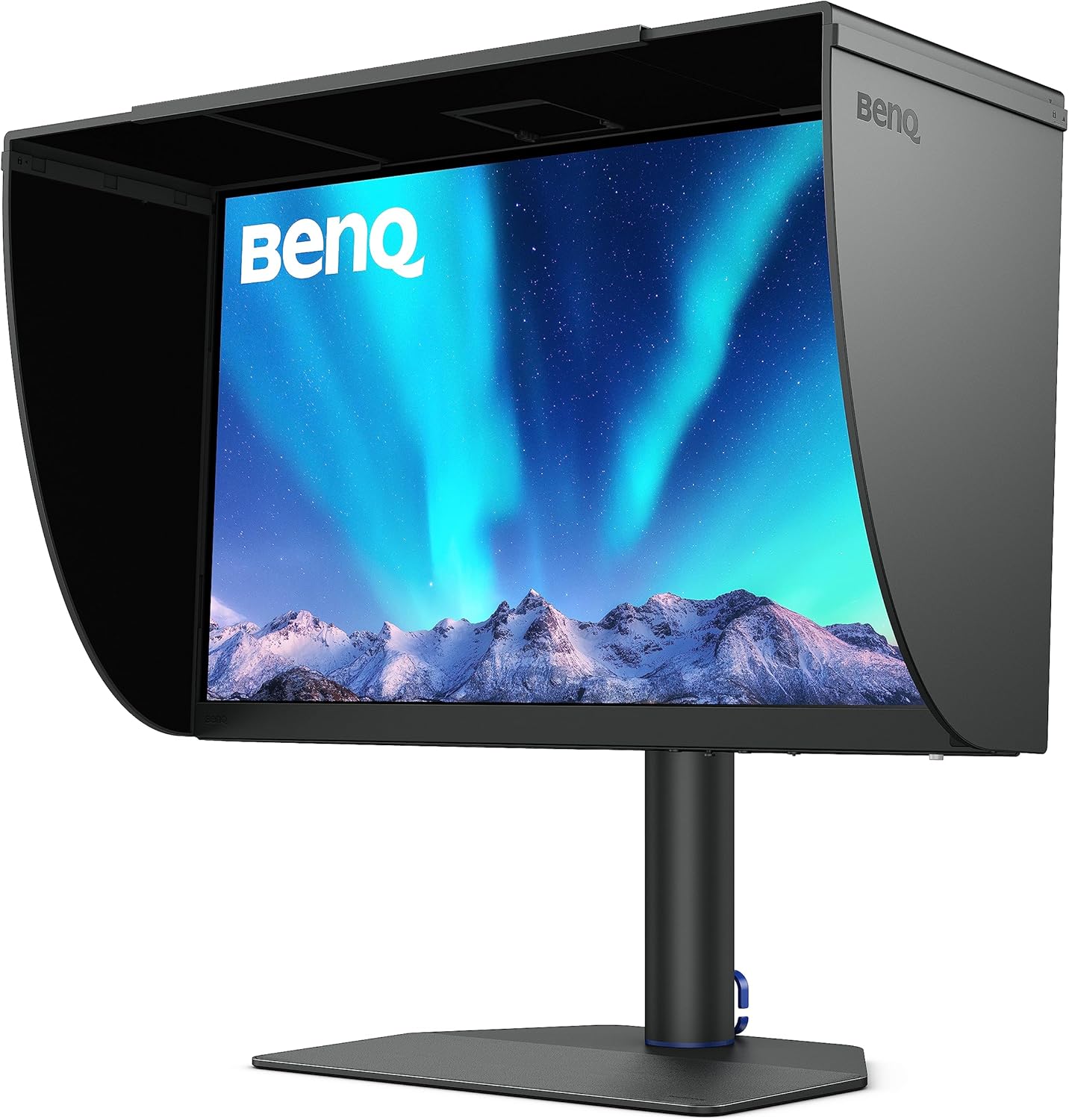
Click here to learn more about the BenQ Monitor
Key Considerations for Color-Grading Monitors
Panel Type and Color Accuracy
- IPS panels: excellent color and wide viewing angles.
- OLED: infinite contrast, vibrant colors, but potential for burn-in.
- Mini-LED: high brightness, local dimming, good for HDR.
- VA: good contrast but narrower viewing angles.
Color Gamut Coverage and Calibration
- Aim for 100% sRGB / Rec.709 minimum.
- Wide gamut (DCI-P3, Adobe RGB) ideal for high-end work.
- Factory calibration (Delta E < 2) is a must.
- Hardware LUT and built-in calibrators for pro-level color.
Resolution and HDR
- 4K is preferred for accurate grading and sharp visuals.
- HDR support varies: DisplayHDR 400 is basic, 1000+ nits and local dimming are needed for true HDR work.
Connectivity and Ergonomics
- USB-C with Power Delivery simplifies laptop setups.
- Multiple inputs (HDMI, DisplayPort), daisy-chaining, KVM switches are useful.
- Adjustable stands and shading hoods help reduce fatigue and improve accuracy.
Comparison Table: Top Monitor Picks by User Level
| Monitor | Size & Res | Color Coverage | HDR | Key Features | Best For |
|---|---|---|---|---|---|
| ASUS ProArt PA279CRV | 27″ 4K | 100% sRGB, ~99% P3 | DisplayHDR 400 | Factory calibrated, USB-C (96W), Calman Verified | Beginner |
| Dell U2723QE | 27″ 4K | 100% sRGB, 98% P3 | DisplayHDR 400 | IPS Black, USB-C hub, KVM, Delta E < 2 | Enthusiast |
| ViewSonic VP2786-4K | 27″ 4K | 100% Rec.709, 98% P3 | HDR10 | Calman Verified, shading hood, ColorPro Wheel | Enthusiast |
| BenQ SW272U | 27″ 4K | 99% Adobe RGB, 99% P3 | HDR10 (SDR-focused) | 16-bit LUT, Hotkey Puck, Uniformity Tech | Professional |
| Eizo CG2700X | 27″ 4K | 99% Adobe RGB, 98% P3 | DisplayHDR 500 | Built-in calibrator, 16-bit LUT, USB-C PD | High-End Pro |
Final Thoughts
The best monitor for your podcast color grading workflow depends on your budget and goals:
- Beginner: ASUS ProArt PA279CRV offers incredible value with wide gamut and factory calibration.
- Enthusiast: Dell U2723QE or ViewSonic VP2786-4K are excellent choices with better contrast and creator-friendly tools.
- Professional: BenQ SW272U and Eizo CG2700X provide near-reference accuracy, uniformity, and long-term reliability.
No matter which you choose, regular calibration and good lighting will help ensure your podcast videos look professional and consistent. A good monitor is a foundation for video editing success.
🎬 Final Thoughts: Elevate Your Color Grading Setup
A high-quality monitor is the cornerstone of precise editing—and this guide helped you zero in on the ideal display for color-critical work. But even the best screen works best when paired with the right supporting gear.
Whether you’re grading video podcasts, YouTube content, or cinematic footage, your studio setup should be built to handle visuals and sound with equal care. Think color accuracy, but also recording clarity, editing speed, and proper lighting.
👉 Here’s what to consider next:
- 📸 Best Podcast Cameras — Use accurate visuals at the source to minimize color correction work later
- 🎤 Top Podcast Microphones — Clean audio is essential for any content that matches polished visuals
- 💡 Podcast Lighting Gear — Balanced lighting makes it easier to judge and adjust your footage in post
- 💻 Best Laptops & Desktops for Editing — Color grading is GPU-intensive. These machines are built for it
- 💾 Reliable Podcast Data Storage — Work with large video files? You’ll need fast and secure media storage
- Live Streaming Equipment — For creators who want to stream in real-time with accurate visuals
Color grading isn’t just about your monitor—it’s about your entire visual workflow. With the right tools in place, you’ll produce professional, calibrated content that looks great on any screen.
Best Remote Podcast Recording Software & Platforms
The best remote podcast recording software in 2026 depends on your format. Riverside and SquadCast lead for studio-quality interviews, StreamYard wins for live and multistreamed shows, and Zencastr or Cleanfeed cover budget audio-only recording. Every option here records locally, so a guest’s shaky Wi-Fi won’t wreck your episode.
Remote podcasting is now the default, not the exception. You might interview a guest three time zones away, co-host from a different city, or run a live panel with people scattered across the country. The software you record on is what separates a clean, editable episode from a laggy, echo-filled mess.
Below is a current comparison of the top remote podcast recording platforms, what each one actually does well, and how to pick the right one for the kind of show you make.
What Is the Best Remote Podcast Recording Software in 2026?
For most podcasters, Riverside and SquadCast are the top picks for recorded interviews because both capture separate, studio-quality tracks locally on each person’s device. StreamYard is the better choice if you go live or multistream to YouTube and Facebook (you can read my review here). Zencastr and Cleanfeed are the strongest budget-friendly options. Here’s how the main platforms stack up.
| Platform | Free Plan | Local Recording | Separate Tracks | Video | Best For |
|---|---|---|---|---|---|
| Riverside | Yes (limited) | Yes | Yes | Up to 4K | Studio-quality video interviews |
| SquadCast (via Descript) | Yes (limited) | Yes | Yes | Yes | Reliability + built-in editing |
| Zencastr | Yes | Yes | Yes | Up to 4K | All-in-one record, host, monetize |
| StreamYard | Yes (watermark) | Cloud + local | Yes (paid) | Yes | Live and multistreamed shows |
| Zoom | Yes | Local (compressed) | Yes | Yes | Guest familiarity and backup |
| Cleanfeed | Yes (Lite) | No (cloud) | Yes (Pro) | No | Free audio-only interviews |
The single most important column is local recording. Platforms that capture each track on the participant’s own device (Riverside, SquadCast, Zencastr) protect you from internet dropouts, because the high-quality file never has to travel across a wobbly connection mid-recording.
How Do the Top Remote Recording Platforms Compare?
Is Riverside Good for Remote Podcasts?
Riverside is built for high-fidelity remote recording, capturing lossless audio and up to 4K video locally on each participant’s device. Its free plan covers 2 hours per month at 720p with a watermark, and paid plans start around $15 to $19 per month on annual billing, unlocking separate tracks, higher quality, and AI editing tools like Magic Clips and Magic Audio.
Guests join in a browser with no account required, and Riverside charges per host seat rather than per participant. The main trade-offs are cost at the higher tiers and occasional browser or upload hiccups. If pristine video is your priority, it’s the platform to beat. See the head-to-head in StreamYard vs. Riverside.
What Happened to SquadCast?
SquadCast is now part of Descript. It still runs as a standalone browser-based recording studio, but every plan now bundles Descript’s full editing, transcription, and AI suite at no extra cost, and the reverse is also true. Plans run Free, Hobbyist, Creator, and Business, tied to Descript’s tiers, with annual billing saving up to 35 percent.
Its signature feature is progressive upload, a patented system that pushes each track to the cloud in real time so a dropped connection or crashed browser doesn’t cost you the recording. Dolby audio processing is built in. The catch: SquadCast does not live stream, so it’s a recording tool, not a broadcast tool. Compare it in SquadCast vs. Riverside and SquadCast vs. Zencastr, or check the full SquadCast pricing breakdown.
Is Zencastr Worth It for Remote Recording?
Zencastr is the most complete all-in-one option, combining remote recording, hosting, monetization, and AI editing in a single dashboard. Its free plan is unusually generous, offering unlimited audio and video recording with separate tracks and basic editing. Paid plans start around $20 per month and add more transcription hours, AI clipping, and team features.
Recording is local at 48kHz WAV with video up to 4K, and guests join through a browser link with no downloads. It’s the strongest pick if you want to record and publish without stitching together three separate tools. Details are in the Zencastr pricing guide.
Is StreamYard Good for Remote Podcast Recording?
StreamYard is the best choice when your remote show is live, video-first, or multistreamed. I’ve run my own live shows on StreamYard’s Advanced plan since 2024, and the thing it gets right that the others don’t is the guest experience: you send a link, they click it in a browser, and they’re on your set in seconds with no software, no account, and no config call before the show.
It streams simultaneously to YouTube, Facebook, LinkedIn, and more, with branded overlays, on-screen comments, and layouts built in. On paid plans you can download separate audio and video tracks per participant for editing, so a live broadcast can double as source footage for a polished, edited episode.
Two honest caveats from real use. First, your local recording resolution can shift because StreamYard shares your camera feed rather than pulling a separate high-res capture, so it’s not a true double-ender like Riverside or SquadCast. Second, the built-in music library is a copyright trap for anyone repurposing to YouTube, so vet your tracks. Pricing after the April 2024 Bending Spoons acquisition runs Free, Core ($44.99/mo or $35.99 annual), Advanced ($88.99/mo or $68.99 annual), Business ($299/mo), and custom Enterprise. Note that the 4K on Advanced is for local recording only, not streaming. The full plan-by-plan comparison lives in the StreamYard pricing guide.
If you’re weighing StreamYard against the free option, OBS is powerful but demands technical setup. In my own rig, an Elgato HD60 X capture card keeps OBS CPU usage around 6 percent, but that’s after a lot of tuning most creators don’t want to do. See StreamYard vs. OBS and Restream vs. StreamYard for the alternatives.
Try StreamYard free and see if it fits your show →
Can You Record a Podcast Remotely With Zoom?
Yes, but with caveats. Zoom is the platform your guests already know, which makes it a reliable backup and a low-friction option for non-technical interviewees. It can record separate tracks locally, but audio is compressed by default and only sounds acceptable if you enable “original sound” and everyone wears headphones.
It was never designed for podcasts, so it lacks the studio-quality capture of purpose-built tools. Use it as a safety net or when a guest simply won’t install anything else. The deeper comparison is in StreamYard vs. Zoom.
Is Cleanfeed a Good Free Option?
Cleanfeed is the best free tool for audio-only remote recording. Cleanfeed Lite delivers high-quality browser-based audio with no time limits and no watermarks, which is rare at zero cost. The Pro tier, around $23 per month, adds multitrack recording and enhanced processing.
The limitation is right there in the pitch: no video at all, and a bare-bones interface. If your podcast is purely audio and you want broadcast-quality sound without a subscription, Cleanfeed is hard to beat. For video shows, look elsewhere on this list.
Which Remote Podcast Software Should You Choose?
Match the tool to your format rather than chasing a single “best” pick:
- Best video quality and control: Riverside or SquadCast, thanks to local 4K capture and separate tracks.
- Live streaming and multistreamed video panels: StreamYard.
- All-in-one record, host, and publish: Zencastr.
- Recording plus editing in one pipeline: SquadCast with Descript.
- Free audio-only: Cleanfeed, or Zencastr’s free tier.
- Guests who only know Zoom, or a backup recording: Zoom.
How Can You Get Better Remote Recordings?
Software choice sets the ceiling, but a few habits protect the final episode regardless of platform:
- Send guests a prep checklist: headphones, a wired connection, a quiet room, and the recording link tested in advance.
- Always run a backup: record on a second platform, or ask guests to capture locally where possible.
- Use separate tracks: isolated files make fixing mistakes and balancing voices far easier in post.
For a full walkthrough of the process itself, from scheduling to export, see how to record a podcast remotely. If your show is video-heavy, the remote video recording software guide goes deeper on the video side.
What Gear Do You Need for Remote Podcasting?
Great software still needs decent hardware behind it. Clear audio matters even more when you’re not in the same room, so start with a solid microphone and, for video shows, a proper camera and lighting setup.
Multi-track remote recording is demanding on your machine, so a capable laptop or desktop keeps sessions lag-free. And once the episodes pile up, reliable NAS storage keeps your source files safe and backed up.
Remote podcasting doesn’t mean compromising on quality. With the right platform and a clean setup, your show can look and sound as professional as anything recorded in a studio.
Ready to go live? Start with StreamYard for free →
Frequently Asked Questions
What is the best software for recording a podcast remotely?
There’s no single winner. Riverside and SquadCast lead for recorded interviews thanks to local, separate-track capture. StreamYard is best for live, multistreamed video shows. Zencastr suits creators who want recording and hosting together, while Cleanfeed covers free audio-only. Match the tool to your format.
Can you record a podcast remotely for free?
Yes. Cleanfeed Lite offers unlimited free audio-only recording with no watermark, and Zencastr’s free plan includes unlimited audio and video with separate tracks. Riverside, SquadCast, and StreamYard also have free tiers, though they add watermarks, recording caps, or quality limits until you upgrade.
Is StreamYard good for remote podcast recording?
StreamYard is excellent for live, video-first, and multistreamed remote shows because guests join instantly through a browser link. It streams to multiple platforms at once and offers per-participant track downloads on paid plans. It’s less ideal than Riverside or SquadCast for pure double-ender audio quality, since it shares your camera feed.
What happened to SquadCast?
SquadCast is now part of Descript. It still works as a standalone browser recorder, but every plan now bundles Descript’s editing, transcription, and AI tools at no extra cost, and Descript subscribers get SquadCast recording included. It’s effectively two tools for one price, though it still doesn’t live stream.
Does remote recording software work if a guest has bad internet?
The good ones do. Platforms with local recording, like Riverside, SquadCast, and Zencastr, capture each track on the participant’s own device rather than over the connection. SquadCast’s progressive upload even saves files to the cloud in real time, so a dropped connection won’t cost you the recording.
Should I record video or audio-only for a remote podcast?
It depends on where your audience is. Video unlocks YouTube and social clips and is increasingly expected, so Riverside, SquadCast, Zencastr, and StreamYard all support it. If you publish audio only and want the cleanest sound for the least money, Cleanfeed or Zencastr’s free tier will serve you well.
Do my guests need to download or install anything?
With most modern platforms, no. Riverside, SquadCast, Zencastr, StreamYard, and Cleanfeed all let guests join through a browser link with no software or account required. This zero-friction join is one of the biggest reasons to use a purpose-built tool instead of asking guests to install a desktop app.
What’s the difference between local recording and cloud recording?
Local recording captures each participant’s high-quality file directly on their device, then uploads it, so internet problems don’t degrade the audio. Cloud-only recording captures the compressed stream sent over the connection. Local recording is why studio-quality remote tools sound clean even when someone’s Wi-Fi is unreliable.
Can I record a remote podcast with just Zoom?
Yes, but quality suffers. Zoom compresses audio unless you enable “original sound” and everyone wears headphones, and it wasn’t built for podcasting. It’s best used as a familiar backup for non-technical guests. For publishing-grade results, a dedicated tool like Riverside, SquadCast, or StreamYard is worth the switch.
How many people can join a remote recording session?
Most platforms comfortably handle a host plus several guests. SquadCast supports up to 10 on-screen participants with more in a backstage area, and StreamYard’s limits scale with your plan. Check each platform’s current caps, since guest limits and simultaneous-speaker counts vary by tier.
Best Podcast Equipment for Co-Hosts and Groups
Thinking about launching a podcast with a co-host, or building a studio for group discussions, interviews, or roundtable chats? This guide will help you build a setup that sounds professional—no matter how many people are at the table. Here’s everything you need for crisp audio, easy setup, and a stress-free recording experience for in-person podcasts with two or more hosts.
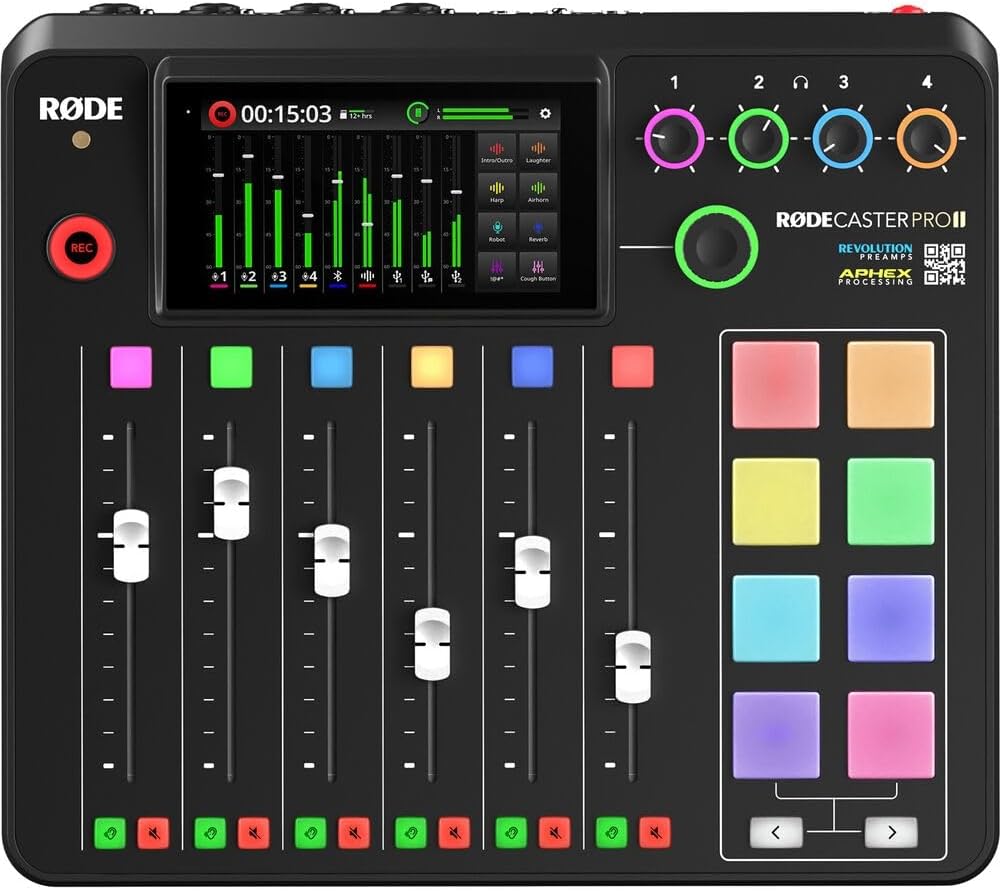
Click here for my favorite 4 person podcasting kit
Why Group Podcasts Need Different Gear
Recording with co-hosts or a group isn’t just “more of the same”—it adds new challenges: crosstalk, echo, mic bleed, and balancing multiple voices. Each host needs their own mic and headphones, and you’ll need gear that can handle multiple inputs and keep everyone sounding their best.
Quick Start: The Best Pre-Built Podcast Bundles for Groups
If you want to get started fast, there are some excellent all-in-one podcast kits that provide everything needed for 2–4 hosts. These bundles save time and ensure you’re not missing any crucial components.
| Bundle Name | Best For | Price | What’s Included |
|---|---|---|---|
| Focusrite Scarlett 2i2 Studio Pack | 2-person budget pro | ~$320 | 2x Mics, interface, cables, headphones |
| Zoom PodTrak P4 Podcasting Bundle | Up to 4 hosts, travel | ~$420 | 4x Mics, PodTrak P4, headphones, cables, stands |
| Rode Rodecaster Pro II Starter Kit | 2–4 hosts, pro setup | ~$950 | 4x Mics, Rodecaster Pro II, cables, headphones |
Tip: Bundles are often cheaper than buying everything separately and guarantee compatibility. Check for updated options from reputable brands (Focusrite, Rode, Zoom, PreSonus, Tascam, etc.).
Microphones: Every Host Needs Their Own
Key Principle: Never share a microphone! Every host (and guest) should have their own, positioned close to their mouth.
Best Microphones for Co-Hosts & Groups
| Microphone | Type | Connection | Price | Best For |
|---|---|---|---|---|
| Samson Q2U | Dynamic | USB/XLR | ~$60 | Budget, flexible, easy to add |
| Audio-Technica ATR2100x-USB | Dynamic | USB/XLR | ~$80 | Simple, upgradable |
| Shure SM58 | Dynamic | XLR | ~$99 | Classic live/podcast sound |
| RØDE PodMic | Dynamic | XLR | ~$99 | Great value, podcast-ready |
| Shure MV7 | Dynamic | USB/XLR | ~$250 | Pro sound, flexible |
| Shure SM7B | Dynamic | XLR | ~$399 | Studio, broadcast quality |
For two hosts, you can get away with dual USB mics if you’re careful, but for three or more, XLR is a must for reliability and sound.
Audio Interfaces & Mixers: More Mics, More Control
You need an interface or mixer with enough mic inputs for your whole group. Bonus points for onboard recording, sound pads, or easy headphone mixing.
Top Interfaces and Mixers by Group Size
| Model | Inputs | Built-In Recording | Price | Best For |
|---|---|---|---|---|
| Focusrite Scarlett 2i2 | 2 | No | ~$180 | 2-person, USB/XLR |
| Zoom PodTrak P4 | 4 | Yes (SD Card) | ~$150 | Up to 4 hosts, portable |
| Rodecaster Pro II | 4 | Yes (microSD/USB) | ~$700 | Pro podcast studios |
| Tascam Mixcast 4 | 4 | Yes | ~$600 | Multi-host, podcast & radio |
| PreSonus StudioLive 8 | 8 | No | ~$500 | Larger panels, live sound |
Always buy for at least one more input than you think you need—you’ll thank yourself when it’s time to add a guest.
Headphones: Everyone Needs Their Own
Closed-back headphones are best to prevent audio bleed. Use a headphone splitter or amp so every host can monitor the show.
| Model | Price | Best For |
|---|---|---|
| Audio-Technica ATH-M20x | ~$50 | Budget, durable |
| Sony MDR-7506 | ~$100 | Industry standard |
| Audio-Technica ATH-M50x | ~$150 | Pro, very comfortable |
| Behringer HA400 Splitter | ~$25 | Split 1 output to 4 |
| ART HeadAmp4 | ~$65 | Individual volume |
Recording Software: Multi-Track Matters
Choose software that allows multi-track recording so you can edit each host’s audio separately. This is key for professional-sounding group podcasts.
-
Audacity (Free): Multi-track, basic but solid.
-
Reaper (~$60): Flexible, full-featured, pro quality.
-
Hindenburg Journalist (~$100+): Designed for voice/podcast, easy to use.
-
Adobe Audition (Subscription): Industry standard for editing.
-
GarageBand (Mac, Free): Good for 2–3 tracks, limited for larger setups.
Essential Accessories & Studio Comfort
Beyond mics and mixers, the right accessories and comfort upgrades will make your sessions smoother and keep your studio organized.
-
Mic stands or boom arms: One per host, adjustable for posture and comfort.
-
Pop filters/windscreens: Eliminate plosives and sibilance for cleaner audio.
-
Labeling supplies: Colored tape, cable tags, or reusable bands for easy setup and teardown.
-
Cable management gear: Velcro ties, under-desk trays, or floor covers for a tidy, safe workspace.
-
Table pads/mats: Absorb vibrations, prevent desk noise.
-
Headphone amps/splitters: So everyone can monitor audio with their own headphones.
-
Comfortable chairs: Long sessions are easier with good seating and adjustable height.
-
Water bottles/cups: Keep hydrated and protect gear from spills with lidded drinks.
-
Portable acoustic panels or blankets: Minimize echo if your space is untreated.
-
Notepads/whiteboards: Quick access for show notes, time cues, and reminders.
Pro Setup Tips for Co-Hosts & Groups
-
Space mics evenly: Aim for 6–10 inches from each mouth, angled away from each other to reduce bleed.
-
Monitor with headphones: Always have everyone listen to themselves.
-
Avoid talking over each other: Practice hand signals or use a “round robin” cue.
-
Room setup: Use soft furnishings or portable panels to cut echo.
-
Record a quick test: Catch issues before the real show.
Gear Comparison Table: 2-, 3–4-, and 5+ Host Setups
| Setup Size | Mics | Interface/Mixer | Headphones/Splitter |
|---|---|---|---|
| 2 Hosts | Q2U, ATR2100x, PodMic | Scarlett 2i2 | ATH-M20x, MDR-7506, HA400 |
| 3–4 Hosts | SM58, PodMic, MV7 | PodTrak P4, Rodecaster | ATH-M50x, HeadAmp4 |
| 5+ Hosts | SM58, PodMic, SM7B | StudioLive 8, Mixcast 4 | Mix of above + more splitters |
FAQ: Group Podcasting Equipment
Can you use USB mics for multi-host podcasts?
Not reliably. Most computers only handle one USB mic at a time. Use XLR mics and an interface/mixer for anything over two hosts.
How do I avoid crosstalk and mic bleed?
Use dynamic mics, keep them close to each mouth, and angle them away from each other. Sound treatment helps, too.
What if we want to add remote guests?
Look for mixers/interfaces with mix-minus or USB connectivity, or use a dedicated remote recording platform (like Riverside or Zoom) and route audio with a mixer.
Is it worth buying a podcast-specific mixer?
If you plan to grow, want onboard recording, or need sound pads and remote guest features, yes. Otherwise, a regular interface works for most.
Wrapping Up
Setting up a podcast for co-hosts or groups isn’t hard—but getting it right saves you hours of editing and gives your show a professional edge from day one. Invest in the right mics, an interface or mixer with enough channels, headphones for all, and some basic accessories.
🎬 Final Thoughts: Build a Studio That Supports the Whole Team
Collaborative podcasts demand clear, consistent sound—and this guide showed you how to choose the right podcast microphone bundle for your setup. But as your team grows, so do your production needs.
Whether you’re working with a co-host or running a multi-mic roundtable, your studio setup needs to handle more voices, more visuals, and more complexity—without slowing you down.
👉 Here’s what to explore as a group:
- 📸 Best Podcast Cameras — Capture every angle and make your hosts look polished on camera
- 🎤 Top Podcast Microphones — Studio-quality mics for each speaker, so everyone sounds their best
- 💡 Podcast Lighting Gear — Even lighting ensures everyone in the group is camera-ready
- 💻 Best Laptops & Desktops for Editing — Multitrack editing? Heavy file exports? These machines can handle it
- 💾 Reliable Podcast Data Storage — Centralize your project files so your team stays in sync
- Live Streaming Equipment — Go live with a setup that supports multiple hosts and guest feeds
A great group podcast is built on smooth collaboration and reliable gear. With these tools in place, you’ll sound united and look professional—no matter how many voices are on the mic.
Best Podcast Recording Equipment for Solo Podcasters
If you want your solo podcast to sound professional and attract new listeners, you need the right gear. This updated guide breaks down the best podcast microphones, audio interfaces, headphones, and accessories for solo podcasters—plus real setup tips and answers to common questions. Whether you’re a complete beginner or ready to upgrade, you’ll find exactly what you need to launch or improve your solo podcast in 2025.

Why Quality Equipment Matters for Solo Podcasters
Your audience will forgive small mistakes, but not bad audio. With the right podcast equipment, you sound clear, confident, and credible—even from a spare room or home office. Plus, good gear keeps your editing simple and your message front and center.
Best Microphones for Solo Podcasting
What type of microphone should you use for solo podcasts?
- Dynamic microphones: Best for untreated rooms and solo hosts—reject background noise, make you sound great.
- Condenser microphones: Capture more detail, but also more room noise—best for studios.
USB or XLR for podcasting?
- USB microphones: Plug-and-play for laptops, desktops, or iPads—perfect for beginners or travel.
- XLR microphones: Pro-level audio, require an interface, and are best for podcasters who want to upgrade later.
Top-Rated Solo Podcast Microphones in 2025
| Microphone | Type | Connection | Price | Who It’s For |
|---|---|---|---|---|
| Samson Q2U | Dynamic | USB/XLR | ~$60 | Beginners, remote podcast |
| AT2020-USB | Dynamic | USB/XLR | ~$80 | USB-C, easy upgrade path |
| RØDE PodMic | Dynamic | XLR | ~$99 | Studio feel on a budget |
| Shure MV7+ | Dynamic | USB/XLR | ~$250 | Flexible, pro sound |
| Shure SM7B | Dynamic | XLR | ~$399 | Industry standard, pro |
| Blue Yeti | Condenser | USB | ~$130 | For treated quiet rooms |
Expert Tip: If your recording space isn’t soundproofed, stick with a dynamic mic for better results. A USB/XLR mic (like the Q2U or MV7) gives you room to grow.
Top Audio Interfaces for Solo Hosts
If you’re using an XLR mic (PodMic, SM7B, etc.), you’ll need an audio interface. It powers your mic and gets sound into your computer with studio clarity.
Best Solo Podcast Audio Interfaces:
- Focusrite Scarlett Solo (~$120): Reliable, easy for first-time users, clean sound.
- Behringer UMC22 (~$60): Budget XLR interface, gets the job done.
- Audient iD4 (~$199): Best sound and features at this level.
- Universal Audio Apollo Solo (~$500+): Studio-grade, pro-level.
No interface needed for USB mics—just plug and record.
Best Headphones for Podcasting
Why do you need headphones for podcasting? They help you catch issues before it’s too late—like echo, hum, or background noise—so your episodes sound clear every time.
| Headphone Model | Price | Key Benefits |
| Audio-Technica ATH-M20x | ~$50 | Budget, solid basics |
| Sony MDR-7506 | ~$100 | Industry standard |
| Audio-Technica ATH-M50x | ~$150 | Comfort, accuracy |
| Beyerdynamic DT 770 Pro | ~$160 | Pro, very comfortable |
Never record with speakers—they’ll bleed into your mic!
Easy Recording Software for Solo Podcasters
Choose user-friendly software so you can focus on content, not tech headaches.
- Audacity (free): Best for beginners, open-source, works on all platforms.
- GarageBand (free for Mac): Easy, podcast templates.
- Reaper (~$60): Powerful, pro-quality, flexible.
- Hindenburg Journalist (~$100+): Made for spoken word.
- Descript (subscription): Edit audio like text, very beginner-friendly.
Must-Have Podcast Accessories
- Boom arm or desk stand: Keeps mic steady at mouth level.
- Pop filter or foam windscreen: Stops plosives and sharp breath sounds.
- High-quality cables: Avoid hum and noise (if using XLR).
- Acoustic treatment: Blankets, foam panels, or even recording in a closet improve sound instantly.
- Shock mount: Stops bumps and desk noise from ruining your takes.
Step-by-Step Solo Podcast Setup Tips
- Position your mic: 6–8 inches from your mouth, slightly off-center.
- Set proper gain: Watch your levels—peak around -12 dB for clean, distortion-free audio.
- Always monitor: Wear closed-back headphones so you can hear issues as they happen.
- Eliminate background noise: Shut off fans, phones, and anything that buzzes.
- Test before you record: Do a quick check, listen back, and tweak if needed.
Quick Comparison Table
| Category | Budget Option | Mid-Range | Pro Level |
| Microphone | Samson Q2U / ATR2100x | Shure MV7 / PodMic | Shure SM7B |
| Interface | Behringer UMC22 | Scarlett Solo / iD4 | Apollo Solo |
| Headphones | ATH-M20x | MDR-7506 / ATH-M50x | DT 770 Pro |
| Software | Audacity / GarageBand | Reaper / Hindenburg | Descript |
FAQ for Solo Podcasters
Can I use AirPods or a gaming headset for podcasting? You can start with what you have, but even a $60 podcast mic will sound dramatically better. Listeners can hear the difference.
Do I need headphones if I’m recording alone? Absolutely. Headphones catch mistakes before they ruin your show—don’t skip them.
Can I record a podcast on my phone or iPad? Yes, with a USB mic and adapter. Some apps let you record directly, but a laptop or desktop is easier for editing and monitoring.
How do I make my recordings sound more professional? Use a dynamic mic, record in the quietest space you can, and add soft surfaces to kill echo. Simple tweaks have a big impact.
What if my first episodes aren’t perfect? That’s normal—every podcaster gets better with practice. Launch now and improve over time.
What’s the best way to expand to co-hosts or guests later? Pick a USB/XLR mic and an interface that lets you add more mics. The gear above all has easy upgrade paths.
How do I back up my recordings? Save raw files to cloud storage, a second hard drive, or even email. Redundancy is smart—lost episodes are hard to replace!
🎬 Final Thoughts: Build the Ultimate Solo Podcast Setup
As a solo podcaster, your voice is your brand—and this guide walked you through how to pick the right podcast microphone bundle to make it shine. But strong audio is just the first step if you want to compete in today’s video-first world.
Running a one-person show means your studio setup has to do more with less. From sharp visuals to smart storage, the right gear can make your solo workflow smoother, faster, and more professional.
👉 Next up—optimize your solo studio:
- 📸 Best Podcast Cameras — Stay camera-ready with gear that flatters your solo setup
- 🎤 Top Podcast Microphones — Need an upgrade? These mics deliver pro-level clarity without the bulk
- 💡 Podcast Lighting Gear — Lighting that makes a difference, even in a spare bedroom or home office
- 💻 Best Laptops & Desktops for Editing — Handle editing, uploading, and multitasking like a pro
- 💾 Reliable Podcast Data Storage — Store your episodes safely and access them from anywhere
- Live Streaming Equipment — Easily go live with solo-friendly gear that scales with your show
With the right solo podcast setup, you’re not just recording—you’re building a brand. Use the links above to upgrade each piece of your studio and create a professional space that’s entirely your own.